
Scan, plan, migrate with confidence
Get crystal-clear reports on identities, sites, teams, and permissions before you move a single file, then bulk-fix what matters for a flawless migration.


Trusted by 100,000+ IT pros
Reduce risk before moving to Microsoft 365
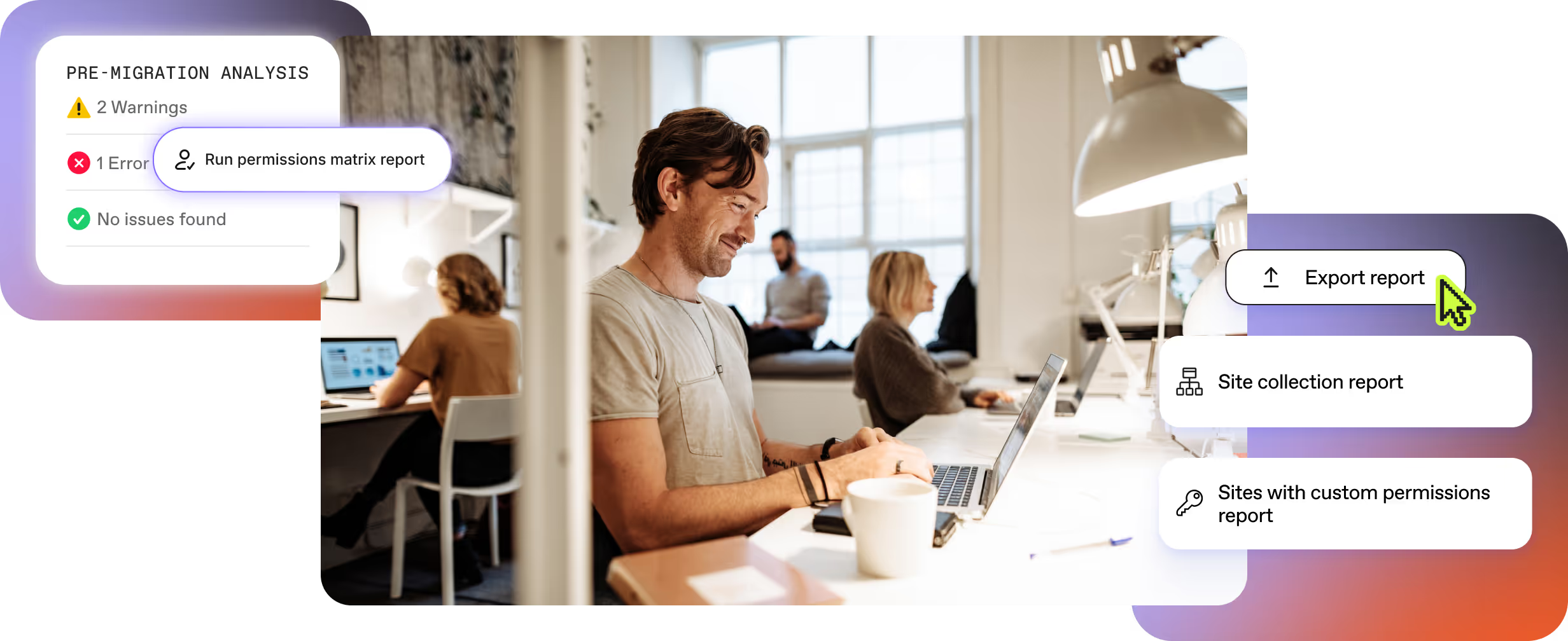
From identity conflicts to broken permissions, ShareGate surfaces every detail that could derail a move, and lets you bulk-correct it before go-day.

See identities, permissions, and content up front for flawless migration planning.

Bulk-edit or remove permissions across thousands of items in seconds.
No manual site-by-site cleanup.

Export shareable reports to reassure stakeholders and slash approval cycles.
See what you're migrating to Microsoft 365
- Identity conflicts between source and target tenant
- Mailbox sizing, archive presence and complexity
- Full inventory of sites, lists, libraries, workflows, and custom code.
- Complexity scores highlight risky sites.
- CSV export for project plans and sign-offs.

Keep learning with free resources
Fix permissions before they become AI exposure
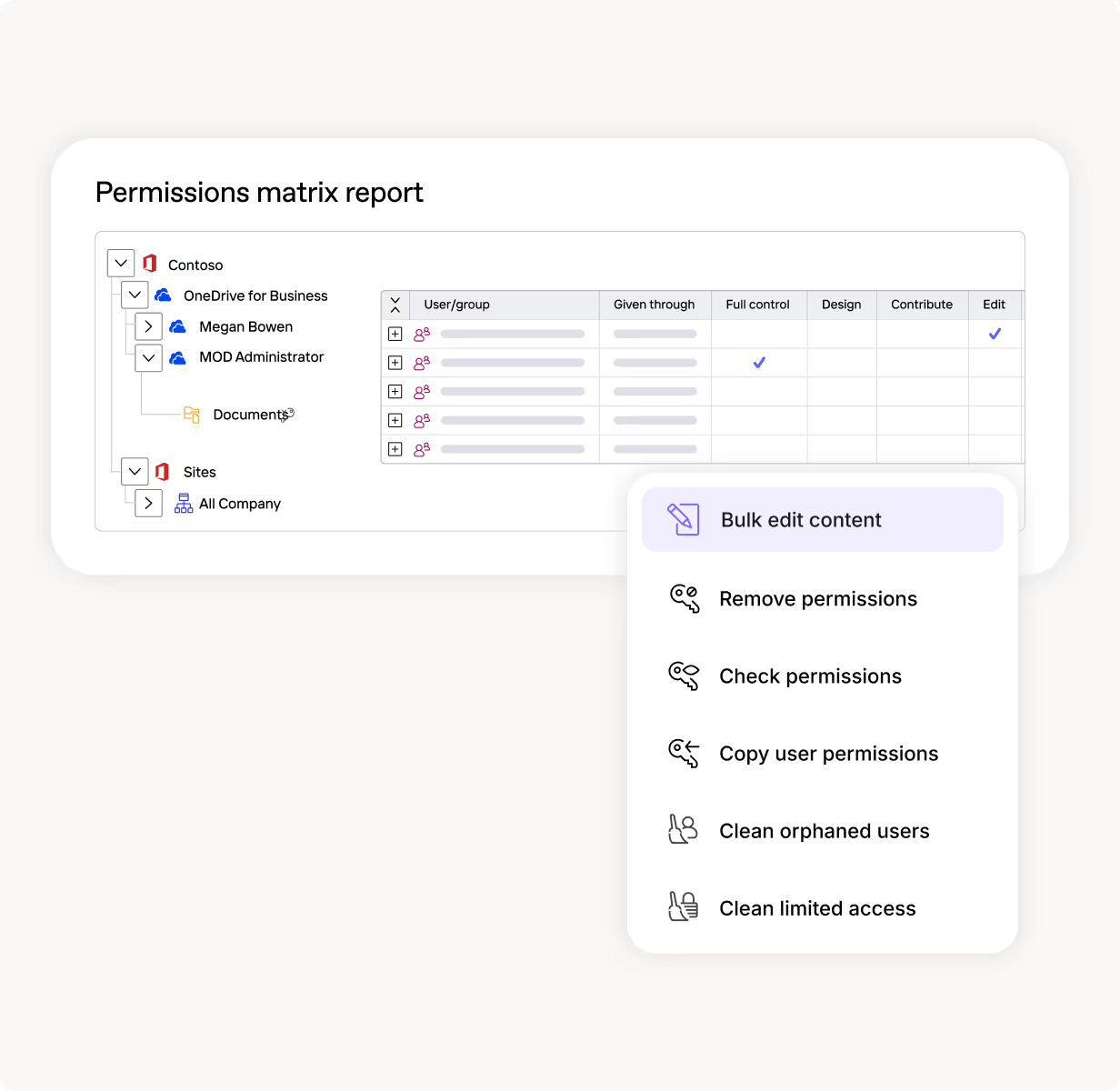
- Permissions matrix report shows every user, group, and role in one view with ShareGate Migrate, coming soon to ShareGate Protect
- Bulk-edit or bulk-remove rights in seconds with Migrate
- Guest access and external sharing links surfaced with Protect
- Permissions monitored and flagged automatically, before and long after cutover with Protect
One tool to scan, plan, and migrate with confidence

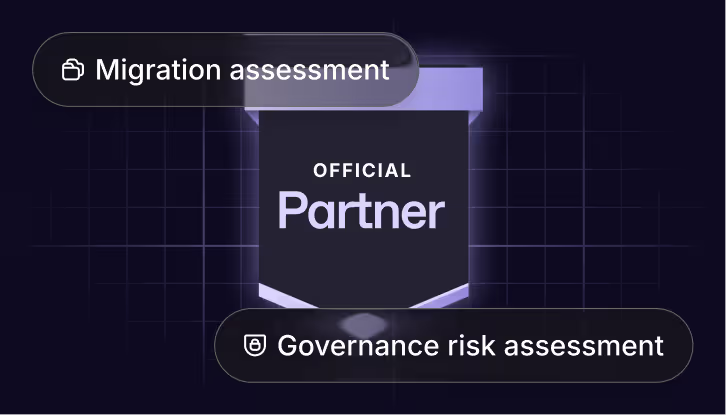
Partner
program
Transform and grow your business, add value for your customers, and seize new growth opportunities.








Frequently asked questions

A SharePoint permission matrix report shows the complete permission structure for a site, library, or other scope. It breaks down who has access at each level (site, library, folder, document) and shows whether permissions are inherited or unique.
The report includes SharePoint groups and their members, Active Directory/security groups, direct user permissions, and permission levels granted at each level. It also highlights where inheritance is broken and can show sharing links and guest access. ShareGate's Permissions Matrix Report scans the entire scope you select and gives you a hierarchical view of every permission assignment.
Don't run ShareGate's Permissions Matrix Report tenant-wide. It's too resource-intensive and will produce unmanageable outputs. Instead, scope your tenant into batches first.
Run a Site Collection or Site report to filter sites by size, activity, or other criteria. Then launch the Permissions Matrix Report from those filtered results, one batch at a time. Export each batch to CSV or Excel. If you need one consolidated view, combine the exports in Excel or Power BI afterward. This keeps individual reports manageable and avoids hitting export limits.
Yes. Run the Permissions Matrix Report, use "Expand all groups" (or expand specific groups you care about), then export to Excel or CSV. The export will include the individual members inside each expanded group.
To expand and include members of security groups, you need to run the report as a SharePoint admin or Global admin. Site collection admin permissions alone won't let you see inside security groups.
Run ShareGate's Permissions Matrix Report on the destination after migration to see the complete permission structure at every level. Ideally, run the same report on the source before migration so you can compare them side by side.
Check the migration report for permission-related warnings and errors, like unresolved users or groups that couldn't be mapped. These flag what didn't migrate correctly. For a detailed comparison, export both permission matrix reports to Excel and compare broken inheritance locations, permission levels, and group memberships. This confirms whether everything carried over as expected.
Don't run the Permissions Matrix Report tenant-wide or on extremely large scopes. It's resource-intensive because it traverses every level to find broken inheritance and unique permissions, which creates long runtimes and massive outputs.
Batch your reporting by scoping first. Run a Site Collection report to filter sites by size or activity, then launch the Permissions Matrix Report on smaller batches from those results. You can also use "Check permissions" as a lighter pre-scan to identify which sites have broken inheritance or unique permissions, then run the full matrix only on those sites that need deeper analysis.
For SharePoint migrations, destination user accounts need to exist before you start. You can use ShareGate to migrate Entra ID users first so that your SharePoint content lands with permissions intact and no orphaned files.
In your migration job, go to Mappings and then Users and groups. ShareGate tries automatic mapping, but if it can't match confidently, you'll need to manually map source users to destination accounts.
For consistency at scale, export a master mapping file (SGUM format) or build one from CSV using PowerShell, then import it for every migration operation. This ensures permissions, group memberships, and user metadata like Created By and Modified By resolve to the correct destination identities across all migrations.
Changing user mappings doesn't update permissions retroactively on content you already migrated. ShareGate applies permissions when content is copied, so if a user wasn't mapped (or didn't exist) during the original migration, those permissions won't be there. To fix this, run another incremental migration pass on the affected content. ShareGate will recreate permissions using the updated mappings when it recopies those items. You don't need to start from scratch; only the affected items will be recopied.
You need Site Collection Administrator on every site in scope. ShareGate uses delegated permissions, so you can't do anything in ShareGate that your account couldn't do directly in SharePoint.
For bulk operations across multiple site collections, Site Collection Administrator is required on all of them. In some cases, Global Admin is needed only to grant initial consent to ShareGate's Azure app, but the actual day-to-day permission changes still require Site Collection Administrator on the target sites.
Real humans, real fast.
Choosing ShareGate means choosing a highly qualified team of tech support. We’re always there for you.

Microsoft 365 migration resources for IT admins

Microsoft 365 administration resources



"ShareGate has provided me with the ability to deliver projects faster, more efficiently than using other toolsets. ShareGate's diligence with product updates and community involvement makes them a perfect partner."
Don’t just migrate it, ShareGate it.
Your source is never touched — ShareGate only copies.
Re-running is safe, included, and free.

