.svg)

.avif)
SharePoint security audit tool
Discover how we can help you manage SharePoint permissions, users, & activity at scale!
Book demo%20(1).avif)
Master Hacks: Migrate like a pro
Check out our video series to help you turn migration projects into masterpieces!
Table of contents
TL;DR: Knowing who did what to which file, and when, is the difference between a tidy SharePoint environment and a breach you find out about from someone else. Here’s how audit logging actually works in Microsoft 365 today, where to find it, and what it won’t tell you.
An unaudited cloud repository, like SharePoint, can pose a risk for your organization. At best, this could be a cluttered IT environment. At worst, it could leave your network vulnerable to a costly data breach.
Auditing SharePoint used to be a checkbox in site settings. It isn’t anymore.
What people still call “SharePoint audit logs” is really the Microsoft 365 unified audit log, filtered to SharePoint and OneDrive activity, and it lives in a completely different portal than it did a few years ago.
In this article we’ll cover what gets logged, how to search it today, how to get the data out, and the gaps you should know about before you rely on it.
Understanding your SharePoint environment with audits and logs
SharePoint doesn’t keep its own audit trail in the cloud. Every action your users take such as opening a file, sharing a folder, changing permissions is sent to the Microsoft 365 unified audit log, and everything you do with those records happens in Microsoft Purview.
That one fact explains most of the confusion people run into: they go looking in site settings and find a page that hasn’t done anything useful in years.
SharePoint audit logs allow you to analyze the files, lists, and folders in your cloud ecosystem and see how employees are using them. They’re a great way to gain wide visibility over your SharePoint environment.
For example, if documents are going missing in the network, or being mislabeled, you can see which users are responsible.
Related reading: What are Microsoft Lists? Vs. SharePoint Lists and more
Running an audit log in SharePoint establishes consistency (for example, in how documents are named and stored) and ensures that any mistakes made are addressed quickly. A mislabeled document containing sensitive information (e.g. stored in a public folder) could be costly to an organization in the event of a security breach.
The unified audit log covers roughly ninety categories of activity across Microsoft 365. These are the ones that matter for SharePoint and OneDrive:
- File and page activities: accessed, modified, downloaded, uploaded, deleted, renamed, restored
- Folder activities
- Sharing and access request activities
- Site administration activities
- Site permissions activities
- SharePoint list activities
- Synchronization activities
- SharePoint Embedded container type activities
- Sensitivity label activities, including auto-labelling of SharePoint items
- Retention policy and retention label activities
- Microsoft 365 Backup activities
Alongside those you’ll also find directory administration, Power Automate, Teams, and dozens of other workloads in the same log.
How to configure audit settings in a site collection
The legacy audit pages under Site Settings are still visible, but there’s almost nothing left. Audit log trimming does nothing in SharePoint Online. Microsoft’s own guidance carries the flat statement “Trimming is not supported for SharePoint.” You can no longer choose which events to audit, and sub-site scoped reports are gone. If you generated audit log reports in the past, the files are still sitting in whichever document library you nominated.
Everything real now happens in the unified audit log, including the SharePoint list activity, which is fully covered there and Microsoft’s own guidance on that legacy page points you at Purview and the Management Activity API.
Audit log search is turned on by default for Microsoft 365 enterprise organizations, so there’s usually nothing to switch on. What you do need is the right role and it’s split across two portals:
- Audit Manager
- Audit Reader
- Audit Logs / View-Only Audit Logs
For day-to-day audit searches, assign the Audit Logs or View-Only Audit Logs role in Microsoft Purview.
Don’t stop there if you also need PowerShell or the ability to turn auditing on or off. Microsoft still requires the equivalent Exchange admin center roles for audit cmdlets and audit configuration, so a Purview-only role can open the search experience but may fail once you move to Exchange Online PowerShell.
And check whether your admin account is scoped to administrative units. If it is, your audit searches are limited to users in those units. That limitation is easy to miss because the search still runs normally. It just returns a smaller set of records. Two admins can use the same filters and get different results, simply because they are allowed to see different users.
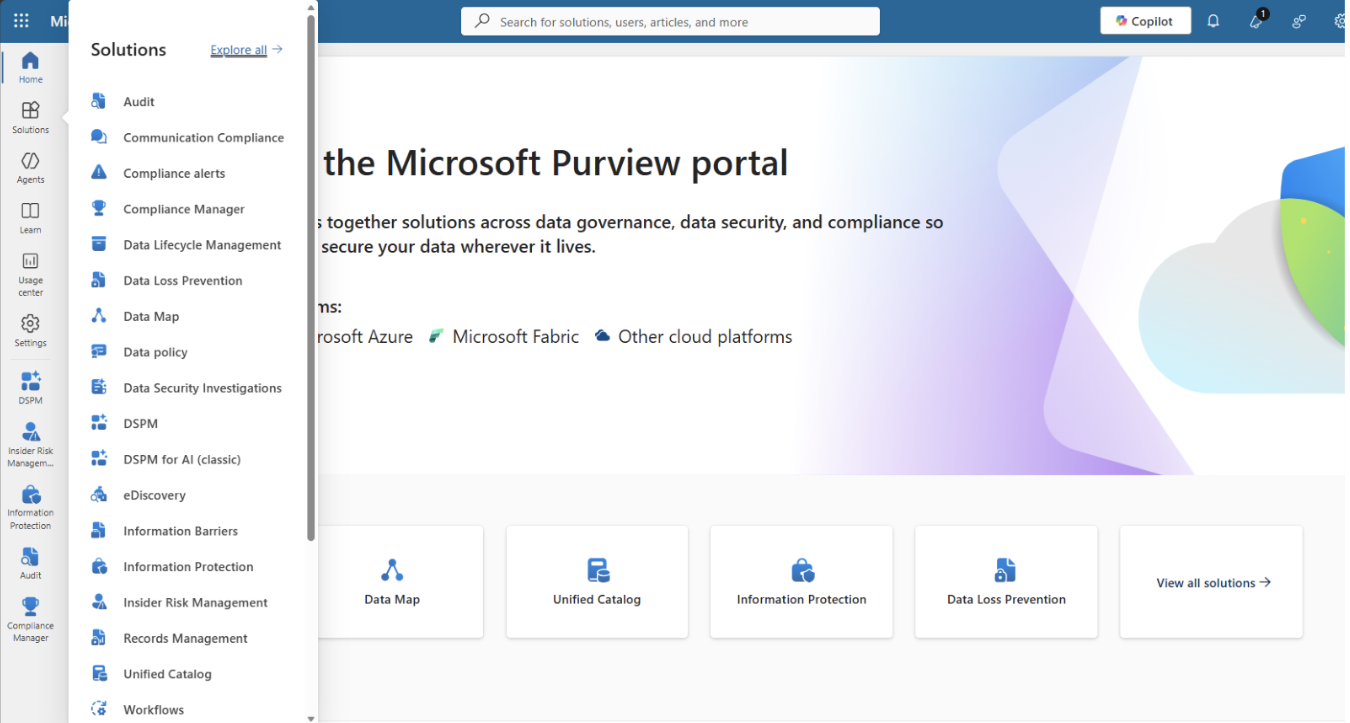
Has auditing deliberately been switched off in your tenant? You're going to see a banner prompting you to start recording user and admin activity. Click that button.
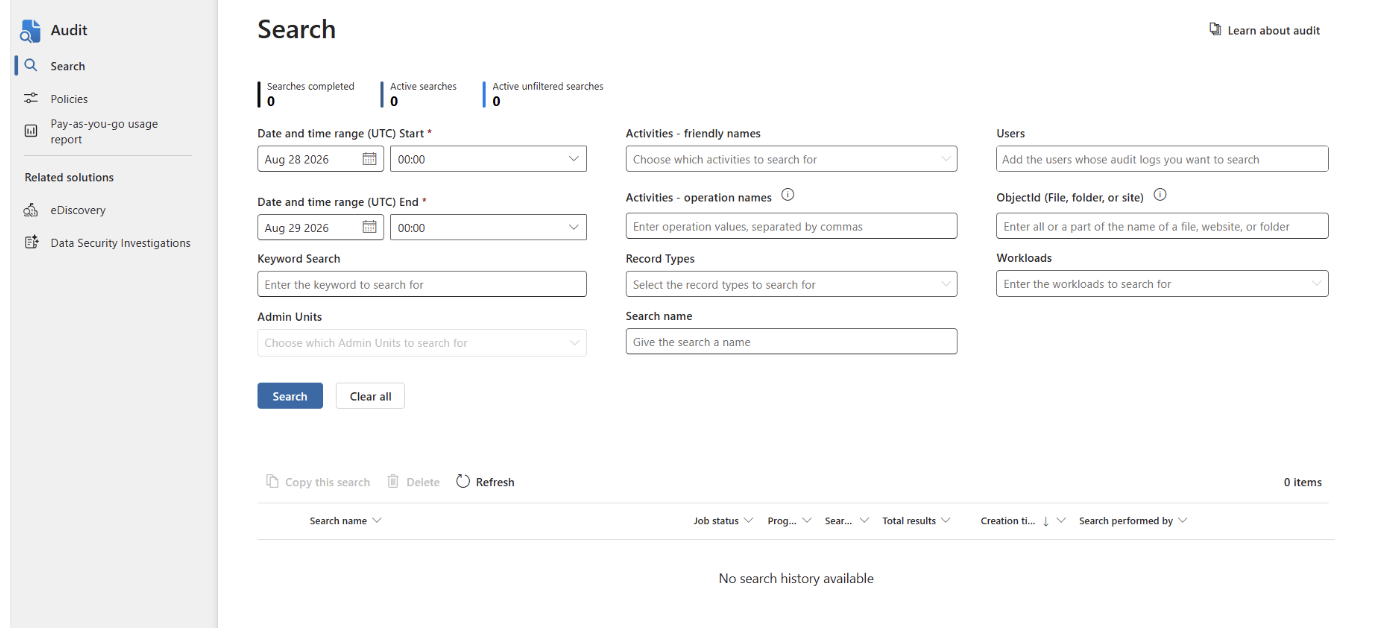
On the Search page you can, no surprise here, set up your search. There are more fields than there used to be:
- Date and time range (UTC): The last seven days are selected by default. The maximum range you can specify is 180 days. If you use the full 180 days, set the start date to the current time or you’ll get a “start date is earlier than the end date” error, and if auditing was only turned on recently, the range can’t begin before that date.
- Activities - Friendly names: Pick from the drop-down of readable activity names, grouped by workload. You can select individual activities or a whole group.
- Activities - Operations names: Do you already know the exact operation you’re after? Type them here as a comma-separated list. This is the faster route once you know what you’re looking for.
- Record types and Workloads: Narrow to SharePointFileOperation or SharePointSharingOperation, or to the SharePoint workload as a whole.
- Keyword Search: Keywords only match indexed content in the audit common schema. They don't search inside the AuditData payload, which is where most of the interesting detail lives.
- Search name: Your search is a saved job now, so give it a name you’ll recognise in the dashboard later.
- Users: Select one or more users, or leave blank to return entries for all users and service accounts. One thing that isn’t obvious is that if you’re a restricted admin scoped to administrative units, leaving this blank doesn’t return everyone. It returns everyone you’re allowed to see.
- File, folder, or site: Type some or all of a file or folder name to search for related activity. You can also specify a URL of a file or folder. Or, leave this box blank to return entries for all files and folders in your organization.
Select Search to start the job. And “job” is the word that matters here: since classic search retired in November 2023, this no longer returns live results. Your search runs server-side and you can close the browser.
Working with search jobs
Your search queries are in a dashboard with the following metadata:
- Job status (Queued, In Progress or Completed)
- Progress percentage
- Search time
- Total results
- Creation time
- Created by
There are a couple of important but practical limitations:
- Broad searches are slow. Microsoft warns that in large tenants with a high number of users, broadly-scoped Search jobs may take up to 48 hours to complete.
- Completed jobs are kept for 30 days.
- You can run a maximum of 10 jobs in parallel per account, and only one of those can be unfiltered.
- Above 100,000 results the total is shown as an approximation rather than a count.
- Deleting a job removes the job and its results, not the underlying audit data.
There’s also a Copy this search button, which is really useful! You only have to build one good query and copy it rather than rebuilding the filters every time. Awesome!
Don’t panic!
If you delete a file and immediately search for it, you won’t find it. The core Microsoft 365 services such Exchange, SharePoint, OneDrive and Teams, typically show up 60 to 90 minutes after the event, longer for other services.
app@sharepoint
Plenty of SharePoint audit records show app@sharepoint as the user rather than a person. That’s the service acting on someone’s behalf. For example, group and team creation or compliance features. It isn’t a compromised account, and it isn’t a bug. It does mean the record won’t tell you who actually triggered it.
Microsoft’s full reference for audit search, including the permissions model and every field on the search page, can be found at in Microsoft's official documentation on how to search the audit log.
Limitations of audit logs
The unified audit log is a good forensic tool but a poor monitoring tool. It'll tell you what happened if you already know roughly what you’re looking for and when. But it will not watch your environment for you, and there are a few places where it'll quietly give you less than you asked for. These are the limitations to keep in mind.
No regular reporting capabilities
There’s no scheduling within the Audit UI. You run a search, wait for the job, and export from the search job details view. Every single time. This is still as frustrating as ever.
What’s changed is that the export has documented limits.
Audit (Standard) exports up to 50,000 rows to CSV. Audit (Premium) goes to 1,000,000. Go over the limit and Microsoft is blunt about what happens: “the exported .csv file doesn’t include all results and might leave out some audit logs.” No warning, just fewer rows than you expected. Unacceptable in our opinion. If an export fails outright, check that your firewall isn’t blocking the Azure Front Door domain (azurefd.net).
Here are your automation options:
- Office 365 Management Activity API: Microsoft recommends this option for programmatic pulls, SIEM ingestion, and long-term retention. Organizations get a baseline of 2,000 requests per minute, with Audit (Premium) providing higher bandwidth. This is roughly twice the bandwidth of Audit (Standard).
- Search-UnifiedAuditLog: Useful for ad-hoc scripting. It returns up to 100 records by default, can return up to 5,000 records per request, and can retrieve up to 50,000 results with ReturnLargeSet.
- Audit Search Graph API: The modern asynchronous option, with a caveat: although v1.0 pages have existed, Microsoft rolled the API back to beta in April 2025 after reliability issues. Verify the current endpoint before depending on it in production.
There is one thing SharePoint does now schedule! Change history reports in the SharePoint admin center will give you CSV reports of site actions or organization setting changes over the last 180 days, up to ten reports. They depend on unified audit logging being switched on, and on SharePoint Advanced Management licensing.
No security alerts
Alerting does exist but not where you’re looking, and not for every license.
Purview Audit does not send alerts by itself. It is mainly a place to search audit records. If that were your only option, you would have to review exports manually. Microsoft does offer alerting on audit activity, but within other portals and depending on the right license.
The following options are available:
- Alert policies: In the Microsoft Defender portal (Email & collaboration → Policies & rules → Alert policy). Custom policies fire on audit activities, with configurable severity, category and recipients.
- Defender for Cloud Apps activity policies: Which are the strongest option for volume-based detection. Microsoft’s own worked example is literally “a user downloads 7,000 files,” with automatic user suspension available as a governance action.
- Insider Risk Management: This is for the behavioral side data theft by departing users, leaks, policy violations.
But there's a catch: Threshold and anomaly alerting. For example:
“Tell me when someone downloads an unusual number of files”
This is exactly the part that E3 doesn’t include. Microsoft states say the following: “Organizations with an E1/F1/G1 and E3/F3/G3 subscription can only create alert policies where an alert is triggered every time that an activity occurs.” Alerting on every single file download is not a monitoring strategy.
It’s also worth knowing that there is no built-in default alert policy for mass download, mass deletion or permission changes on SharePoint sites. You have to build those yourself.
One more correction while you’re here: if older content still points to “activity alerts,” use alert policies instead. Microsoft’s current guidance describes alert policies in the Microsoft Defender portal and points admins to the New-ProtectionAlert cmdlet for creating them in Security & Compliance PowerShell.
Hidden gaps in the audit trail
These gaps are easy to miss because the search still runs and the export still downloads:
- Administrative units: If your account is scoped to admin units, you only see audit records for users in those units. Two admins running an identical search get different results, with nothing in the UI to indicate why.
- Incomplete exports: Standard exports stop at 50,000 rows; Premium exports stop at 1,000,000. If your search returns more than that, the CSV simply leaves out the extra records.
- Scripting caps: Search-UnifiedAuditLog returns 100 records by default and 5,000 with ResultSize; the standard workaround is to slice your date range into hourly chunks and hope none of them exceeds the cap.
- Retention that varies by user: Audit (Standard) keeps 180 days. E5 users get a year for Entra ID, Exchange, OneDrive and SharePoint. But, and this catches people out in exactly the scenario this article is about, non-E5 users and guest users are pinned to 180 days regardless.
- Deprecated operations: SitePermissionsModified is deprecated in SharePoint, so a permissions investigation built around it will come back clean.
Retention is another area where the details matter. How long audit records remain available depends on the audit license, the user license, the workload, and whether you have added a custom retention policy.
The following limitations are applicable:
- Audit (Standard) keeps audit records for 180 days by default. Records generated before 17 October 2023 were kept for 90 days.
- Audit (Premium) keeps Microsoft Entra ID, Exchange, OneDrive and SharePoint records for one year for licensed users.
- Other workloads stay at 180 days unless a retention policy extends them.
- Non-E5 users and guest users remain limited to 180 days, even for SharePoint and OneDrive activity.
- The 10-year audit retention add-on extends retention to a decade, but only per licensed user and only going forward. It is not retroactive.
- Custom audit retention policies require Audit (Premium), are capped at 50 per organization, and take priority over the default retention period.
What SharePoint gives you outside the audit log
Audit logs tell you what happened after the fact. Many SharePoint questions are really about access: who can open a site, where content is shared too widely, and which sites need cleanup.
Microsoft has separate reports and review tools for that work. They sit outside the audit log, mostly in the SharePoint admin center and Microsoft Purview.
Data access governance reports
You can find these reports in the SharePoint admin center under Reports > Data access governance.
They help you spot sites with broad access, files with sensitivity labels, and content shared with Everyone except external users. Activity reports also show recent sharing links, such as Anyone links, organization links, and specific-people links shared externally.
Change history reports
Change history reports are the closest replacement for the old site audit reports. In the SharePoint admin center, you can create CSV reports for site changes and organization setting changes. They cover up to the last 180 days, and the page can show up to ten reports at a time.
Site access reviews
Site access reviews let you ask site owners to check and fix oversharing. You start from a data access governance report, select the sites that need attention, and send a review request to the owners. From the web view, you can start reviews for up to 100 sites at a time. From the site permissions report, you can start up to 1,000 reviews per month. Site access reviews support SharePoint sites, but not OneDrive accounts.
Purview DSPM data risk assessments
Microsoft Purview Data Security Posture Management, or DSPM, helps you find and reduce data exposure risks. For SharePoint and OneDrive, data risk assessments can show oversharing and sensitive content. They can also guide follow-up actions, such as applying labels, creating DLP policies, restricting discovery of SharePoint sites, or starting cleanup work.
Licensing: what you get and don't get
SharePoint Advanced Management is not fully included with Microsoft 365 E5. Microsoft says E5 admins can use Data access governance reports, but they do not get the other SharePoint Advanced Management features through E5 alone.
For the full feature set, you need the right base subscription plus SharePoint Advanced Management access, such as through the add-on or an eligible Copilot license.
With E5 only, Data access governance is more limited. Snapshot reports and built-in cleanup actions are not available, and activity reports can return only up to 10,000 sites. You also need to turn on data collection. If no reports are run for three months, Microsoft says data collection pauses.
So the short version is this: E5 gives you some reporting, but not the full SharePoint Advanced Management experience. If you need site access reviews, broader governance features, and cleanup options, check the current SharePoint Advanced Management licensing requirements before you plan your process.
Make SharePoint reporting easy
At ShareGate, we specialize in making security and reporting easier for IT admins, and our SharePoint reporting is no exception.
With SharePoint reporting and permissions management, you can automate key metric reporting for more reliable management that doesn’t add to your task lists. Stay on track and in the know, with the power to resolve security issues before they arise.
- Choose from an extensive selection of pre-built reports
- Build your own custom reports
- Schedule recurring reports
- Automatically export results to a SharePoint library
- Validate permissions and external users
Check out our technical documentation to view more reports. Then, hit the ground running with a free ShareGate trial!





















Don’t just migrate it, ShareGate it.
Your source is never touched — ShareGate only copies.
Re-running is safe, included, and free.