Know who has access to what in M365. Then fix it.




























You don’t own the content. You get the tickets.
Ask. Answer. Fix.
The Permission Matrix Report shows every person and group with access, how they got it, and at what level. One view, plenty of answers in seconds.
Who has access to the Finance site, and how did they get there?
ShareGate shows internal and external access in the same view: guest access, external sharing links, broad internal groups, broken inheritance, and permission drift.

Investigate across the tenant without opening a report.
Which sites have broken inheritance, and who has access to each one?
When a site owner asks who has access to their site, it takes only a few seconds for you to look up the answer, and you close the ticket with a clear correction.
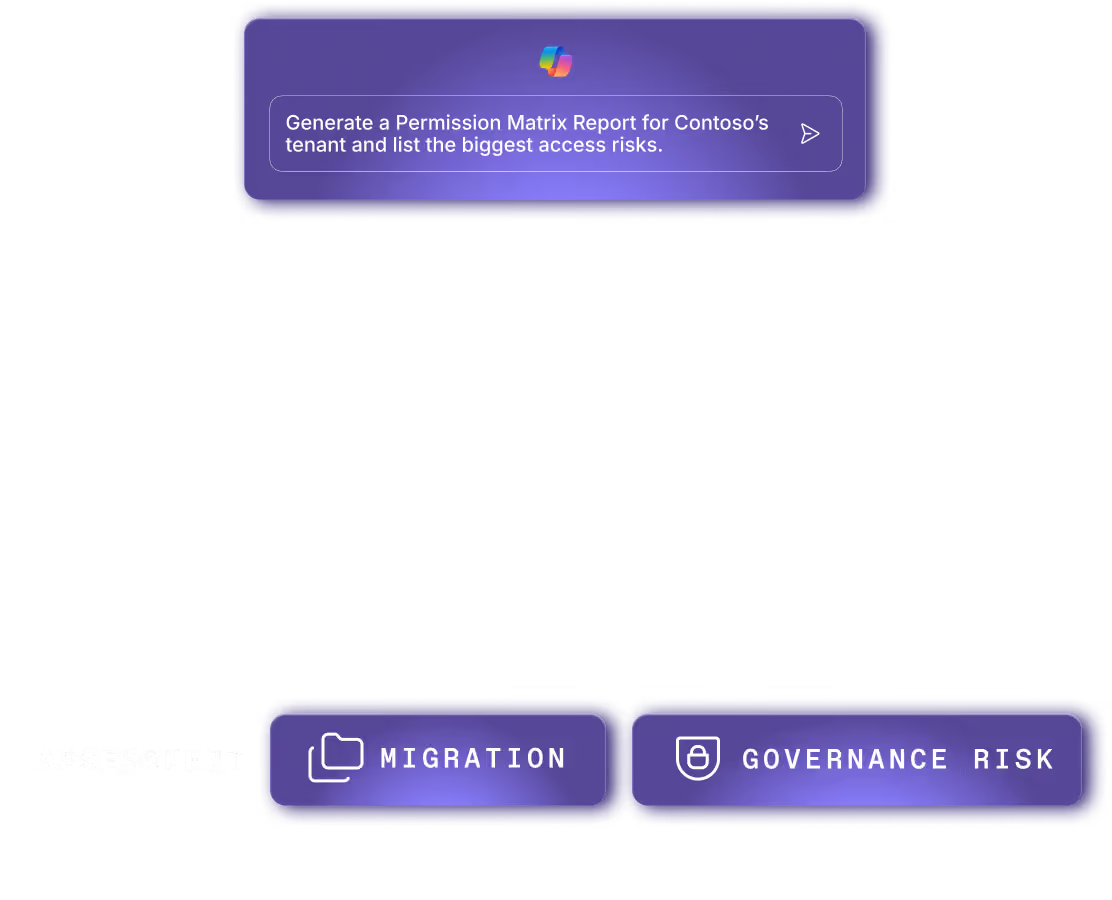
Ask your assistant to answer the ticket for you.
A site owner asks who has access to the Marketing site. Summarize it in plain language I can send back.
From the report, remove the access, site by site or at scale. Delete sharing links. Remove guests. Found something bigger? Oversharing finds it tenant-wide. Want it to stay clean? Governance automation keeps it that way on a cycle.
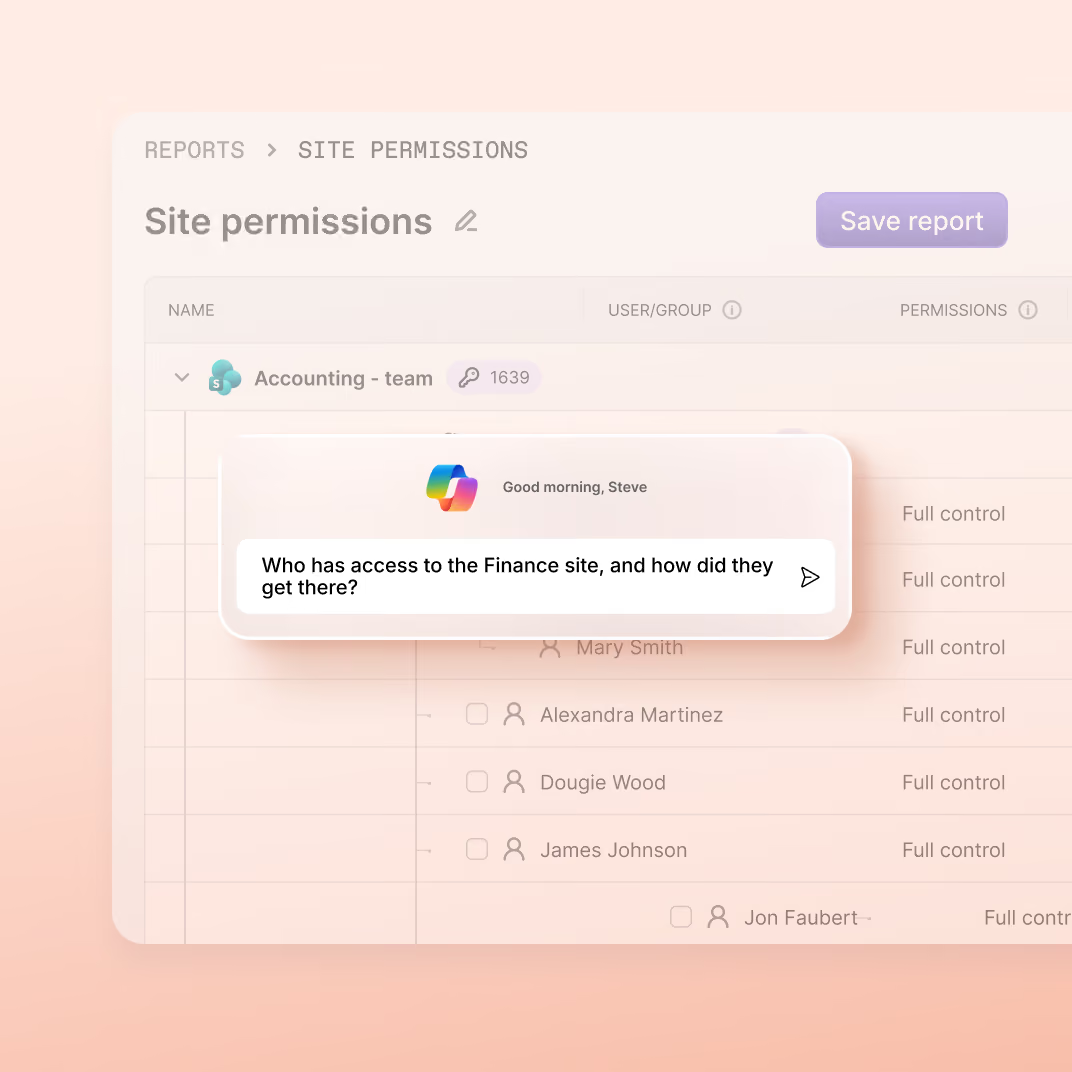
Cast a wide net over your investigation
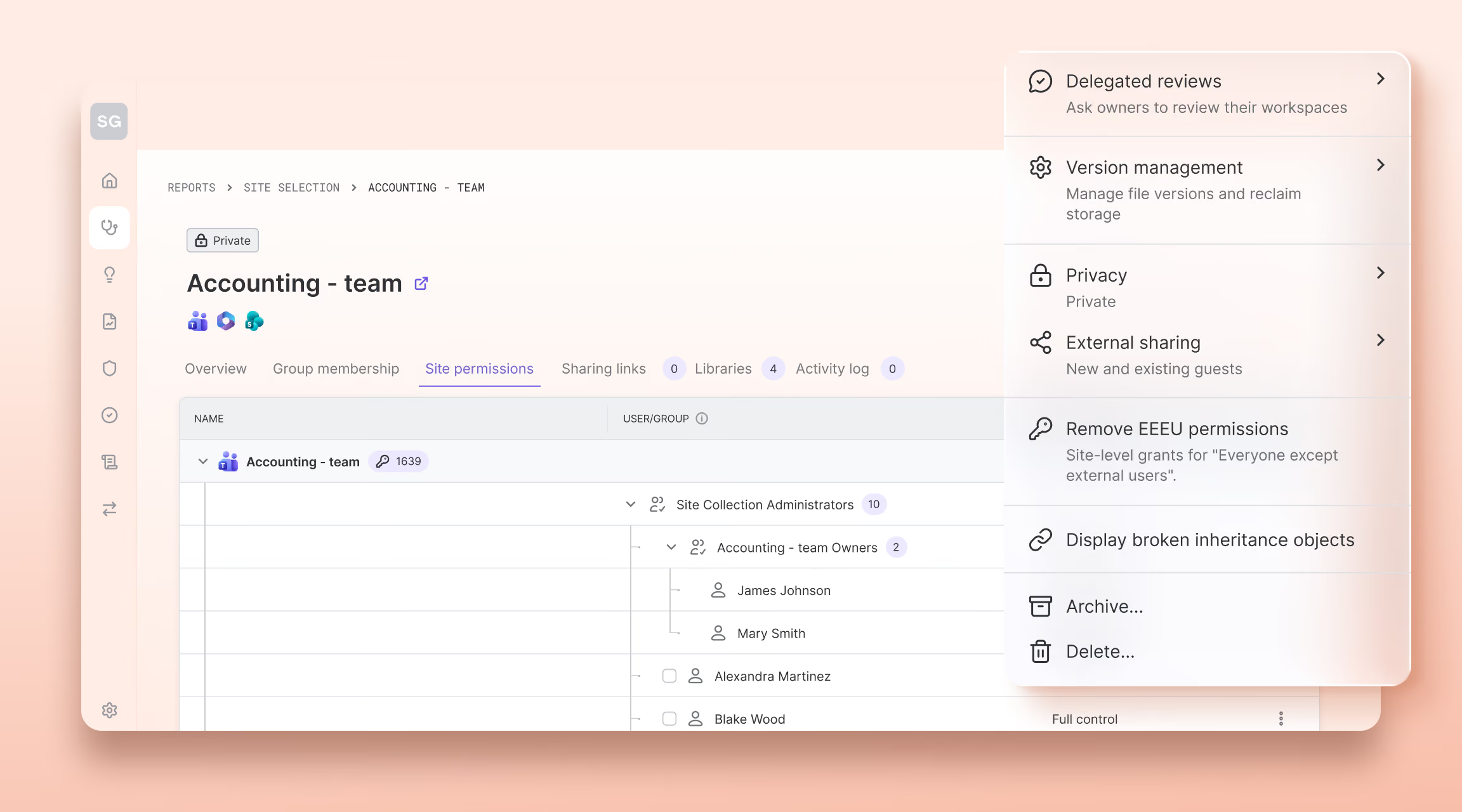
Permission Matrix Report
Access Reports
Live report sharing with site owners
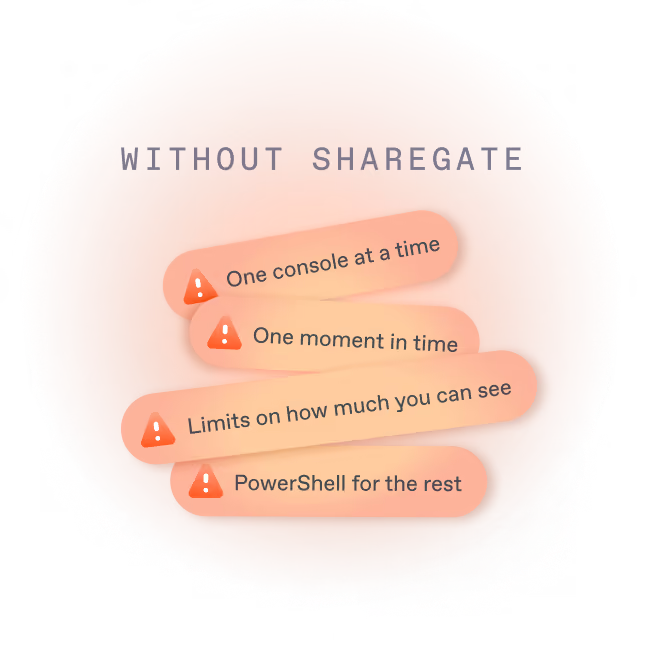
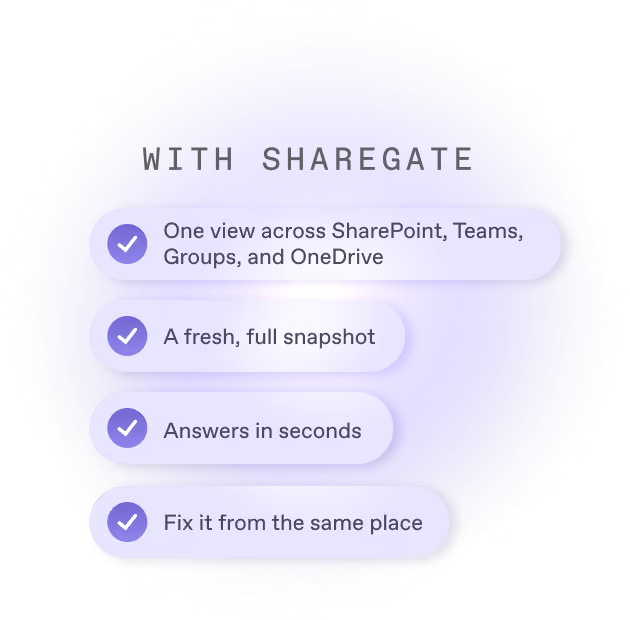
Admin center hopping vs. single view
Part of the work you already do
See how ShareGate helps partners















Frequently asked questions

ShareGate's Permissions matrix report shows who can reach a SharePoint site or OneDrive, and how they got in. Pick the sites you want and see every permission at every level, one row per user per permission. Groups open up to show the people inside, however deeply they're nested. Site collection admins show with Full control, because item-level permissions don't apply to them. And with the right consent, you remove unwanted access from the same report.
Where you start. The Permissions matrix report starts from the content: who can reach this site or OneDrive? The User access report starts from a person: what can they reach, and how? The Group access report starts from a group: what can it reach, before you change it? All three read the same tenant crawl, refreshed about every 24 hours, and none replaces the others.
Open the Permissions matrix report in ShareGate and pick the site. No PowerShell, no hopping between admin centers. You don't even need to be a site collection admin: whoever runs your ShareGate workspace decides who can open the report. You see who has access, inside and outside your organization, and how each person got in. Spot something that shouldn't be there? Remove it right where you found it.
Yes. ShareGate's User access report starts from the person. Pick one user or several, with no limit, and see every site collection they can reach, plus how they got in: directly, through a group or nested group, a sharing link, ownership or broken inheritance. ShareGate's User details page shows what they shared. Run it before an account is deleted, because the report covers active users only. To take access away, remove it from the Permissions matrix report.
Use ShareGate's Group access report. Pick one group or several, with no limit: Microsoft 365 groups, security groups, or built-in groups like Everyone and Everyone Except External Users. You see every site collection they can reach, the path behind each permission, and which group reaches each site. Pick Everyone Except External Users to see what anyone in your company can open, which is also what Microsoft 365 Copilot can answer from. Check what a group reaches before you change it.
Yes. ShareGate shows them in one view. Guests, external sharing links, access open to the whole company and broken inheritance all show up together. Groups open up to show who's inside, so you see how each person got in, colleague or guest. One limit: for a 'people in your organization' link, you can't see who received it. To close exposure across the whole tenant rather than one site or person, use Oversharing.
Not yet. ShareGate's User access and Group access reports are read-only in this release, and removing access from them is on ShareGate's product roadmap. Today, you take the access off from the Permissions matrix report, right where it shows. Seeing what a group reaches doesn't change who's in it: group membership stays managed in Microsoft 365.
ShareGate's permissions data refreshes about every 24 hours. ShareGate reads a crawl of your tenant, and not all data refreshes at the same moment. Every report reads the same snapshot, so two reports opened an hour apart agree. When you first connect, sites appear as they're crawled, and the first pass over sharing links can take several weeks in a complex tenant. There are no alerts: open a report to see where things stand.
Partners use ShareGate's Permissions matrix report to prove the problem is real before the client commits. Before a migration, a Copilot rollout or an audit, every client needs to know who has access to what. The partner who shows them first wins the project. ShareGate connects with the client admin's approval, installs nothing, and stays read-only until the client grants a second approval.
From seeing it to fixing it
Oversharing

Copilot readiness
Governance automation
Admins don’t sugarcoat. So these feel extra sweet.
Real words from the admins who run migrations and govern Microsoft 365 every day.

Permissions under control. We got this.
One view. Every site, library, and file. Easy fixes.