Migrating to Microsoft 365 doesn't have to be a horror story
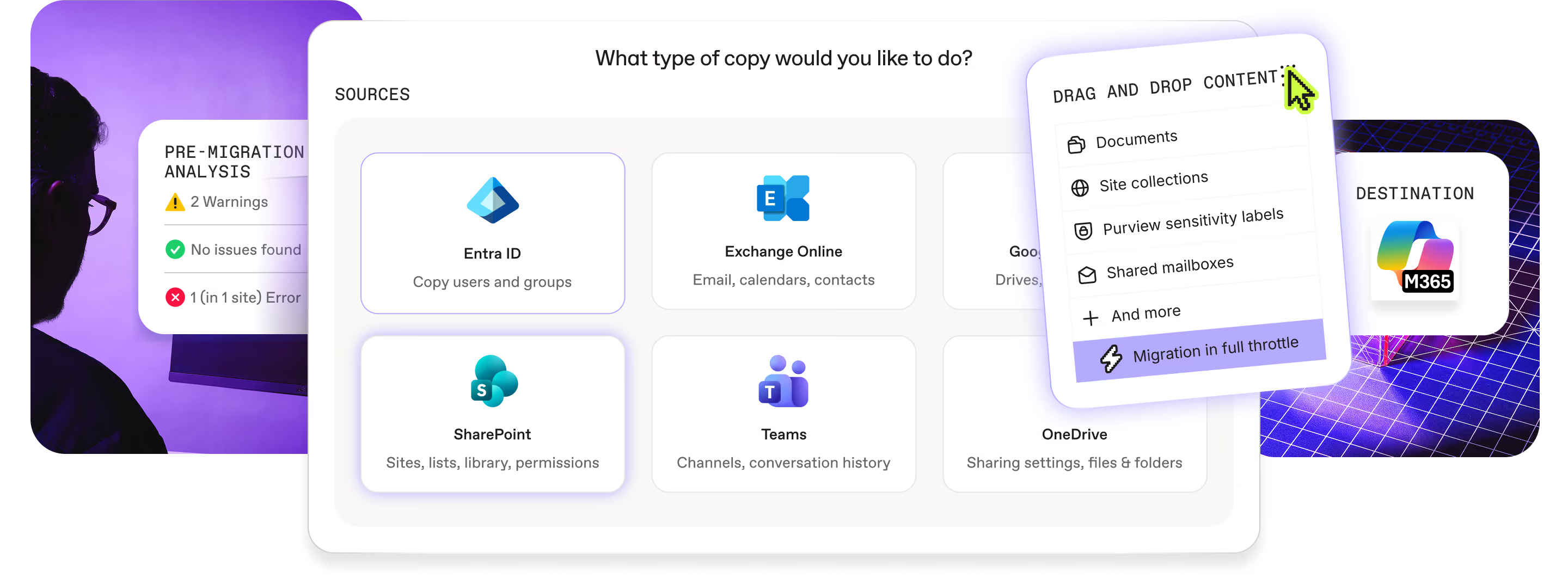
Wherever your content lives today, move it to Microsoft 365 with permissions and version history intact. From on-prem SharePoint and file shares to Google Workspace, Box, or another Microsoft 365 tenant. No scripts to write. No migration headaches.
Trusted by 100,000+ IT pros

4.8★ on g2

4.7★ on Gartner
How it works
Migrate to Microsoft 365 with 75% less cleanup
Step 01
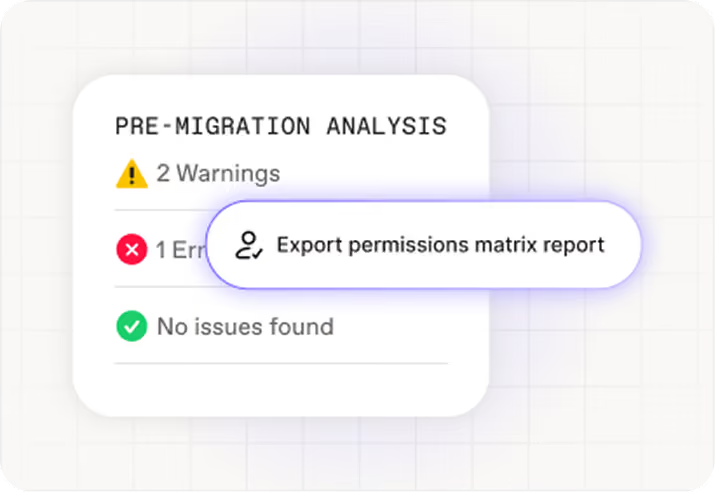
Scan and prepare sources
Step 02
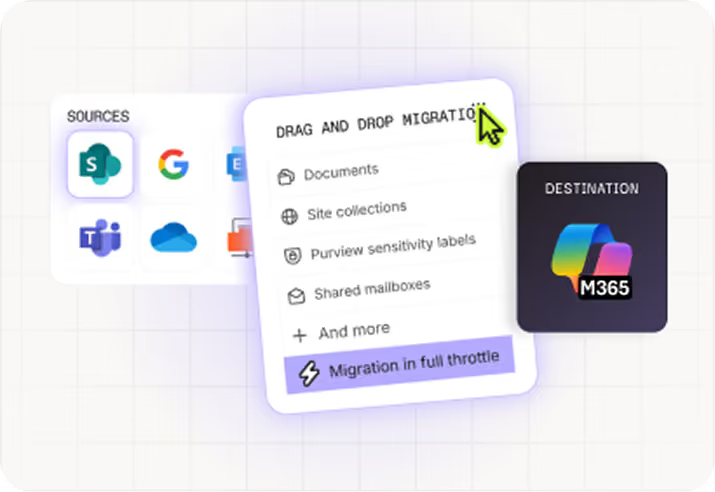
Automate data migration
Step 03
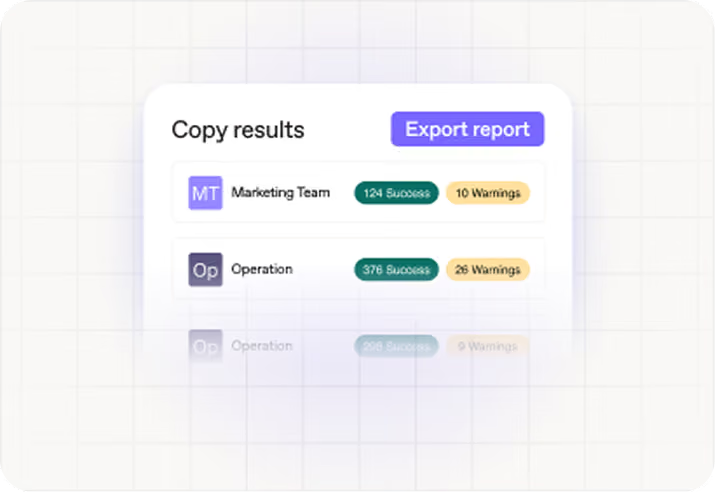
Land clean
One tool to migrate them all to Microsoft 365
Whether you're coming from Google, another M365 tenant, or a mix of both — ShareGate covers the workloads and sources that matter, one migration at a time.

Entra ID


Exchange Online
.svg)
SharePoint

Teams

OneDrive

Sensitivity labels
Identity first. Then mailboxes. Then content.
Get the sequence wrong and you spend weeks re-mapping permissions. ShareGate runs all three steps, in order, in one tool.
Request a demo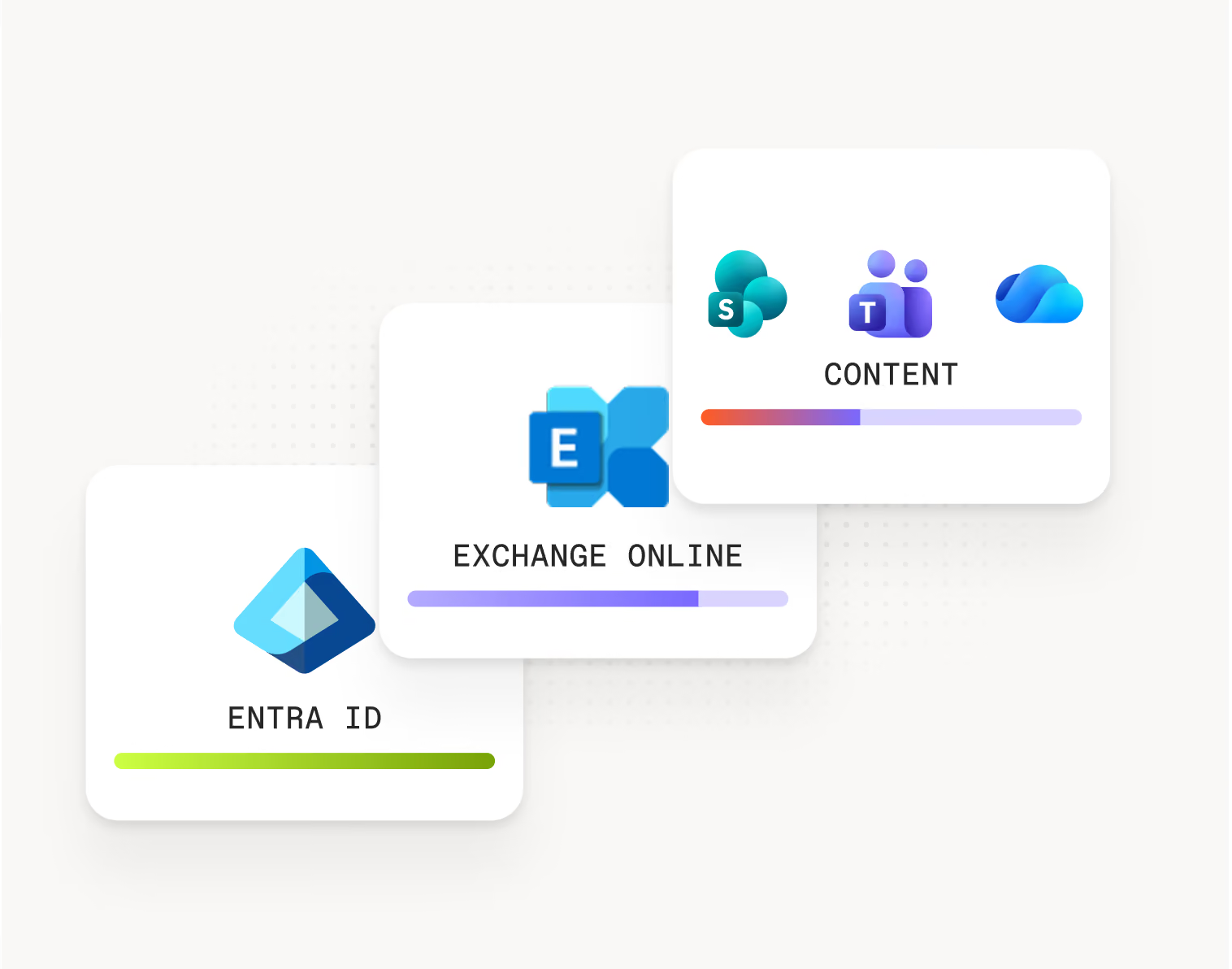
Step 01 · Identity
Entra ID
Step 02 · Mailboxes
Exchange Online
Step 03 · Content
SharePoint, Teams, OneDrive
Know what you're moving. Move it right. Keep it clean.
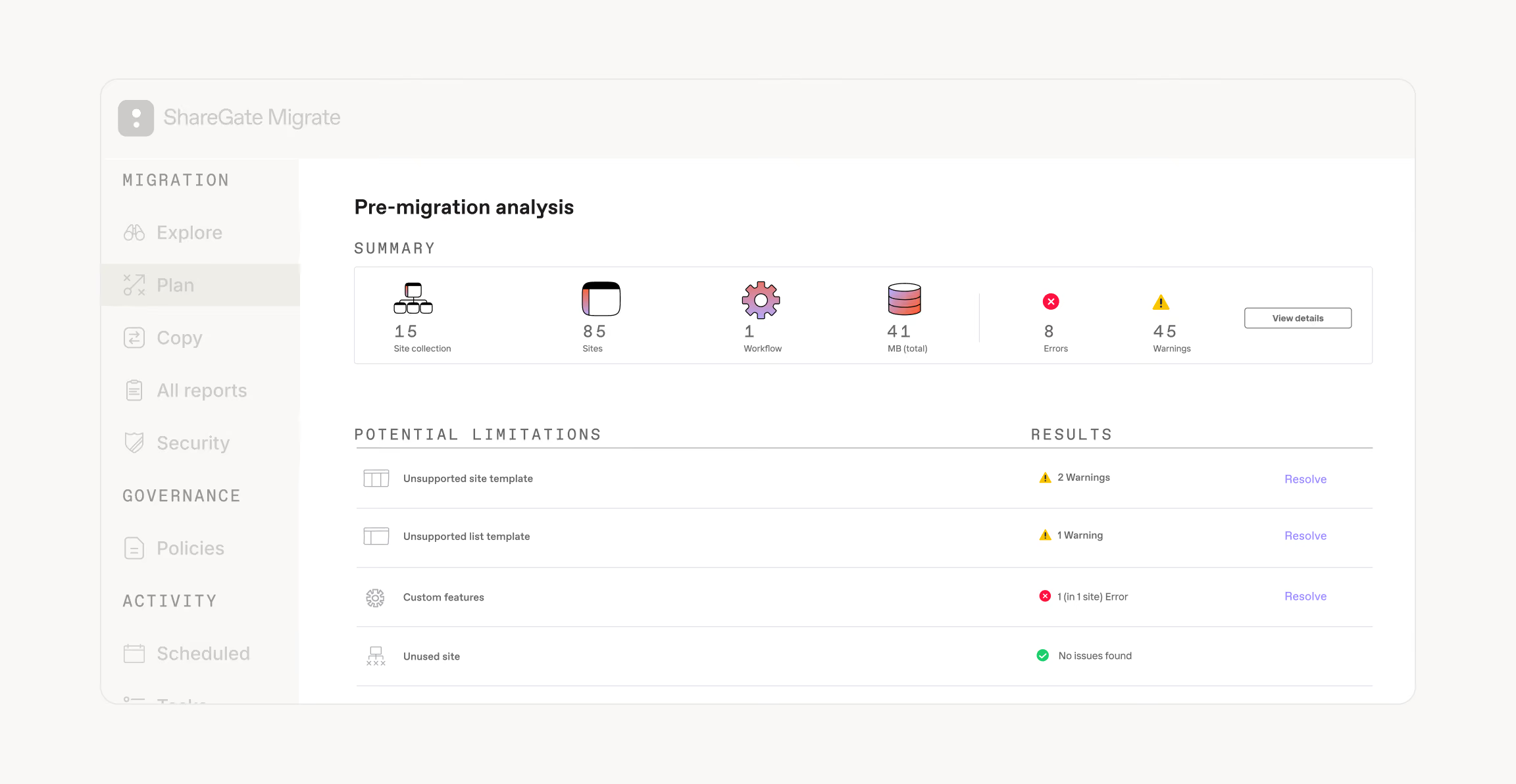
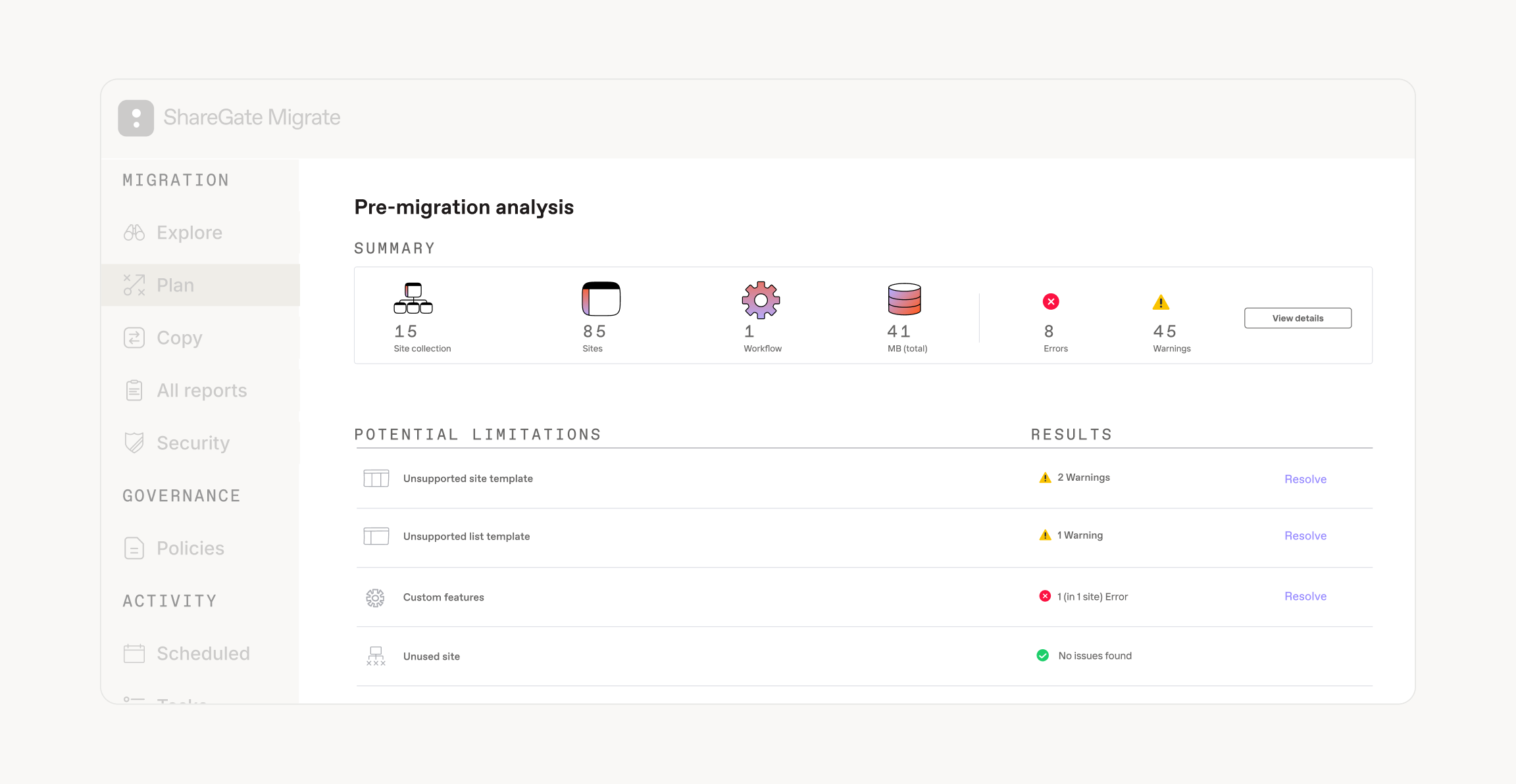
Plan before you run

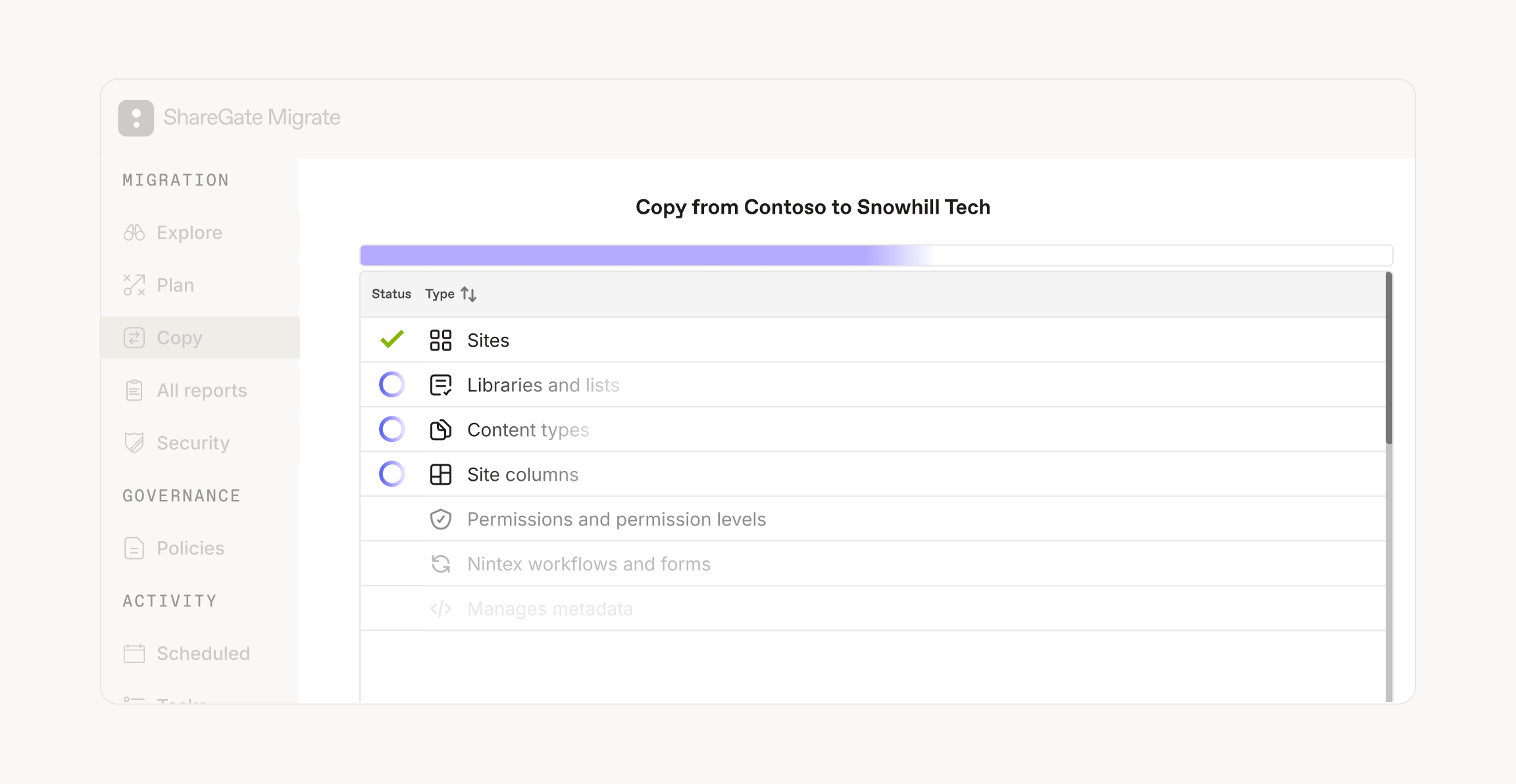
Get the job done right
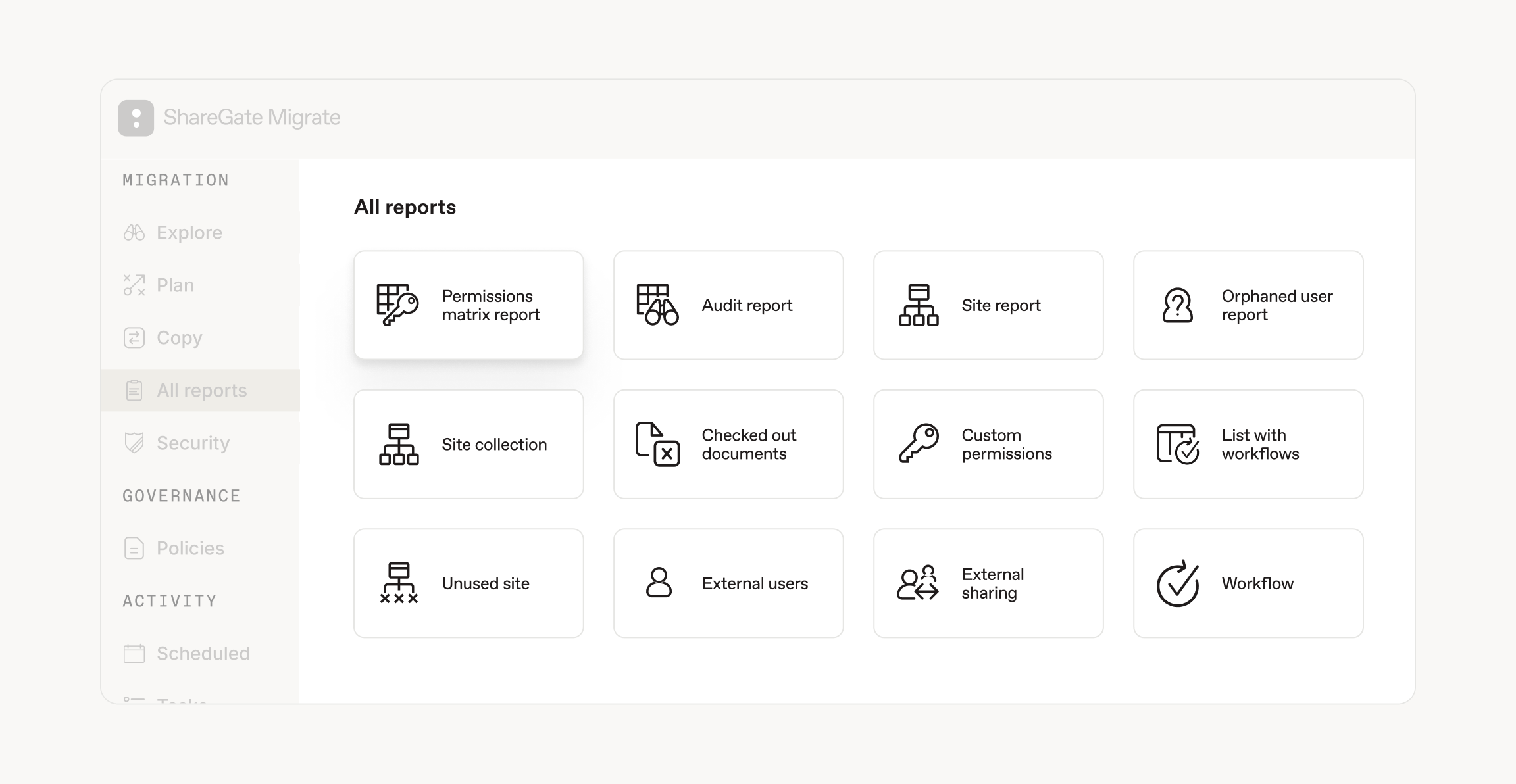
Get everyone on board








Frequently asked questions

Microsoft's native tools move data, not identity. They're fine for simple migrations. Anything more advanced, and you're writing PowerShell.
ShareGate Migrate is built on the same Microsoft-supported APIs and handles the entire migration sequence. No brittle scripts, no guesswork.
Users, groups, and memberships move first, so mailboxes don't fail, and permissions don't break. Then, SharePoint, Teams, OneDrive, and Exchange Online from one tool, with permissions, versions, metadata, and original authorship intact. You get a report of what actually landed, and you keep it afterward to run the tenant.
Entra ID identities, Exchange Online mailboxes, SharePoint sites, Teams, and OneDrive, with permissions, metadata, and version history preserved. Purview sensitivity labels are mapped as content moves. ShareGate does not migrate device objects, workstation profiles, or on-premises Active Directory.
Yes, all four. On-prem SharePoint 2010, 2013, 2016, 2019, and Subscription Edition. Network file shares into SharePoint or OneDrive. Google Drive, Gmail, and Calendar. Box.com via PowerShell, on Pro and Enterprise. Dropbox is not supported.
Identity first, then mailboxes, then content. Entra ID users and groups have to exist in the destination before mailboxes can map correctly, and mailboxes have to exist before content permissions resolve against real accounts. Get the order wrong and permissions don't follow, which turns into weeks of re-mapping. ShareGate runs all three steps in one tool.
Permissions, authors, timestamps, metadata, and version history migrate with the content, and SharePoint structure is recreated rather than flattened. One trade-off: Insane mode uses Microsoft's Migration API for maximum speed and can reset version history to 1.0. If full version history matters more than speed, don't use it.
No. ShareGate is a flat annual license with no cap on users, mailboxes, data, or tenants. Plans differ by concurrent migrations: 1 on Essentials, 5 on Pro, 25 on Enterprise. Above 100 TB, contact Microsoft first so they can provision the destination content database. That is a Microsoft requirement, not a ShareGate one.
Throttling gets managed, not bypassed. ShareGate identifies its traffic to Microsoft as an approved ISV, follows Microsoft's retry directives, and keeps retrying throttled requests until they're accepted. A 429 or 503 doesn't end your migration. For large volumes: batch from the pre-migration scan, run concurrent migrations, and schedule outside business hours. Mailboxes cap at roughly 1.5 GB/hour each, a Google and Microsoft API limit, so concurrency is how you go faster.
You see exactly which items failed and why, then re-run. Re-runs are incremental, so only what changed or failed moves again, and they're included in your license at no extra cost. Every run produces a per-item report marking each object success, warning, or error. Migrations can be canceled but not paused or resumed, which is why the incremental re-run matters: you never redo work that already succeeded.
Standard support is included on every plan. 24/7 priority support is included on Enterprise. Unlimited support and software updates come with every subscription.
Yes. Start with a free trial, all features included, and run a batch against a pilot group or a test site collection. Because migrations are copy-only and re-runs are incremental, a test run costs you nothing but time.
Microsoft 365 migration resources for IT admins
Comparing tools?

"ShareGate has provided me with the ability to deliver projects faster, more efficiently than using other toolsets. ShareGate's diligence with product updates and community involvement makes them a perfect partner."
Don’t just migrate it, ShareGate it.
Your source is never touched — ShareGate only copies.
Re-running is safe, included, and free.