
.svg)
%20(1).avif)
Master Hacks: Migrate like a pro
Check out our video series to help you turn migration projects into masterpieces!
Table of contents
There is no switch to turn skills off.
That's the first thing to know about the newest capability in Copilot for SharePoint.
Anyone with edit rights on a SharePoint site can build a reusable AI workflow there. No Copilot Studio. No Power Automate. Just a chat panel and in plain English. If your tenant has Microsoft 365 Copilot licenses, it's already happening.
The good news: a skill is just a file, so your SharePoint permissions, retention, and sensitivity labels already reach it. The not-so-good news: Microsoft doesn't provide a skills inventory, so nothing will tell you how many your tenant already has.
Here's how skills work, where the gaps are, and what you can actually control.
Key takeaways
- A skill is a reusable set of instructions for Microsoft Copilot. It captures a task people perform repeatedly.
- Every skill is stored as a markdown file named SKILL.md in the site's Agent Assets library.
- A skill runs inside the permissions the person already has.
- Anyone with edit permissions can create a skill and anyone with view permissions can run it.
What's a skill in SharePoint?
A skill is a reusable set of instructions for Microsoft Copilot. It captures a task people perform repeatedly: reviewing a document, summarizing information, applying a standard process. Write the prompt once, reuse it forever, stop retyping the same thing every week.
Microsoft describes skills as a native capability of Copilot in SharePoint.
How skills work
An employee describes the outcome they want in the SharePoint chat panel. Copilot drafts the instructions. They review them and save the result as a skill. Anyone else on the site can then run that skill when they need the same result.
The Copilot menu sits in the bottom right corner of the SharePoint site.

Click Open chat, then ask Copilot to create the skill you want.

Where skills are stored
Every skill is stored as a markdown file named SKILL.md in the site's Agent Assets library. SharePoint creates and manages that library. It can't be deleted.

Skills aren't a separate object that shows up in the SharePoint admin center. A skill is a file sitting inside an existing site. And because it's a file, your existing SharePoint controls already reach it: permissions, retention, sensitivity labels, auditing.
What a skill can and can't do
Skills sound powerful, which is exactly what makes people nervous about them. Here's the scope.
That right-hand column is the one to bring to your next governance meeting. A Skill runs inside the permissions the person already has, so it can't open a door that was closed to them. Hope this helps!
Who can create skills and why it matters
Nobody needs an admin role to create a Skill. No approval workflow. No request form. Every employee with edit permissions on a SharePoint site can create one, and every employee with view permissions can use it.
That permission model exists for a good reason. The people who work most closely with a process are usually the best equipped to document it. A lawyer understands a legal process better than the average SharePoint admin does. Nothing personal. It's just true.
Putting a formal IT request in front of every skill would slow adoption and strip out much of the value in the first place.
The problem is that edit permissions get assigned generously. Microsoft 365 group members. Everyone in a team site members group. Guests on sites where external users can contribute.
If that model is too permissive, you can break permission inheritance on the Agent Assets library and assign more restrictive permissions. That gives you more control, but it has to be configured manually for each site. Far from ideal, and not a road I’d recommend taking by default.
Good to know
- Licensing. Copilot in SharePoint needs an active Microsoft 365 Copilot license, and Skills are included at no extra cost. Advanced work and operation at greater scale move to usage-based billing and consume Copilot Credits.
- Rollout status. Copilot in SharePoint began rolling out to general availability on September 30, 2026. Capabilities may appear in individual tenants after that date as the rollout progresses.
- Usage model. For most employees, everyday individual productivity stays included with the Microsoft 365 Copilot license. When a task moves into advanced work that consumes Copilot Credits, users are asked to confirm before proceeding.
IT controls for skills
Microsoft 365 doesn't provide a single admin control for skills. What you get instead: control over Copilot in SharePoint as a whole, plus tenant, site, and file-level controls to shape where skills are available and how their files are governed.
So you'll be combining what already exists across Copilot, SharePoint, and Microsoft Purview.
5 ways to govern skills across your tenant
1. PowerShell: retire your preview-era controls
During the public preview, SharePoint admins could use the SharePoint Online Management Shell to control Copilot in SharePoint at tenant or site level. That meant three things:
- A current version of the
Microsoft.Online.SharePoint.PowerShellmodule - A connection to the SharePoint Online admin endpoint through
Connect-SPOService - The preview-era
KnowledgeAgentScopeparameter onSet-SPOTenant
KnowledgeAgentScope determined which SharePoint sites could use Copilot during the preview. Admins could make Copilot available across the entire tenant, limit it to a list of approved sites, or make it available everywhere except a defined list of exclusions. Multi-Geo organizations had to configure the setting separately for each geographic location.
These availability controls are transitional. Microsoft is retiring the preview opt-in and opt-out cmdlets as Copilot in SharePoint reaches general availability, although existing settings remain until November 1, 2026.
Use PowerShell to identify and document any existing KnowledgeAgentScope configuration and selected site exceptions before that date. Don't build new long-term governance scripts on top of it. After the transition, access is governed through:
- Microsoft 365 Copilot licensing and service plans
- Usage-based billing groups
- SharePoint permissions
- The site and content-level controls described below
2. Control who can use Copilot through licensing
License assignment is the primary supported access control. In the Microsoft 365 admin center, you can enable or disable the Microsoft Copilot for SharePoint service plan for individual employees who hold a Microsoft 365 Copilot license.
Disable it and that employee loses Copilot experiences in SharePoint. They also lose Copilot in OneDrive and SharePoint page authoring. It's a user-level control for Copilot in SharePoint, not a switch that controls Skills on its own.
For advanced work, or for employees without a Microsoft 365 Copilot license, pay-as-you-go access runs through the security group assigned to the billing policy and depends on available Copilot Credits. Keep those groups deliberately scoped and review them alongside license assignments.
Neither license assignment nor pay-as-you-go gives you a way to disable the creation or use of Skills while keeping Copilot available.
3. Reduce site exposure with SharePoint controls
Restricted Content Discovery is a temporary site-level safeguard for sites whose permissions or governance still need review. You'll need SharePoint Advanced Management or a Microsoft 365 Copilot license.
Find it in the SharePoint admin center: open Active sites, select a site, then open its settings.
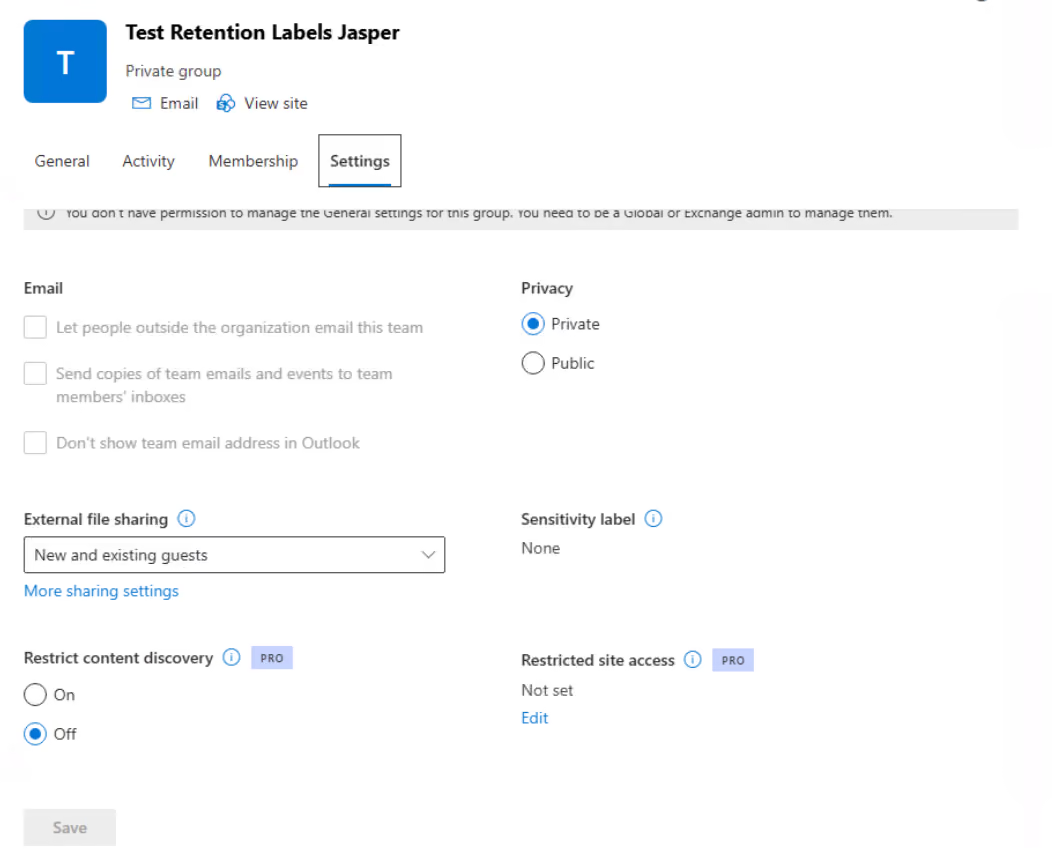
It limits content from those sites in organization-wide search and Copilot responses. It also removes AI entry points on the site, including the Copilot button and AI action menus.
One caveat that matters: it doesn't change permissions. Employees who already have access can still open the content and work with it directly.
Use Restricted Content Discovery selectively while site owners validate access and remediate oversharing. It isn't a security boundary, a replacement for least-privilege permissions, or a permanent tenant-wide strategy. It also reduces the completeness and relevance of search and Copilot responses, so whenever you apply it, define an owner, a review date, and an exit criterion.
The Site AI settings panel controls parts of the site experience, such as which agent opens from the Agent icon and whether visitors see the Copilot button.

These settings improve presentation and discoverability, but they aren't a security boundary and there's no dedicated on/off switch for Skills in there. Actual access still depends on licensing, the site and file permissions, and any applicable tenant or site governance controls.
4. Control who can create and use skills
Site members can create and edit skills according to their SharePoint permissions, and employees with read access can use them. Before introducing skills on sensitive sites, review broad site membership, nested Microsoft 365 groups, sharing links, and guest access, so only the intended people can create or use them.
Where the default model is too permissive, you or the site owner can assign more restrictive permissions to the Agent Assets library or the skills folder. Use dedicated groups for approved skill authors and reviewers. Keep read access limited to the intended audience. Then test the result with member, visitor, and guest accounts.
This is a manual, site-specific control, so document every exception. Broken inheritance increases support effort and can drift as site membership changes.
5. Govern site and personal skills as files
Site skills inherit the governance properties of SharePoint files: permissions, version history, retention, sensitivity labels. Validate each intended control against .md files in your own tenant, though. Don't assume a policy configured for Office documents automatically covers Markdown files.
Personal skills are different. They're owned by the employee, stored in their OneDrive, and available to that owner across supported SharePoint experiences. Inspecting the Agent Assets libraries of your SharePoint sites won't detect a single one. If personal skills fall within your organization's risk scope, build OneDrive governance, retention, offboarding, eDiscovery, and audit into the control design.
These controls give you a proper defense. What they don't give you is a tenant-wide skills catalog, an approval workflow, a named business owner, a review date, or an automatic retirement process. You add those through governance procedures and, where appropriate, admin automation.
How to find the skills your tenant can't inventory
An employee can create a skill in about a minute. Building a tenant-wide overview of those skills takes much longer, because Microsoft doesn't provide a dedicated inventory or report.
The SharePoint admin center includes Agent Insights reports, with agent access information derived from Microsoft 365 unified audit signals.

These reports help you identify where agents are registered or active and how agents access SharePoint and OneDrive content. But they report on agents and agent activity, not on SKILL.md files, so they can't stand in for a tenant-wide skills inventory.
Treat Agent Insights as a risk and activity signal, not as proof that every skill has been discovered. You can generate the report for the previous 1, 7, 14, or 28 days, and data older than 28 days rolls off. Without SharePoint Advanced Management, data collection has to be enabled first, reporting becomes available after collection starts, and collection can pause after three months without a generated report.
Where it's available, SharePoint Advanced Management strengthens the surrounding control environment: content assessments, site ownership and attestation policies, inactive-site management, data access governance reports, Restricted Content Discovery, and other oversharing controls. All of that improves the sites and content skills depend on. None of it replaces a dedicated skills register.
1. Investigate skill activity with Microsoft Purview Audit
Because a site skill is stored as a regular file, activity on SKILL.md shows up as standard SharePoint file events: FileCreated, FileModified, FileRenamed, FileDeleted, FileAccessed.
You can search those records in Microsoft Purview Audit and export the results for further investigation.
Build and test saved search criteria that combine the SharePoint workload with the file name or the /Agent Assets/Skills/ path. Then confirm the exact event coverage and retention available under your organization's audit license.
Broader Microsoft 365 Copilot and Agent 365 interactions can also produce audit and Purview signals: prompts, responses, model calls, tool use, grounding files, applied guardrails. Don't assume any of that gives you a one-to-one event named skill created or skill invoked. Correlate AI interaction records with SharePoint file activity, user identity, site URL, and time window, then validate the result through controlled tests in the tenant.
The difference matters. Skill files are auditable, and broader AI activity may also generate Agent 365 events, but Microsoft doesn't currently provide a dedicated tenant-wide skills inventory. Audit records support investigation. They aren't a substitute for a current list of skills across all your sites.
2. Review imported skills before they reach internal content
A skill is a Markdown file, which means it copies cleanly between sites and between organizations.
Community repositories already offer SharePoint skills that can be dropped straight into a site's Agent Assets library, and Microsoft has published examples that site owners can build on. These accelerate adoption and help your colleagues reuse proven ideas.
The downside: an external example, created outside your organization, can run against your internal content with no built-in review or approval step.
From a governance perspective, treat an imported skill more like a third-party script than an ordinary document. It contains executable instructions, even though it's stored as text.
That doesn't mean you should start blocking external sharing. A well-designed skill from a trusted domain expert may be better than an internal alternative. The missing safeguard is a formal review step. That's a control your organization has to add to its own governance process.
Before deploying an imported skill, review its instructions, assign an internal owner, document its source, and define when it must be reviewed again.
Your SharePoint skills governance checklist
Skills are a valuable addition to SharePoint, but their self-service nature creates a lifecycle management challenge for IT. I created this basic checklist, use it to establish a practical governance baseline for access, ownership, review, monitoring, and retirement.
1. Confirm rollout and licensing readiness. Verify which employees have an active Microsoft 365 Copilot license, and whether usage-based billing and Copilot Credits are enabled for any planned advanced work.
2. Clear out preview-era availability settings. Microsoft is honoring them until November 1, 2026. Document any tenant or site opt-in or opt-out configuration still in place and replace preview-era scripts with Microsoft's current availability controls.
3. Inspect existing Agent Assets libraries. Start with the most actively used and most sensitive sites to understand what has already been created.
4. Use Restricted Content Discovery as a temporary safeguard. Apply it while reviewing a site's permissions, remembering that it limits discovery without changing direct access for people who already have permission.
5. Restrict Agent Assets where necessary. Break permission inheritance on sites where allowing every editor to create instructions isn't acceptable.
6. Assign an owner to every skill. Without a named owner, a skill is unlikely to be reviewed or retired.
7. Define review triggers. Link reviews to changes in the policy, process, or model behavior the skill depends on, rather than relying only on a calendar date.
8. Treat imported skills as third-party code. Review the instructions, assign ownership, record the source, and set a review point.
9. Use Agent Insights as a supporting signal. It reports on recently created agents rather than skills, but it can help identify sites where broader AI governance attention is needed.
10. Validate audit coverage. Confirm that SKILL.md file activity and the relevant Agent 365 events are searchable in Microsoft Purview Audit, and document any gaps in skill-specific visibility.


.avif)





Don’t just migrate it, ShareGate it.
Your source is never touched — ShareGate only copies.
Re-running is safe, included, and free.