


.svg)

.avif)
The simplest way to migrate to Microsoft 365
Move your content efficiently with minimal downtime & maximum data fidelity!
Book demo%20(1).avif)
Master Hacks: Migrate like a pro
Check out our video series to help you turn migration projects into masterpieces!
Table of contents
How to migrate Google Drive to OneDrive: the complete IT admin guide
TL;DR: To migrate Google Drive to OneDrive, a business really has two paths: Microsoft's native SharePoint Migration Manager or a third-party tool like ShareGate Migrate. Migration Manager is free and fine for straightforward moves. ShareGate handles complex, large-scale jobs, and it moves mail and calendars too. Both paths copy your files, so nothing gets deleted. The originals stay put in Google Drive until you say otherwise.
Your company just acquired a shop that runs entirely on Google Workspace. Legal signs off Friday. On Monday, someone tells you to fold their Google Drives into your Microsoft 365 tenant "as soon as possible."
No inventory. No permissions map. Just a domain full of Docs, Sheets, and shared drives that people expect to keep working.
You need to migrate Google Drive to OneDrive without breaking access, losing files, or burning a week on scripts. The path is well-worn. Microsoft has a native tool, there's a faster route for large-scale jobs, and the whole thing is copy-based. You're never one wrong click away from deleting the source.
Here's how each method works, what to set up first, and how to prove the move finished.
What's the best way to migrate Google Drive to OneDrive?
The best way to migrate Google Drive to OneDrive depends on scale. For a business move, the real choice is Microsoft's native SharePoint Migration Manager or a third-party tool like ShareGate Migrate. Both copy content into Microsoft 365 and leave Google Drive untouched.
Compare the two paths.
- Microsoft SharePoint Migration Manager. Free, built into the SharePoint admin center, and fine for straightforward moves. It copies files from personal and shared Google Drives into Microsoft 365.
- A third-party tool like ShareGate Migrate. Built for complex, large-scale jobs, and for moving more than files. You get pre-migration assessment, permission mapping, bulk operations, and validation the native path skips.
This guide covers the business, admin-led path. Moving a single personal Google Drive to a personal OneDrive is a different job, handled by the OneDrive mobile app, and out of scope here.
Before you start: Google Drive to OneDrive migration prerequisites
Prerequisites are where many Google Drive to OneDrive migrations fail before a single file moves. Get these four things right first, and the rest goes smoothly. Skip them, and you'll be debugging empty destinations at 2 a.m.
- OneDrive provisioned for every user. Each user must have signed in to Microsoft 365 and set up their OneDrive before you migrate their files, per Microsoft's Migration Manager documentation. No OneDrive, no destination.
- Admin access and a Google Workspace connection. You need to install and authorize the Microsoft 365 Migration App inside Google Workspace, then run Connect to Google Workspace from the SharePoint admin center.
- Trusted-app authorization. Your migration app has to be approved in Google Workspace so it can read the drives you're moving. ShareGate Migrate has the same requirement: it must be set as a trusted app in Google Workspace before it can touch Google Drive.
- Account type check. Migration Manager and ShareGate both target Google Workspace organization accounts. Google's consumer "for Individuals" accounts aren't part of the admin-led path.
One more hard limit. Migration Manager isn't available for Google on any Government cloud, per Microsoft's Migration Manager documentation. If you're in GCC High or DoD, that native door is closed, and you'll want a third-party route instead.
How to migrate Google Drive to OneDrive with Microsoft Migration Manager
Microsoft Migration Manager is the native, admin-led way to migrate Google Drive to OneDrive and SharePoint. It copies files from personal and shared Google Drives into Microsoft 365, and it's built right into the SharePoint admin center. It makes a copy, so your Google Drive originals stay exactly where they are.
The full sequence, straight from Microsoft's Migration Manager documentation.
- Open the SharePoint admin center and go to Migration.
- In the Google Workspace section, select Get started.
- Choose Connect to Google Workspace, then install and authorize the Microsoft 365 Migration App.
- On the Drives tab, select the drives you want to move, then run Scan. Wait for the status to show "Ready to migrate."
- Select Copy to migration to stage the drives.
- On the Drive migrations tab, verify and edit the destination paths so files land where you expect.
- Select your drives and choose Migrate.
- Watch the status until it reads "Completed."
That's the native flow. No add-ons to install. But it moves one batch through a UI, so at scale you'll feel every manual step.
Google Drive to OneDrive migration challenges (and how to avoid them)
Google Drive to OneDrive migration challenges usually come down to four things: file naming rules, permission model mismatches, metadata loss, and throttling. None of them are dealbreakers. All of them will bite you if you find out mid-migration instead of before.
Know these going in.
- File names and path length. OneDrive and SharePoint reject certain characters and cap path length. Google Drive is looser. Check the OneDrive and SharePoint restrictions before you move, or files fail silently.
- Permission model mismatch. Google's Viewer, Commenter, and Editor roles don't map cleanly to Microsoft's permission model. Plan how each role translates, or you'll rebuild access by hand.
- Metadata loss. Details like original owners, sharing history, and timestamps can drop during a move. Decide what you need to preserve before cutover.
- Throttling. Both Google and Microsoft throttle heavy API traffic. Big jobs slow down or stall, so plan batches and timing.
Google files convert to their Microsoft equivalents on the way in. Docs become Word, Sheets become Excel. That's expected behavior, not a bug, so tell your users before they panic about "missing" Google files.
How ShareGate simplifies Google Drive to OneDrive migration
ShareGate Migrate is a third-party migration tool that moves Google Drive content into OneDrive for Business with high fidelity. It connects as admin to migrate files from every Google Drive account on a domain, preserves folder structure, and converts Google files to Microsoft equivalents. For Google Workspace organization accounts, it turns a cumbersome native process into one controlled operation.
ShareGate moves more than Drive. When you're leaving Google Workspace behind for good, the same engine takes Gmail and Google Calendar into Exchange Online too.
Note the limits. ShareGate doesn't cover Google Drive for Individuals accounts or Google Groups. And it's a migration tool, not a background sync service.
What that buys you, and why each piece matters.
- Pre-migration assessment. ShareGate reads structure, activity, ownership, and permissions before anything moves. Google's native reporting is weak on all four, so you finally see what you're dealing with.
- Full-fidelity moves. We move content, metadata, permissions, and structure together, so people keep their access and files land ready to use.
- Bulk, sequenced migration. Batch-map many users' folders to their OneDrives and run them in one operation through our PowerShell module. No more clicking through users one at a time.
- Built-in validation. Mapping, retry logic, and a migration report confirm what moved, so you're not guessing whether the job finished.
- One tool for the whole move. Files, mail, and calendars migrate through the same engine. No stitching together a separate tool per workload.
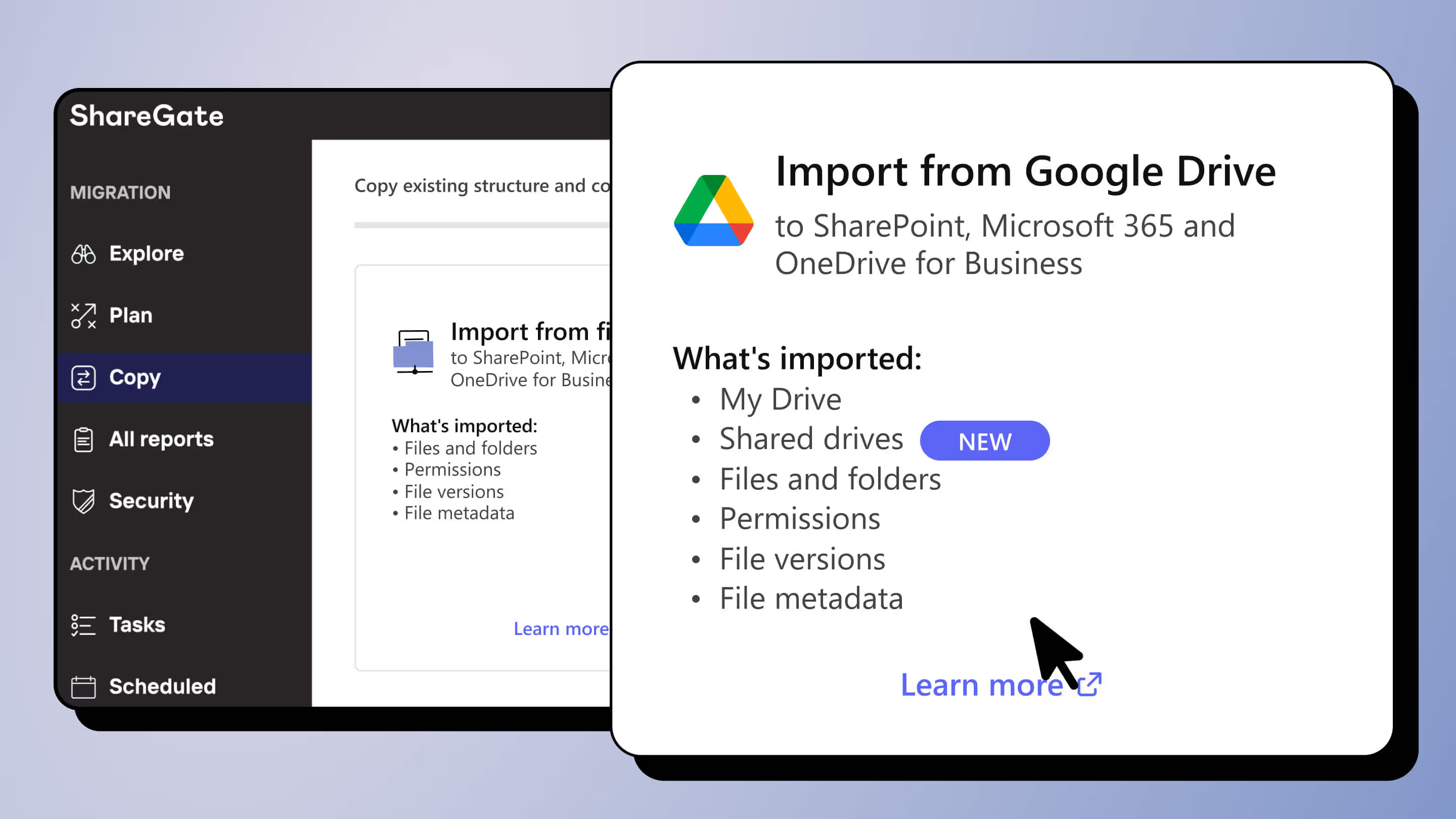
You start the workflow from the Copy tab as "Import from Google Drive." Pick a OneDrive for Business library where you hold admin permissions, and go. It's the same simplicity we bring to every Microsoft 365 migration. One tool, one price, no limits on data or users. That's why 100,000+ IT pros trust ShareGate, and why we move 5+ PB of data every month. If you're still weighing the move, our Google Workspace to Microsoft 365 migration 101 lays out the tradeoffs, and our MVP webinar on M&A migrations shows the playbook in action. For the full walkthrough, see our Google Workspace to Microsoft 365 migration guide, or start a free trial and test it on your own domain.
Post-migration validation checklist
A "Completed" status isn't proof. You still have to validate the move. That's genuinely hard when filters throw off source-versus-destination size comparisons. Work this checklist every time.
- Verify file counts. Compare source and destination counts scoped to the same filter, not raw storage size.
- Reconfirm permissions. Spot-check that Google roles landed as the right Microsoft permissions, especially on shared drives.
- Identify missing or duplicate assets. Look for files that failed on naming or path limits, and catch anything copied twice.
- Read the ShareGate migration report. It lists successfully migrated files plus warnings and errors, so you know exactly what to re-run.
Migrate Google Drive to OneDrive without the guesswork
The clock on that acquisition doesn't stop. Every day those Google Drives sit unmigrated, your new users can't fully work in Microsoft 365. And someone risks touching files that should already be moved.
You can grind through it user-by-user in the native UI, or you can assess, batch, and validate the whole domain in one controlled pass. Skip the scripts and the 2 a.m. guessing. See what a real Google Workspace move looks like on our Google Workspace migration page, or just prove it on your own tenant. Start a free ShareGate trial and move that first drive today.
A migration is a rare moment of clarity. You've just mapped every file, permission, and owner in one place. That's the moment to keep it clean, before it drifts back into clutter and oversharing. ShareGate Protect picks up where the move ends, governing your Microsoft 365 tenant so it stays secure, organized, and ready for AI. Migrate gets you there clean. Protect keeps you there.



Frequently asked questions







.avif)









Don’t just migrate it, ShareGate it.
Your source is never touched — ShareGate only copies.
Re-running is safe, included, and free.

