


Mailbox migration between Microsoft 365 tenants: What moves, what doesn't, and how to run it
.svg)

.avif)
The simplest way to migrate to Microsoft 365
Move your content efficiently with minimal downtime & maximum data fidelity!
Book demo%20(1).avif)
Master Hacks: Migrate like a pro
Check out our video series to help you turn migration projects into masterpieces!
Table of contents
Mailbox migration takes careful planning, the right tools, and precise execution. If you don’t get it right, you’ll soon be untangling a flood of user support tickets.
This guide covers one scenario: moving Exchange Online mailboxes from one Microsoft 365 tenant to another. You’ll see what carries over, what doesn’t, how to run the move in waves with delta passes, how to check every mailbox, and what your users will notice along the way.
What is a tenant-to-tenant mailbox migration?
Mailbox migration means the transfer of email accounts, shared mailboxes, calendar items, contacts, and permissions.
In this blog, we're going to talk about how mailbox migrations work when the source and destination are both Microsoft 365 tenants. This kind of migration is common after a merger, acquisition, divestiture, or rebrand, when people (and their mail) need to land in a different tenant.
Mailboxes are one layer of a bigger project, and migrating Microsoft Entra ID comes first, because every source mailbox maps to a destination mailbox that has to be tied to a user. Unmapped mailboxes aren't copied. SharePoint, OneDrive, and Teams content follows.
You can run the mailbox move with Microsoft’s native cross-tenant mailbox migration, which you configure in PowerShell, or with a third-party tool like ShareGate, which maps mailboxes automatically and reports on every one. ShareGate also copies mailboxes within a single tenant, for reorganizations and cleanups.
Not moving between Microsoft 365 tenants? If you’re coming from Google Workspace, ShareGate migrates Gmail to Exchange Online, too. ShareGate doesn't migrate on-prem or hybrid Exchange servers, however, so if that's where you're migrating from, check out Microsoft's native migration tool.
What carries over in a tenant-to-tenant mailbox migration
Most post-migration tickets come down to one question: "Where did my ___ go?"
Tenant-to-tenant migration is one of the more complex mailbox migrations, as you’ll have to deal with mailboxes, company-wide permissions, shared data, and contact information across two or more environments. In other words, things can get hectic fast. And while Microsoft provides some native cross-tenant mailbox migration capability and support for these scenarios, many organizations find that using third-party tools like ShareGate to simplify planning, automation, and reporting makes the migration process simpler and more efficient.
Third-party email migration services cut out the manual work. ShareGate maps source mailboxes to destination mailboxes automatically, lets you pick what to copy, and reports on every mailbox that makes the trip.
Before you plan batches and cutover dates, get clear on what a copy actually moves:
Good to know before you start: A few things are handled outside the copy. Public folders and folder permissions aren’t migrated, so plan to re-grant folder-level access at the destination. Encrypted emails copy but can’t be read at the destination. Destination room and equipment mailboxes need to exist before you migrate them. And only Litigation Hold settings move, not the data the hold retains. For every edge case, see the Copy mailboxes limitations article.
Archives come along in the same pass
With some migration tools, archives need a separate license or a separate migration task. In ShareGate, they don't. Turn on Copy In-Place Archive and each user's archive is copied alongside their primary mailbox, in the same migration flow, at no extra cost. Archive inclusion is explicit, not assumed, so you decide which copies include it.
A few things to know. Archive and Group mailbox copies use Exchange Web Services (EWS), so make sure ShareGate is on your EWS allow list in both tenants. Once an archive is enabled at the destination, it can take some time before it's visible and usable in Outlook. And if users move emails by hand after a migration, those emails are duplicated during the next incremental copy.
Pre-migration planning and preparation
Taking stock of everything you’ll be migrating before you get started will minimize potential errors and keep downtime as low as possible.
Here’s what to include in your Microsoft 365 migration prep:
- Mailbox inventory: Count mailboxes by type and size, and note which have archives, so you can plan your batches.
- Identities first: Migrate your Entra ID users before you copy mail. If you run that identity migration in ShareGate between the same two tenants, your mailbox mappings will be pre-filled.
- Permissions and compliance: A global admin consents to ShareGate's Microsoft 365 permission scope once per tenant; after that, an Exchange admin can run the migration. Check which mailboxes are on hold. ShareGate can copy Litigation Hold settings, but not the data the hold retains, and it warns you about on-hold destination mailboxes before you start.
- Technical readiness check: Email systems can be surprisingly complicated under the hood. Add ShareGate Migrate to the Exchange Web Services (EWS) allow list in both tenants. Microsoft started blocking EWS by default on October 1, 2026, and Copy mailboxes uses it. Mailboxes on Kiosk, F1, or F3 licenses need a license that includes EWS access before you migrate them. Then plan your MX, DNS, and Autodiscover cutover, which is a Microsoft 365 admin step outside ShareGate.
- Decommissioning and data retention: Decide how long you’ll keep your old environment live, and create a data deletion framework. Once everything is safe and verified in an Exchange mailbox, you can begin decommissioning the source environment.
- Let your end users know: Give users a heads-up on timelines, what will change for them, and where to get help. We cover what your users will notice, and a message template you can send them later in this blog.
Run your Exchange Online migration in waves
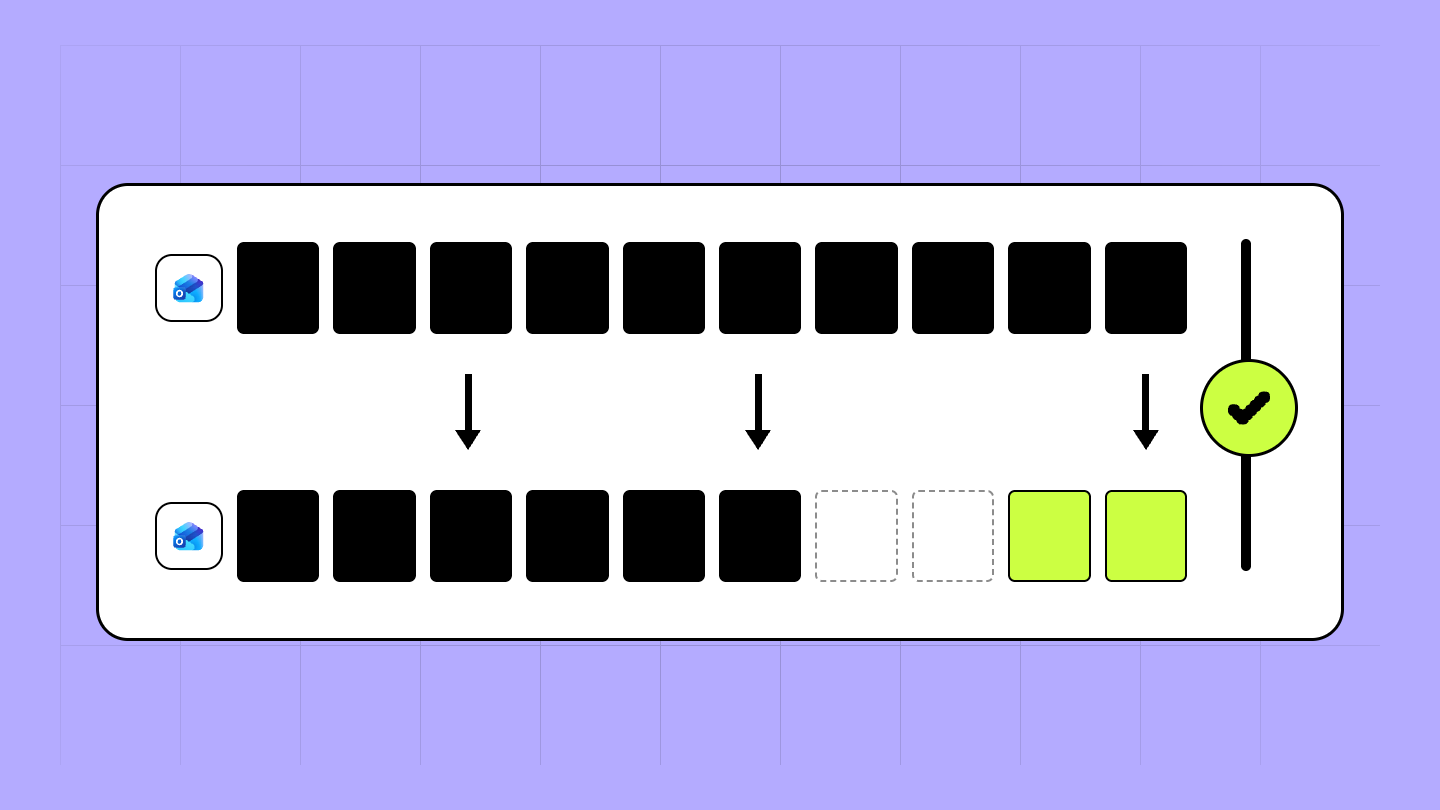
With your prep done, the migration itself comes down to two kinds of passes: one full copy, then as many incremental (delta) copies as you need to stay current until cutover. Users keep working in their old mailboxes the whole time, so each delta pass picks up only what changed since the last one.
Every pass is also a checkpoint. Each one produces a migration report, and reading it before the next pass is how small problems stay small. Want the click-by-click version in ShareGate? See our step-by-step guide to tenant-to-tenant mailbox migration.
The 4 steps of a mailbox migration
Each step below ends with a look at the migration report, so issues surface while they affect a handful of mailboxes, not hundreds.
- Test one mailbox: Copy one average-sized mailbox and check its report to see how many items it yields and whether anything errors. Use that number to size your batches so no single copy goes over 800,000 items.
- Run the initial copy in batches. Map source mailboxes to destination mailboxes, choose what to copy (emails, calendars, contacts, rules, In-Place Archives, Litigation Hold settings), and start. If you’re moving users in waves, turn on Coexistence in the same copy options so mail sent to migrated users’ old addresses reaches their new mailboxes. The in-app report updates live, so you can start on errors before the batch finishes.
- Fix issues and keep mailboxes current with delta passes. Resolve what the report flags, then run an incremental copy. Keep running incremental copies until cutover, checking the report after each one.
- Cut over. Run a final delta pass and review its report, then switch MX, DNS, and Autodiscover in Microsoft 365.
If a pass stops partway, you don’t start over: incremental copies work even if the previous migration was incomplete or canceled.
Keep delta passes clean
Delta passes work because ShareGate Migrate remembers which items it's already copied for each mailbox. These rules keep that memory intact:
- Run every delta pass from the same ShareGate Migrate instance, with the same mappings, as your first copy. A follow-up copy from a different machine duplicates all items at the destination.
- Leave the destination alone until the migration is done. Changes made there can be overwritten during a delta pass.
- Expect cancelled meetings to need attention. Events removed or cancelled at the source after the first copy aren't removed or cancelled at the destination.
Follow those and you can run as many delta passes as the project needs, they're included in the same annual price. For more on timing passes around cutover, read how Exchange Online delta migration keeps mailboxes current through cutover.
Check the migration report after every pass
ShareGate Migrate's in-app migration report updates live while a copy runs and stays available afterwards from the Tasks screen. The All mailboxes tab lists every mailbox with its status, source, destination, item counts, and start and end times. The Errors and Warnings tabs group issues by type, showing how many items and mailboxes each one affects, with a Learn more link when a related help article exists.
You can export exactly what you need: a single mailbox, a single issue group, everything in the Errors or Warnings tab, or the whole migration. The full downloadable report is a .zip with a summary file plus one CSV per mailbox. Filter the Status column, then read the Details, Errors, and Warnings columns to see what happened to each item.
When the report flags something, fix the cause and run an incremental copy rather than starting over. Then check the next report to confirm it cleared before you move on to the next wave.
What end users notice during a Microsoft 365 tenant-to-tenant mailbox migration (and what to tell them)
For most of a tenant-to-tenant mailbox migration, users keep working in their old mailboxes and notice very little. Then a few things show up close together: extra meeting invitations, an Outlook sign-in prompt, a change in which address their replies come from, and sometimes a shared folder or room calendar they can’t open. Tell users about each one before it happens, and most of those help desk tickets never get filed.
Signing back into Outlook on cutover day
After cutover, users need to rebuild their Outlook profile with their new sign-in name and primary email address, then let Outlook resync their mailbox. Their old profile is still looking for the old address, so it can’t find the moved mailbox.
That first sync downloads the whole mailbox again, so it can be slow, and on a big cutover day it adds up across the network. Some migrated mailbox settings can also take a little while to appear in Outlook.
What shows up in the new mailbox, and when
What users see depends on what you copied. You can limit email to the last 90 or 180 days, or set a custom date range.
By default, calendars include events from the copy date onward and recurring series that still have upcoming occurrences. Past events are optional, and when you copy them, only the organizer sees them at the destination.
Archives come across too, but a newly enabled archive can take some time to show up in Outlook. Emails that were scheduled to send later arrive as drafts.
Meeting invitations and Teams links
With Microsoft’s native cross-tenant migration, Teams meeting links don’t survive the move: the URL is invalid in the new tenant, so organizers have to remove and recreate their meetings. ShareGate can create new Teams meeting links at the destination for you, so meetings keep working after cutover. Until then, the same meeting exists in both tenants, and attendees receive a second invitation.
A few steps keep that from causing confusion. Tell users which invitation to use after cutover. Ask organizers to give external attendees a heads-up, since your internal announcements won’t reach them. And after cutover, have organizers check for meetings they cancelled at the source after the first copy, because those aren’t cancelled at the destination.
Shared and room mailboxes
With ShareGate, shared and room mailboxes move with their content, and room and equipment mailboxes keep their booking policies (booking window, meeting length and conflict rules), so people can book rooms exactly as before.
What doesn’t carry over is folder-level permissions. If someone had access to a specific folder in a shared mailbox or permission to see details or manage a room’s calendar, re-grant it at the destination. Mailbox-level access such as Full Access and Send As is set up separately from the mailbox copy, so confirm it’s in place before cutover.
Email addresses during and after the move
Whether users end up with a new email address depends on the project. Only one Microsoft 365 tenant can own a domain at a time, so while you migrate in waves, migrated users send from an address in the destination tenant. Once the domain moves to the destination tenant, they can keep their original address.
If you turn on mail coexistence with ShareGate, mail sent to the old address is forwarded to the new mailbox in the meantime, and an optional disclaimer can explain the change to external contacts. Until everyone has moved, colleagues still in the old tenant won’t appear in the new address book, and free/busy isn’t shared across tenants.
Sample message you can send to end users
So, how do you communicate all of this to your end users? Whether your company typically relies on email or Teams messages, here's an easy template you can copy and fill in the blanks to make sure everyone's on the same page for your Exchange Online migration.
Subject: Your mailbox moves to [new company] on [date]
On [date], your mailbox moves to our new Microsoft 365 environment. Here’s what to expect:
- You may get a second invitation for some meetings. Use the one sent from [new domain].
- On [date], Outlook will ask you to sign in. Use your new address: [name@newdomain.com]. The first sync can take a while.
- Save a copy of your email signature before [date]; you may need to add it again.
- Email sent to your old address will still reach you. Until [date], replies will come from [new address]. [Keep only if you use mail coexistence; adjust if your domain is moving.]
Questions? Contact [help desk].
Your users don’t need to understand how a tenant-to-tenant migration works. They need to know what’s changing and what to do about it. ShareGate copies the mailboxes, can give meetings working Teams links in the new tenant, keeps mail flowing to old addresses during the waves, and reports on every mailbox, so you can tell users exactly what to expect and stand behind it.
Post-migration tasks
During post-migration, you’ll check that everything’s working as it should, verify data integrity, and fully cut away from your legacy environment. Here are the main post-migration tasks:
- Inspect licenses: Check to see if users have working M365 licenses and that their mail systems work as expected. Send out some test emails from internal and external accounts to verify.
- Validate mailboxes: Work through any remaining errors and warnings in your final migration report, then spot-check contacts, calendar events, and folders. Re-grant folder permissions at the destination, since they aren't preserved during the copy.
- Provide support: Offering quick-start guides, tutorials about the new email environment, or even just a helping hand can bring people up to speed much quicker than just sending their new account details.
- Decommission old environments: Once the migration is complete, it’s time to wind down your legacy email system. Archive anything you might need, revoke permissions, and remove access. If you used ShareGate's mail coexistence, it stays active until you decommission the batch, so turn it off as part of this step.
Mailbox migration best practices
As the saying goes: Fail to prepare and prepare to fail. Staying one step ahead can make all the difference between a smooth migration and a support headache.
Here are a few best practices to keep in mind when migrating to Exchange Online:
- Ensure data integrity: Check and double-check each mailbox's migration report before you decommission the source tenant. ShareGate only copies, so your source mailboxes are still there if you need to re-run.
- Minimize downtime: Use phased rollouts and delta passes to minimize disruption and downtime, especially for large-scale migrations.
- Maintain compliance and security: Check that your destination tenant has the DLP, multi-factor authentication, and data retention policies you need. ShareGate copies Litigation Hold settings, but retention policies and eDiscovery holds need to be set up again at the destination.
- Plan for throughput: Each mailbox copies at up to 1.5 GB of data per hour, so your largest mailboxes set the timeline. The good news is that ShareGate copies many mailboxes at the same time. In the app, 16 mailboxes copy in parallel (up to 24 GB per hour), and as soon as one finishes, the next one starts. With PowerShell, you can copy up to 128 at once (72 GB per hour)
Need more speed? Spread the copy across several machines. Each machine adds its own parallel copies, so the total throughput grows with every machine you add.
A quick example: Say you’re moving 500 mailboxes that average 5 GB each, about 2,500 GB in total. On one machine in the app, that’s roughly 104 hours. With three machines, it drops to roughly 35 hours.
One thing to keep in mind: Adding machines speeds up the whole project, not a single mailbox. A 100 GB mailbox still takes about 67 hours, so start your largest mailboxes first.
Want more? Read our cross-tenant mailbox migration best practices.
Simplify your mailbox migration with ShareGate
If there’s one thread through this guide, it’s that tenant-to-tenant mailbox migrations reward repetition: copy early, catch up with delta passes, and check the report each time. Get those right and cutover is just one more delta pass, not a leap of faith.
ShareGate is built around that workflow. It maps mailboxes for you, brings In-Place Archives along in the same pass, and lets you run as many delta passes as the project needs, all without PowerShell. It also covers Entra ID, Gmail, SharePoint, OneDrive, and Teams.
Mailbox migration doesn’t have to feel risky. With ShareGate, your source is never touched, re-runs are easy, and every mailbox gets a report. Start a free trial or request a demo today.


Frequently asked questions

To make sure end users are fully aware of the migration process and how it will affect them, share clear timelines, expectations, and any post-migration steps through email or Teams announcements. If you create new Teams meeting links at the destination, tell users and external attendees to expect a second invitation for the same meeting during the migration.
Shared mailboxes migrate in the same workflow as user mailboxes, with no separate licensing or configuration. Folder permissions aren't preserved, so plan to re-grant access at the destination. Copy the bulk of the content ahead of time and run the final delta pass after hours to keep the cutover window short.
Depending on the size and type of your migration, it can span from a few hours to a few days per batch. A single mailbox copies at up to 1.5 GB of data per hour. Test-copy one average-sized mailbox first, then size your batches so each copy stays under 800,000 items. After the first copy, delta passes only move what changed.
If a ShareGate migration stops unexpectedly, run it again as an incremental copy from the same ShareGate Migrate instance with the same mappings. Incremental copies work even if the original migration was incomplete or canceled, and ShareGate only skips items it has already recorded copying, so you don't get duplicates. A follow-up from a different machine, though, duplicates items at the destination.
No, ShareGate supports Exchange Online and Google Workspace as sources, with Exchange Online as the destination. On-prem and hybrid Exchange aren't supported, and neither are GCC, GCC High and DoD, or Microsoft 365 China (21Vianet) tenants. You can still run most SharePoint operations in GCC, GCC High, and DoD tenants.


.avif)




.avif)





Don’t just migrate it, ShareGate it.
Your source is never touched — ShareGate only copies.
Re-running is safe, included, and free.

