


.svg)

%20(1).avif)
Master Hacks: Migrate like a pro
Check out our video series to help you turn migration projects into masterpieces!
Table of contents
At some point between "can you send me that file?" and your next access review, things get messy. It’s because external sharing in M365 moves fast and governance doesn't always keep up.
The drift is gradual. A guest account here, a broad sharing link there. Each one made sense at the time. But permissions have a way of outlasting the context they were created in, and M365 environments don't clean themselves up.
That’s why it’s important to put controls in place within your M365 environment. The good news? With the right configuration, secure external file sharing is a breeze.
Secure external file sharing: Why it matters
Inviting guest users to view or edit files speeds things up. Contract workers fill capacity gaps. Clients comment directly on projects instead of emailing feedback back and forth. Approvals move faster. Everyone's happy.
Until someone clicks the wrong sharing option. Or forgets to close an account when the project wraps.
Guest access is one of those things that's easy to set up and easy to lose track of. And in Microsoft 365, "losing track" has consequences.
Sharing a SharePoint link with the wrong settings ( or the wrong person) can hand someone outside your org full access to sensitive data. It happens fast, usually by accident, and often goes unnoticed. Granting external access without monitoring it means permissions can drift well beyond what you originally intended. That vendor you gave read access to six months ago? They might have a lot more visibility now than you realize.
Then, there are orphaned guest accounts, or old collaborators that wrapped up in Q2. No one deleted their access. There was no offboarding process. Unless these are shut down manually, there’s a chance the external user could still find their way into the file. And because guest access is scattered across Teams, SharePoint, and other M365 environments, it’s surprisingly easy for overlooked permissions to go unnoticed.
M365 secure file transfer for businesses: SharePoint and OneDrive
Exploring secure file transfer methods in M365 starts with understanding the controls built into SharePoint and OneDrive. These tools let you define who can share content, how guests authenticate their identities, and the amount of access guest accounts have.
Whenever someone in your company shares a folder or a file, M365 enforces sharing policies across multiple levels, including:
- Tenant-level settings
- Site or OneDrive-level settings
- The link type being used
If anything about the process doesn’t align with your controls, it will either be restricted or unavailable to the user. You can control whether external users are added as guest accounts in Microsoft Entra or access content via email-based authentication (one-time passcodes), depending on your sharing and external identity settings.
SharePoint is one of the best ways to share files with external users because it offers strong native options for sharing, but it still leaves gaps. A lack of centralized visibility, difficulty in setting up ongoing monitoring, and the potential for human error lead many businesses to rely on third-party tools and encrypted file-sharing services. ShareGate Protect fills gaps left by Microsoft’s native tools by simplifying external access reviews and surfacing risky links and guest access.
M365 levels of external sharing explained
SharePoint and OneDrive sharing is controlled at two levels. The organizational level is the master switch. Turn off external file sharing here, and it’ll be disabled across all of your sites.
The site level is for when you need more granular control. Let’s say you need to tighten sharing permissions for your legal or finance team but want the marketing team to still be allowed to share freely. Site-level permissions allow you to make these smaller changes.
Types of external participants in M365
External users in M365 have two different ways to create guest permissions within SharePoint:
Ad hoc: An ad hoc external recipient accesses shared content without a guest account, using a time-sensitive passcode sent to their email. Access persists as long as the sharing link remains valid.
Guest accounts: If you want an external user to have limited permissions beyond just view-access, you can invite them to create a guest account in Microsoft Entra. Entra also has admin controls so you can manage the specifics of what they can do.
Here’s how these accounts differ from one another:
| Guest account | Ad hoc access | |
|---|---|---|
| User has access to shared folders and files | ✔ | ✔ |
| Verification method | Users sign into M365 using their email | Users enter a time-sensitive single-use code sent to their email address |
| Which actions are audited | Every action | Every action |
| Can edit Word, Excel, and other M365 apps | ✔ | ✔ (if edit permissions are granted) |
| Access controlled by Microsoft Entra | ✔ | ✗ |
Managing ad hoc access and lots of different guest accounts gets overwhelming fast. That’s when orphaned accounts or unchecked external access start to create openings you don’t want. ShareGate Protect offers an all-in-one solution, automating visibility, alerts, and account cleanup to keep your access control under check.
How do you turn external sharing on or off in M365?
M365 enables external sharing by default. When IT shuts that option off without a safer alternative, people usually turn to shadow IT platforms and unauthorized apps to get work done. If that happens, IT loses all control over data visibility and security.
That’s why safe and secure external sharing should be a priority. Pair the right policies and permissions with visibility from tools like ShareGate Protect. That way, users share files and keep collaborating while you keep sensitive information locked down.
But if you do need to tighten or loosen sharing controls, here’s how to flip those switches.
For SharePoint Online (tenant-level controls)
To turn external sharing on or off across your entire organization, head to the SharePoint admin center. Any settings you configure here will apply to all your SharePoint environments.
Here are the steps to follow:
1. Open the M365 admin center
2. Go to the SharePoint admin center
3. Select the Sharing tab (you might have to sign in again here)
4. Under External Sharing, select the option you want to apply to everyone in your organization.
Need to configure OneDrive sharing settings, too? You’re already in the right place. You can change organization-wide sharing settings for OneDrive by following the same steps.
If you decide to turn external file sharing back on, remember to set clear policies. Keep an eye on access controls and double-check that all sensitive sites are up to code. A little prep can save a lot of hassle down the road.
For site-level controls
If you have sharing enabled but want to disable it for a specific site, here’s what to do:
- In the SharePoint admin center, click on Active Sites
- Select a site from the left-hand column
- For a Teams-connected or channel site, locate the corresponding site in the Active sites list and select it.
- Select the site, then choose Sharing (or go to Policies > Sharing) to configure external sharing settings.
- Configure your external sharing options as you’d like
From the More Sharing Settings page, you can also configure any guest settings you want. When you collaborate externally, keeping guest permissions in check helps avoid anyone having access to anything they shouldn’t.
Remember, if you’ve turned off external sharing at the tenant level, you can’t switch it on just for specific sites. If you want to make blanket permission changes, like adding access controls, you’ll need to make them from the SharePoint admin center. Any rules you apply there will auto-apply at the site level.
How to make secure file sharing a breeze with ShareGate Protect
M365 gives you plenty of flexibility in how you handle SharePoint and OneDrive sharing permissions, but it doesn’t give you easy visibility into external sharing. If you’re looking to change who can access files and when, the admin center has you covered. But as you scale, it becomes more and more difficult to keep tabs on every account.
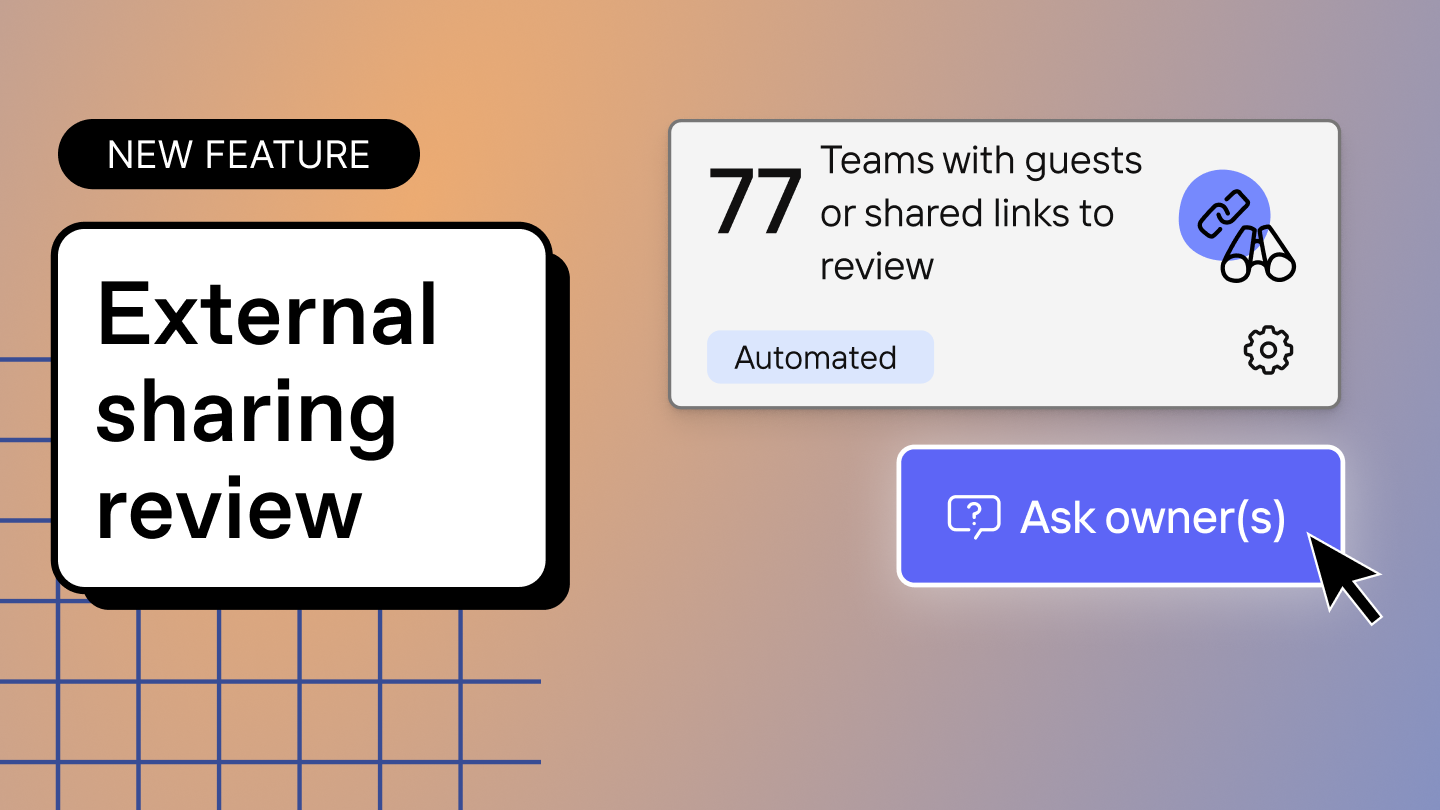
With ShareGate Protect, you have complete visibility and control over who has access to what in your M365 tenant. See every externally shared link and every guest user in one central view. If something looks off, you can clean it up directly. No scripts, no admin-center hopping.
Ready to simplify external file sharing and collaboration? Try ShareGate Protect for free today.


Frequently asked questions

By default, every organization using M365 has audit logging turned on. You can find these logs, which record who accesses which files, in the Microsoft Purview portal. You can also look at file activity directly in SharePoint’s activity logs, which show whether a file has been viewed, edited, or shared.
A faster, easier method of tracking access is using ShareGate Protect. You’re able to instantly review external access in one place, as well as edit any permissions or revoke account access if necessary.
Yes, Microsoft 365 includes AI-driven security features, primarily through tools like Microsoft Defender for Cloud Apps and other enterprise-grade security solutions. These tools can enhance secure external file sharing through automated threat detection and by monitoring for sharing links that don’t align with your organization’s security protocols. These systems can learn what normal user behavior looks like and flag any suspicious behavior across your system, like an old guest account that’s been inactive for months suddenly springing back into life.
You can adjust guest access and group membership through Entra ID. You can also remove guest accounts from the Entra admin center. To do so, click on Entra ID, then Users, then User Settings, then Delete User.
For a more intuitive and detailed solution, ShareGate Protect lets you see every guest account across the tenant in one place. You can quickly scan what each account has access to and directly remove or adjust their permissions from the dashboard.
Microsoft verifies external user identities in two main ways. Guest users need to sign into their Microsoft account. Ad hoc users enter a single-use password that gets sent to their email. Whether a user has a guest account or ad hoc access depends on your specific link-sharing configuration.
Microsoft Purview Audit is the audit center within M365. It allows you to check file access records, automatically log sharing events, and monitor any permission changes.
While you can export logs from Microsoft Purview Audit and audit them yourself, it’s a time-consuming process. ShareGate Protect centralizes everything you need for an audit in seconds. Instantly view guest accounts, their access levels, and any shared links from a single dashboard.










.avif)

Don’t just migrate it, ShareGate it.
Your source is never touched — ShareGate only copies.
Re-running is safe, included, and free.

