.svg)
.png)
Master Microsoft 365 migrations
Watch our webinar to learn accelerated migration strategies and best practices!
Watch now%20(1).avif)
Master Hacks: Migrate like a pro
Check out our video series to help you turn migration projects into masterpieces!
Table of contents
8 updates this month, and they all help you while you’re in the middle of the job. The cleanup that's still running, the migration that's half done, the question you're partway through answering. September went after the part where you're already committed and need things to keep working.
Protect got five updates. Migrate got three. Let's dig in.
ShareGate Protect
There were two themes with this months’ releases. The first is throughput: bigger tenants shouldn't mean longer queues. The second is context: before you remove someone's access, you should be able to see everything else that access touches.
File version management: The storage line item nobody reads
Every time someone saves a file, SharePoint keeps the previous copy. A document a team edits daily can quietly hold hundreds of them, and SharePoint's default is to keep up to 500 per file. That's real storage on your Microsoft bill, and nothing in a normal admin's day tells you how much of it is old versions. And even once you set a stricter limit, Microsoft only applies it to versions created afterwards.
File version management closes both.
Protect’s new Version storage report shows how much storage versions are eating per workspace, with version storage, version-to-site-storage ratio, and the current limit as default columns. Storage quota, file count, version expiration, and minor and draft version limits are there too when you want them. OneDrive gets the same columns and actions through the existing OneDrive reports, kept separate because OneDrives carry their own limits and don't count toward tenant storage overages. Two new insights point you straight at the worst offenders. Expand any workspace to see the same per document library, which is usually where bloat concentrates. One library of CAD files can account for most of a site's version storage.

Set version limit caps how many versions pile up from here on. Apply it to one workspace, a selection of them, or the whole tenant from your Tenant info page, and choose between following the tenant default, letting Microsoft's algorithm thin older versions on its own, or naming your own number and expiry. At library level you can also switch versioning off entirely and set minor and draft limits rather than just reading them.
A limit only governs new versions, though. Microsoft applies it as files get edited, so a limit alone won't shrink what's already there, and dormant files never get touched at all. Trim versions is what acts on existing history: pick how many versions to keep and everything past that goes. Trim while setting a new limit, or on its own.
One thing to know going in: trimmed versions skip the recycle bin and can't be recovered. That's a Microsoft constraint, trimming through native SharePoint tooling behaves the same way. Both actions write to the Activity Log, and a trim records how many versions went and how much storage came back.
Both actions now run as automated policies too, so a workspace you trim in September doesn't quietly bloat again by December. They're single-action, so a limit plus a trim means two policies, and they run at workspace level rather than per library.
Concurrent bulk actions: Cleanups run side by side
Bulk actions can now run in parallel. Kick off a version trim across a few hundred workspaces, then get straight on with the next thing: archive a site, change a privacy setting, start another cleanup entirely. Nothing queues behind the job you started first.
The bigger the tenant, the more this gives back. Version trimming is the clearest case, since by nature it can run for days on a large environment. But it applies everywhere bulk actions do, which means the size of your tenant stops setting the pace of your cleanup.
Permissions matrix report: 3 more ways to take access away
You can now remove permissions directly from the PMR in Protect.Three actions shipped, and each one handles a different way access gets granted.
- Remove a direct user or group permission. This takes away the whole grant on an object. The principal can be a user, an M365 group, a security group, or a built-in group, which includes the EEEU, Everyone, and All Users grants that quietly open content to the entire org.
- Remove an entire SharePoint group. On a site, that covers custom SharePoint groups. On a broken lower-level object, it covers any SharePoint group, custom or default.
- Remove a member from a SharePoint group. This one is a bit different. Removing a permission takes away access on the one object you're looking at. Nothing else changes. Removing a member edits the SharePoint group itself, so that person loses access to every object that group has been granted, not just the one on your screen. If the group is used at three other places in the site, all three are affected.
The confirmation modal tells you that before it applies. But the scope is the group, not the content object, and that distinction is the difference between a tidy fix and a support ticket.
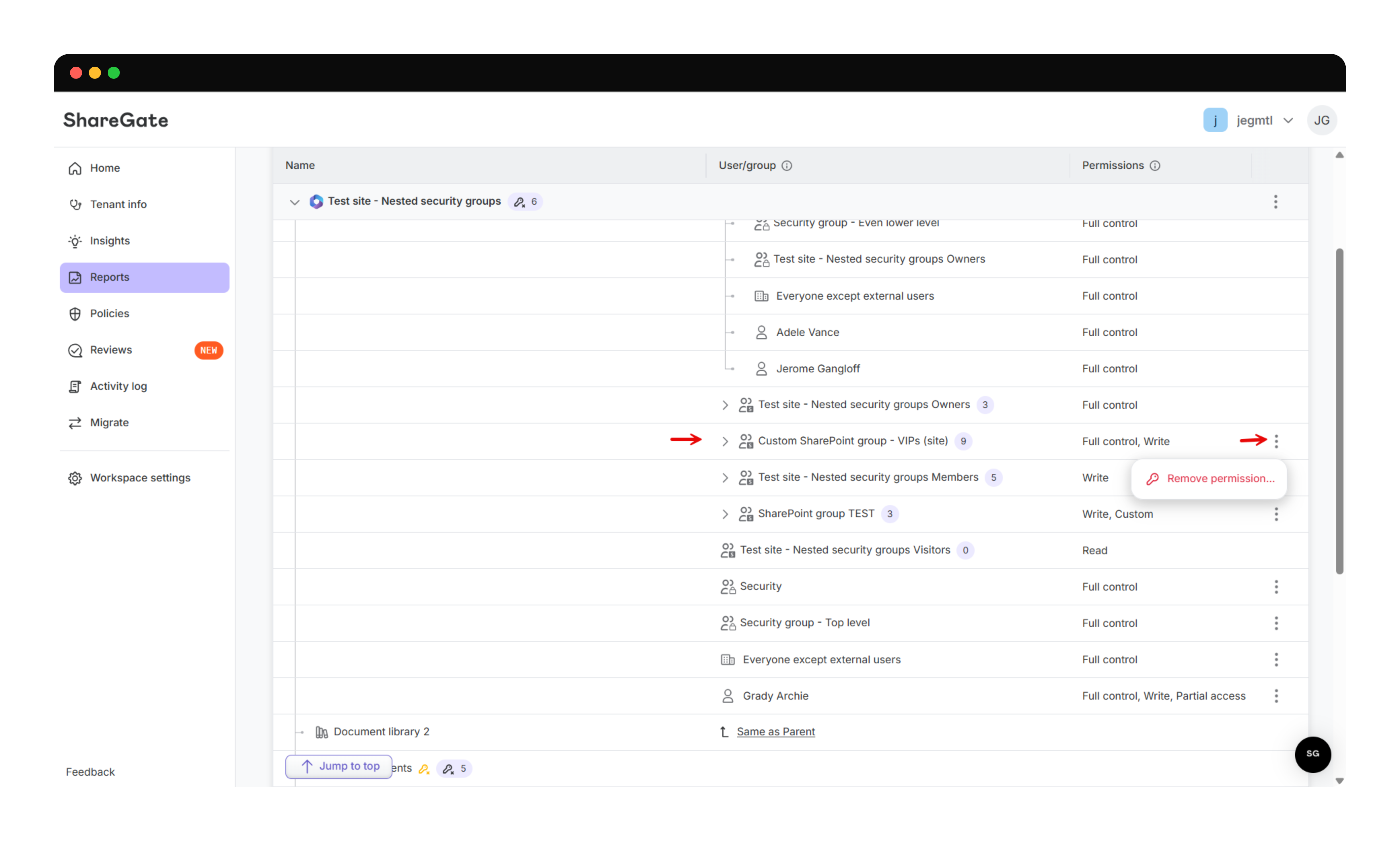
A few boundaries worth knowing. Actions only appear on objects with broken or unique permissions, including top-level sites. If an object inherits, Protect sends you to the parent, because that's where the grant actually lives. Editing membership of M365 groups and security groups is still out of scope: you can remove their grant on an object, but not individual members.
Workspace details: Membership and permissions in the same place
Workspace details launched in July with the overview, sizing, settings, and sharing links. Group membership and permissions still lived elsewhere, which meant a trip to another report the moment you wanted to know who was actually in there.
Two new tabs fix that. Group membership lists owners, members, and guests, with add, promote to owner, and remove available right there. Site permissions shows the permissions matrix report scoped to the workspace you're already reviewing.
So "who has access to this workspace, and who owns it?" is now a tab, and investigating and fixing happen on the same page.
User details: Everything one person can reach
Workspace details answers questions about a workspace. We also wanted you to be able to answer questions about a person.
When someone changes roles, leaves a project, or turns up in an access review, the question isn't "what's in this site?" It's "what can this person reach, and how did they get there?" Answering that meant opening a different report for every part of it.
The new user details view puts it in one place. Click anyone's name from a user view, a Protect report, or an insight, and you get four tabs:
- Their basic info
- The M365 groups they belong to as owner or member
- The licenses assigned to them
- The sharing links tied to them.
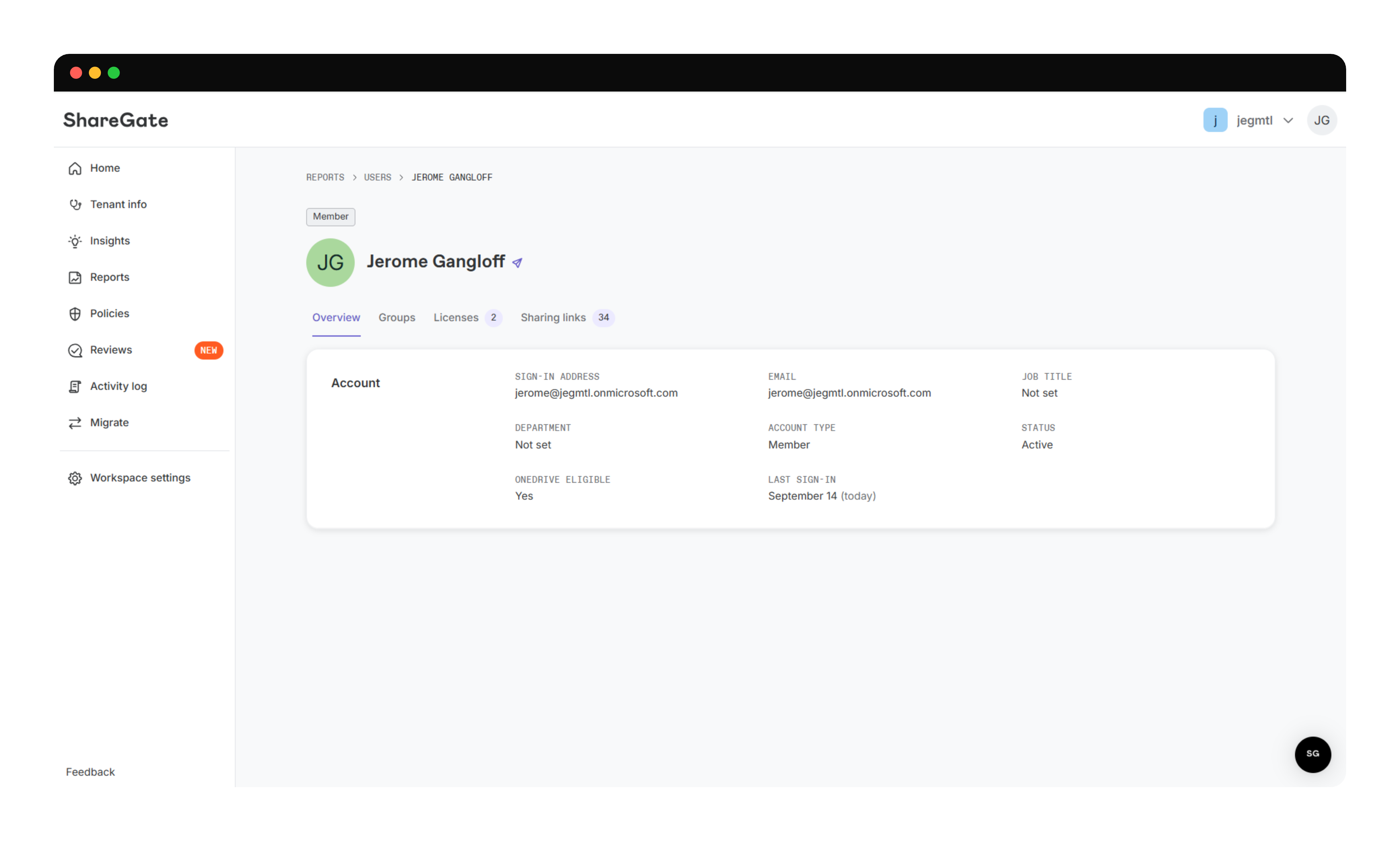
Better still, it connects both ways. From a user, jump into any workspace they can reach. From a workspace, jump into any person in it. The investigation stops being a series of separate reports and starts being a path you can follow.
One gap for now: user details isn't available from the Permissions matrix report yet. But it's coming.
ShareGate Migrate
A migration isn't done when the content arrives. It's done when nobody notices anything moved. This month's Migrate updates all live in that gap: mail that still reaches people mid-move, errors you catch while there's still time to act on them, and a group type that lands working instead of needing a rebuild.
Mail coexistence: mail keeps flowing through a phased move
Phased tenant-to-tenant migrations open an awkward window. Half your people are on the new tenant, half are still on the old one, and mail sent to anyone who's already moved needs somewhere sensible to land.
Turn on Coexistence in Copy options and Migrate handles that window for you. As each mailbox migrates, it sets up two things in Exchange Online: a forwarding rule so mail sent to the old address reaches the new mailbox, and an anti-spam exception so that forwarded mail isn't filtered out by your tenant's default Microsoft 365 policy. The second one earns its place. It's the most common reason forwarding appears to work right up until somebody asks where their email went.
There's an optional outbound disclaimer too. Check the box, write your note, and outgoing mail from migrated users carries a short explanation of why they're suddenly writing from a new domain. It takes HTML, so bold text and links are fine, along with tokens like %%DisplayName%% to pull in the sender's name. Exchange strips images and scripts, so leave those out.
One rule worth respecting: don't recreate or edit those rules yourself in the Exchange admin center or through PowerShell. Migrate is keeping track of them, and editing them by hand breaks that.
Scope for this release: cloud-to-cloud Microsoft 365 only, with forwarding running one way, source to target. Replies forwarded back to the source, cross-tenant free/busy, and address book visibility for people who haven't moved yet are all still to come.
Entra ID: Mail-enabled security groups make the trip
Mail-enabled security groups do two jobs at once. They gate access to content, and they route mail. That dual nature makes them a known hard case in tenant-to-tenant migrations, because Microsoft Graph — the API most migration tooling is built on — can't create them at all. Which leaves two unsatisfying options: skip them, or recreate them as plain security groups and lose the mail side.
Copy identities now creates them properly, by routing through the Exchange Online admin API instead of Graph. They land in the destination tenant intact, with both jobs still working, and distribution lists covered, so there's nothing left to rebuild by hand afterwards.
Alongside it, you now have control over what rides along with a group copy. Select a group and its member users get pulled in as dependencies automatically, which is usually what you want and occasionally exactly what you don't. A toggle in the copy options lets you turn that behavior off per copy, and you can now set the default once rather than remembering to uncheck it every time. It stays on by default, so nothing changes unless you change it.
Mailbox migration report: Errors and warnings, live in the app
A mailbox copy now reports on itself as it goes. Open the migration report mid-run and you get three tabs—all mailboxes, errors, and warnings—filling in as the copy works through the batch.
You can search by mailbox or by error number, sort the table, and export the mailbox report of the mailboxes you need instead of the entire run.
%20(2).gif)
The grouping is what saves the most time. Every mailbox hit by the same error appears together, so one throttling problem across two hundred mailboxes reads as one problem rather than two hundred separate lines to piece together yourself. Where a help article already covers an error, there's a link straight to it.
Worth setting expectations: this is a report, not a repair tool. It tells you what failed and where.
That's a wrap on September 2026
Two things get easier this month.
The first is having the confidence to act. When you can see something's wrong, but you can't see far enough around it to act without wondering what else you'll break, most people hesitate. Knowing every place a group grants access or everything one person can reach, is what turns a maybe into a decision you're willing to sign off on.
The second is time. The size of your tenant stops dictating how long a cleanup takes. Storage you're already paying for becomes a number you can act on rather than a line on an invoice. And a migration that runs into trouble says so while it's running, not once it's over.
A few of the releases we’re most looking forward to in October? Teams private chat migration arrives PowerShell-first next week and more actions for the PMR.
Go enjoy the crisp fall weather (depending on where you are in the world). The cleanup runs fine without you now. Until next month!














Don’t just migrate it, ShareGate it.
Your source is never touched — ShareGate only copies.
Re-running is safe, included, and free.