.svg)

%20(1).avif)
Master Hacks: Migrate like a pro
Check out our video series to help you turn migration projects into masterpieces!
Table of contents
What to consider for your Google Workspace to Microsoft 365 migration
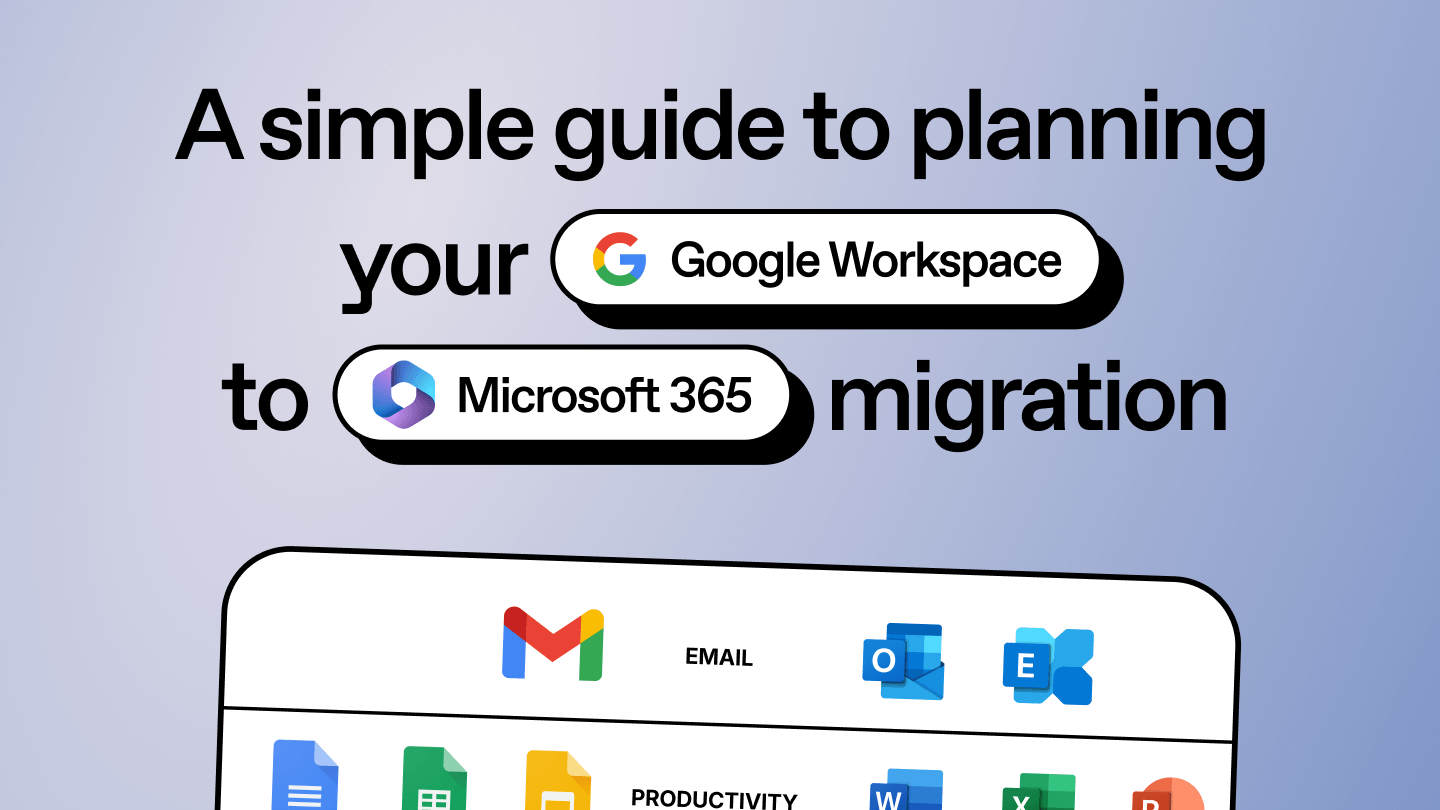
TL;DR: A Google Workspace to Microsoft 365 migration means moving four things: Google Drive files (My Drive and Shared Drives) to OneDrive or SharePoint, Gmail to Exchange Online, Google Calendar and contacts to Outlook, and your permission structure into Microsoft's model. Microsoft's free native tools can handle smaller moves, while third-party tools like ShareGate add speed through concurrent migrations, planning and reporting, incremental sync, and permission fidelity for larger or business-critical projects. Google Groups aren't supported. Collaboration layers like Google Chat and distribution lists have no clean Microsoft equivalent, so you rebuild those by hand.
Leadership picked Microsoft 365. The decision's made, the date's coming, and it landed on your desk. You know both platforms cold as an admin. What you've never done is move an entire company across the fence in one direction.
It gets uncomfortable fast. A cross-platform move isn't a bigger version of a SharePoint tenant swap. Google and Microsoft store files, permissions, and mail in different shapes. Some of it maps cleanly. Some of it doesn't map at all.
Here's the trap. Most people pick a tool and a cutover date first, then discover what won't move halfway through. That's how you end up explaining to the CFO why the shared calendar broke and why "shared with me" files vanished. Scope it before you commit. This guide walks through the full Google Workspace to Microsoft 365 migration, so you know what moves, what breaks, and what you'll rebuild by hand before anyone signs off on a date.
What actually moves from Google Workspace to Microsoft 365 (and what doesn't)
A Google Workspace to Microsoft 365 migration moves your core collaboration data: Drive files, Gmail, Calendar, and contacts, plus the permissions attached to them. It doesn't move everything. Google Groups, Google Chat, and distribution lists have no clean equivalent on the Microsoft side, so they get rebuilt manually.
Knowing the split up front is the whole game. Here's what crosses the fence and what doesn't.
Notice the pattern. Content and its metadata cross over. Google's collaboration wrappers, the Groups and Chat layer, don't. ShareGate's own docs are clear that Google Groups aren't supported, so plan to recreate those in Microsoft 365 Groups, Teams, and Exchange as part of the project, not as a surprise on go-live day.
One caveat. This split holds no matter how you move. What changes with your tool is fidelity: how much version history, permission detail, and label mapping actually survives. That's the native-versus-third-party call we get into below.
Personal vs business Google accounts
This one bites people. The migration connects through a Google Workspace Super Admin account with domain-wide delegation, which is a business Google Workspace thing. A personal @gmail.com login has no admin to delegate, so it's out of reach. If someone's been running the department off a personal account, move that data into a business account first, or you'll be doing cut-and-paste at 11 p.m. during cutover. Once you know what moves, map where it all lands before you touch a thing.
Map your Google structure to Microsoft 365 before you move anything
Mapping means deciding where each Google container lands in Microsoft 365 before a single file moves. Shared Drives become SharePoint team sites. My Drive becomes each user's OneDrive. The tricky part is Google's habit of using folders as de facto permission boundaries.
We hear this one constantly. Teams build a "Marketing" folder in Drive, hand out access to the folder, and treat it as a department. In Microsoft 365, that same boundary belongs at the SharePoint site plus a Microsoft 365 group, not a folder deep in someone's OneDrive. Get the mapping wrong, and you either overshare everything or lock people out of their own files.
So build the inventory first. You can't map what you haven't counted. ShareGate Migrate runs a pre-migration assessment that inventories your users, mailboxes, and drives and surfaces ownership and permissions, so you walk into cutover with a plan instead of a guess. That visibility is the difference between a scoped project and a fishing expedition.
Decide the destination shape now: which Shared Drives collapse into one team site, which get archived, and who owns each. Our pre-migration planning guidance walks through the structure choices, and the planning infographic gives you a one-page version to share with stakeholders. Skip this step and you're not migrating a structure. You're copying a mess into a more expensive platform. Mapping tells you where things land, but not what survives the trip.
Plan for permissions, sharing, and format fidelity
Permissions and formats are where "it moved" and "it works" part ways. For users, you map the source to the destination, permissions carry over, along with authors, timestamps, and version history. Some sharing doesn't survive, and that's the part you need to plan around.
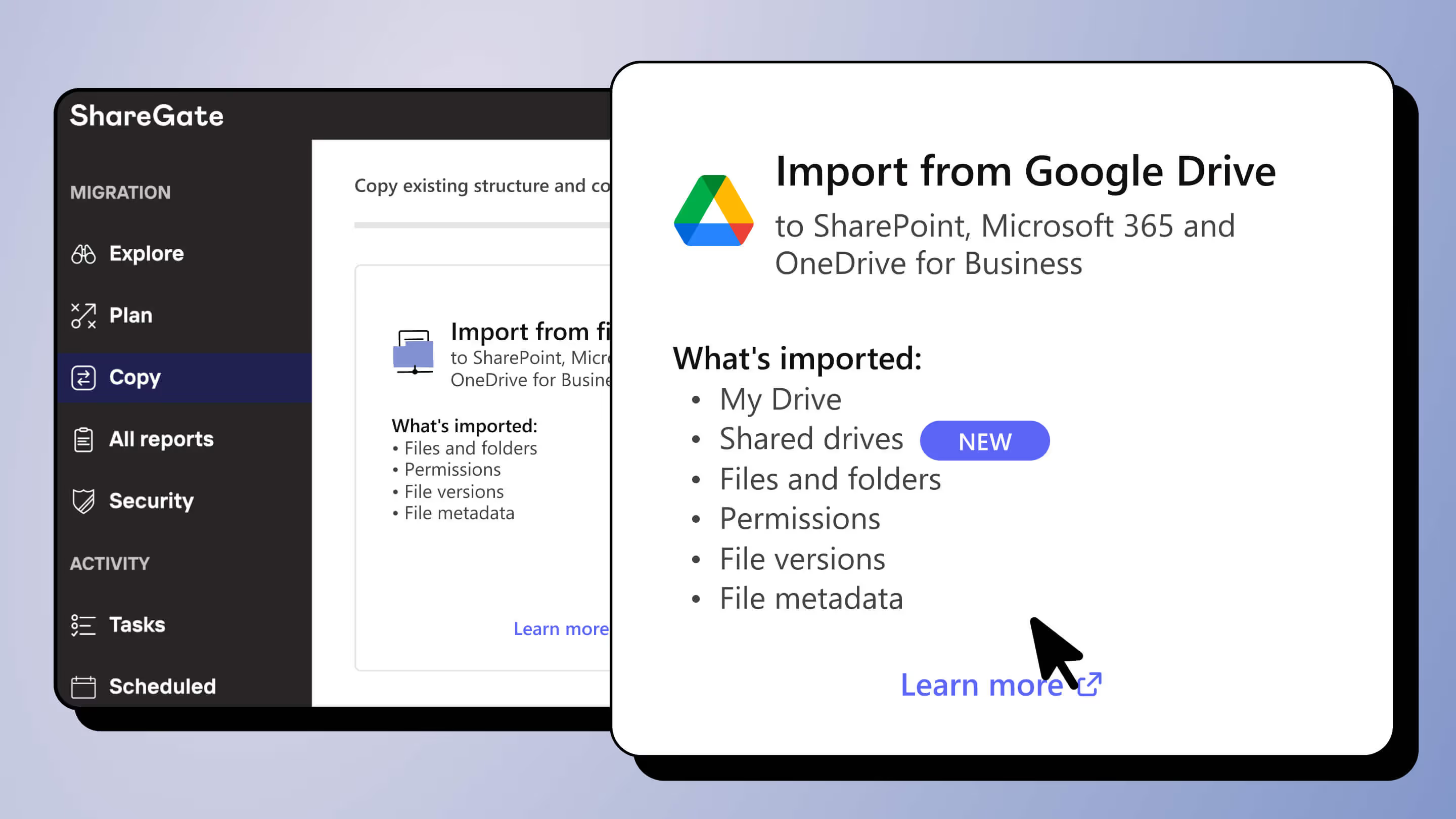
Start with what holds up. Migrating Google Drive to SharePoint or OneDrive, ShareGate Migrate converts .gdoc, .gsheet, and .gslides into .docx, .xlsx, and .pptx while keeping permissions, authors, timestamps, and version history intact. So a document lands owned by the right person, with its edit history, ready to open in Word. No "who wrote this and when" mystery. One exception applies to folders from shared drives. There, the "Created by" value becomes the last "Modified by" at the destination.
Now the honest part. Files shared with a guest or via a shareable link still migrate. What doesn't survive is the external sharing link itself. External partners lose access at cutover unless you re-share from the Microsoft side. Build that re-sharing into your runbook. The "Shared with me" view doesn't reconstruct at the destination either. The exception is a legacy, non-modern OneDrive experience. Either way, users keep access to those files through migrated permissions. They just won't see them in a "Shared with me" list.
Files converting formats will also look a little different. Complex Google Sheets formulas and heavily styled Slides can shift on conversion. Spot-check your highest-stakes documents before go-live, not after.
Once everything lands, permissions are worth a second look. Google's sharing habits tend to be loose, and that looseness comes along for the ride. ShareGate Protect audits permissions after cutover and flags oversharing, so the access you inherited from Google doesn't quietly become your next security incident. Migration gets the data across. Protect keeps who-can-see-what honest afterward. How much of that fidelity you actually keep comes down to the tool you pick.
Choose your approach: native Microsoft tools vs a third-party tool
You've got two real paths: Microsoft's free native tools or a dedicated third-party tool. Both can run a Google migration. The right call depends on size, timeline, and how much fidelity and control you need. Let's be straight about what each one gives you.
We're not the only third-party option. BitTitan MigrationWiz and Cloudiway also move Google Workspace to Microsoft 365. All three are legitimate choices. We put our focus here. ShareGate runs the full move, Drive plus Gmail, Calendar, and contacts, from one tool. Concurrent migrations work around throttling. You also get pre-migration assessment, incremental sync, and permission fidelity, plus Protect to keep the tenant clean after cutover. Compare the tools on the dimensions that matter to your project: scope, speed, fidelity, and what happens after go-live. If you're weighing BitTitan, take a look at our ShareGate vs. BitTitan comparison.
What Microsoft's native tools do and don't cover
Microsoft's native tooling is genuinely capable, and it's free. Microsoft's Migration Manager, in the Microsoft 365 admin center, migrates Google Drive files, metadata, and permissions to OneDrive and SharePoint. There's also a Migration Manager Lite, enabled by default for tenants with fewer than 300 licenses when the project is created. For mail, Exchange's Perform a Google Workspace migration path moves Mail, Calendar, and Contacts to Exchange Online in batches.
The catches. The native Exchange path isn't available for Microsoft 365 US Government GCC High or DoD. And the native tools are two separate workflows: one for Drive, one for mail. You're managing throttling, batching, and validation yourself across both, with no single planning view.
That's where a tool earns its keep. ShareGate runs the full move, Drive plus Gmail, Calendar, and contacts, from one tool, so you're not stitching two consoles together and hoping the counts match. It adds pre-migration assessment, concurrent migrations to beat throttling, incremental sync and scheduling, and permission fidelity for mapped users. For a 30-seat move on a relaxed timeline, native tools may be all you need. For a few hundred seats on a hard deadline, or an M&A cutover you can't botch, the speed and planning pay for themselves. Weigh it honestly with the pros and cons breakdown before you commit. Pick your tool, and the next fight is speed against throttling.
Speed, throttling, and cutover: running the migration without downtime
The real constraint on a cross-platform move isn't your bandwidth. It's throttling. Both Google and Microsoft rate-limit how fast an account can pull and push data, so a single-threaded migration crawls no matter how big your pipe is.
You beat throttling by spreading the load. ShareGate runs concurrent migrations across multiple workstations, so you move many users at once instead of one at a time, which is what keeps a multi-hundred-seat project inside a weekend. It also supports scheduling and sequencing, so you run heavy batches overnight and stage departments in the order that makes sense for the business.
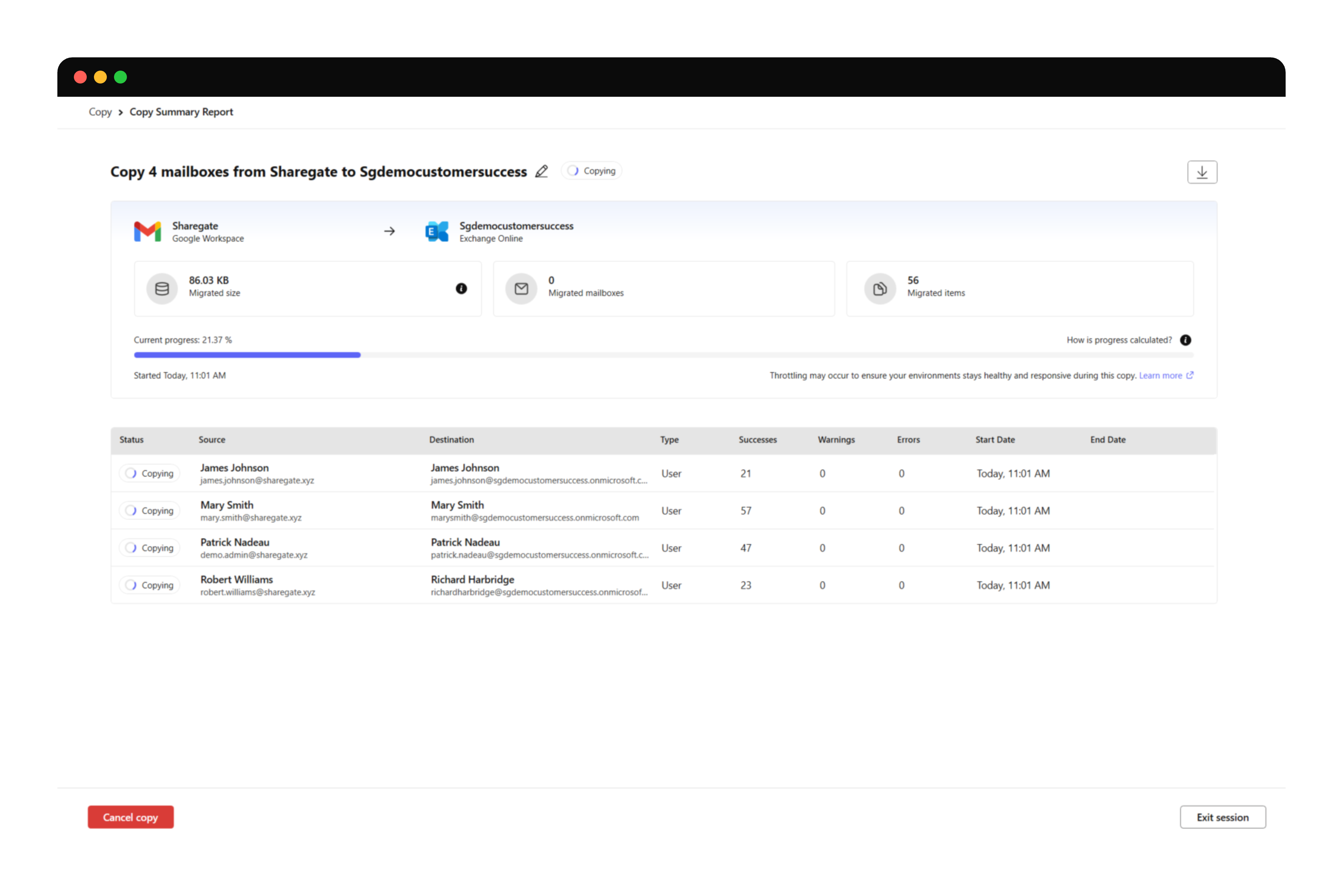
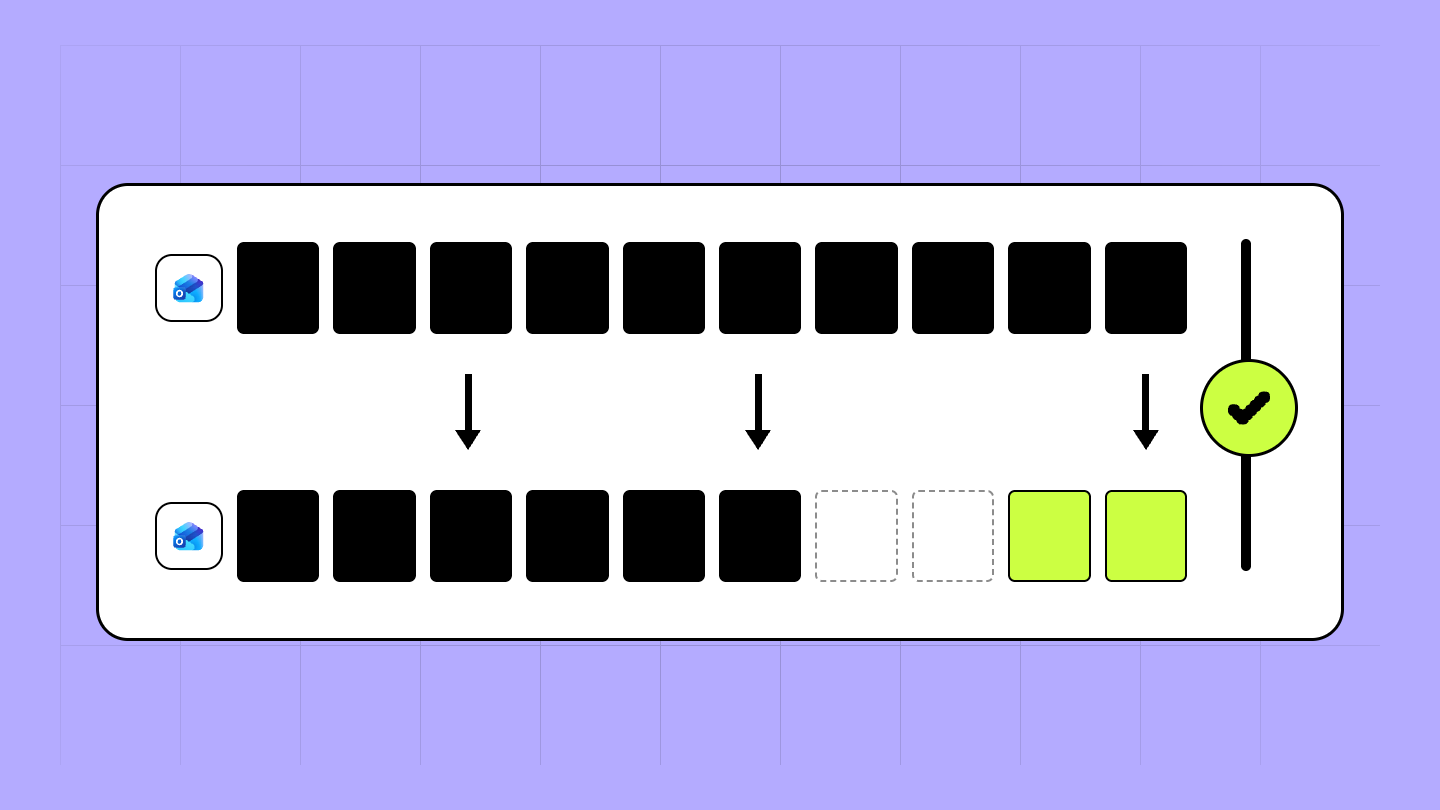
Then there's the cutover itself, and this is the trick that saves your Saturday. Run an initial bulk migration days ahead while everyone keeps working in Google. Then run an incremental (delta) sync at cutover that copies only what changed since the last pass. Users work right up to the switch, and you flip over with current data instead of a two-week-old snapshot. No freeze, no "please stop editing" email that nobody reads.
Keep mail expectations realistic. Copy from Gmail to Exchange Online runs at up to roughly 1.5 GB per hour per mailbox, per ShareGate's documented limits. It isn't supported for Microsoft 365 US Government GCC, GCC High/DoD, or China (21Vianet), and suspended or turned-off mailboxes aren't migrated. Size your mail window against that ceiling early, because a few oversized executive mailboxes can quietly blow your timeline.
One more detail that keeps users happy. Migrated Google Meet events get recreated as Teams meetings with updated links, and Gmail labels become Outlook categories. So the calendar people live in still works on Monday morning. Moving it is only half the job, so proving it landed right comes next.
Validate and govern after cutover
Cutover isn't done when the last byte lands. It's done when you can prove what moved and confirm access is right. Validation means reconciling source against destination and checking that permissions landed the way you mapped them.
Start with the numbers. ShareGate's migration reports reconcile what moved against the source and flag anything that errored or got skipped, so you catch a missed Shared Drive before a user does. Walk the report, resolve the exceptions, and only then tell stakeholders the project's closed.
Next, confirm permissions. This is where inherited Google oversharing becomes your problem. ShareGate Protect audits who has access across your new environment and surfaces oversharing, so you tighten the loose sharing you inherited before it turns into an audit finding. Migration is a recurring part of organizational change, and every reorg or acquisition drops fresh access sprawl in your lap. Governing after the move is what keeps the next one clean.
Only then do you decommission Google. Keep the source read-only for a defined window as a safety net, confirm nothing's still pointing at it, and pull the licenses. Cancel early and you've got no fallback. Cancel on a plan and you close the project clean.
Your next move
Run the gut check. Do you know which Shared Drives collapse into which SharePoint sites? Which accounts are personal and need rescuing first? What breaks the moment you flip external sharing off? If any of those is a shrug, you're not ready to pick a date. You're ready to plan.
Scope it now, on paper, while it's cheap. The admins who get burned are the ones who bought a tool before they counted what they had. Do the assessment, map the structure, and the migration itself turns into execution instead of improvisation. Plan your Google Workspace to Microsoft 365 migration with ShareGate and walk into cutover knowing exactly what moves.
One last thing. A migration is a moment of truth. You're touching every permission and file, so it's the moment to get governance right. ShareGate Protect gives you tenant-wide visibility into who has access to what, and keeps it that way after cutover. That's how you stay in control of your new environment instead of inheriting hidden risk.


Frequently asked questions

Yes. You can run a gmail to office 365 migration with Microsoft's native Exchange path or with ShareGate's Copy from Gmail, which moves messages and mailbox rules to Exchange Online. ShareGate's mail migration runs at up to roughly 1.5 GB per hour per mailbox and isn't supported for GCC, GCC High/DoD, or China (21Vianet).



.png)







Don’t just migrate it, ShareGate it.
Your source is never touched — ShareGate only copies.
Re-running is safe, included, and free.