.svg)

ROI calculator
See how much you can save by using ShareGate Protect to govern and secure your tenant
Calculate your savings%20(1).avif)
Master Hacks: Migrate like a pro
Check out our video series to help you turn migration projects into masterpieces!
Table of contents
July was a big one for Protect. Five updates, headlined by two we've been building toward for a while: the Permissions matrix report and Delegated reviews, a ground-up rebuild of our old Ask the owner capability. Together they add up to a real shift: you can now get an even more comprehensive picture of who has access to what in one report and hand governance decisions to the people who actually know whether workspaces are still needed.
Migrate got three updates too, all aimed at making the day-to-day flow smoother. Let's dig in.
ShareGate Protect
Protect's job is to show you what's happening across your Microsoft 365 environment and let you act on it. This month pushed hard on both halves. You can now see access more clearly and more continuously, act on the riskiest exposure without leaving the product, and share the review work with the people who own the workspaces. Here's what shipped.
Permissions matrix report: Who has access to what, in seconds
Every time an end user asks a connected AI tool to search for an answer in your tenant, it can and will scan everything the end user has access to. That's what makes oversharing so dangerous: it's the risk you can't see, piling up quietly until an AI tool exposes it for you. ShareGate Protect’s new Permissions matrix report (PMR) is the fastest way yet to catch overshared content before your AI tools surface it for you.
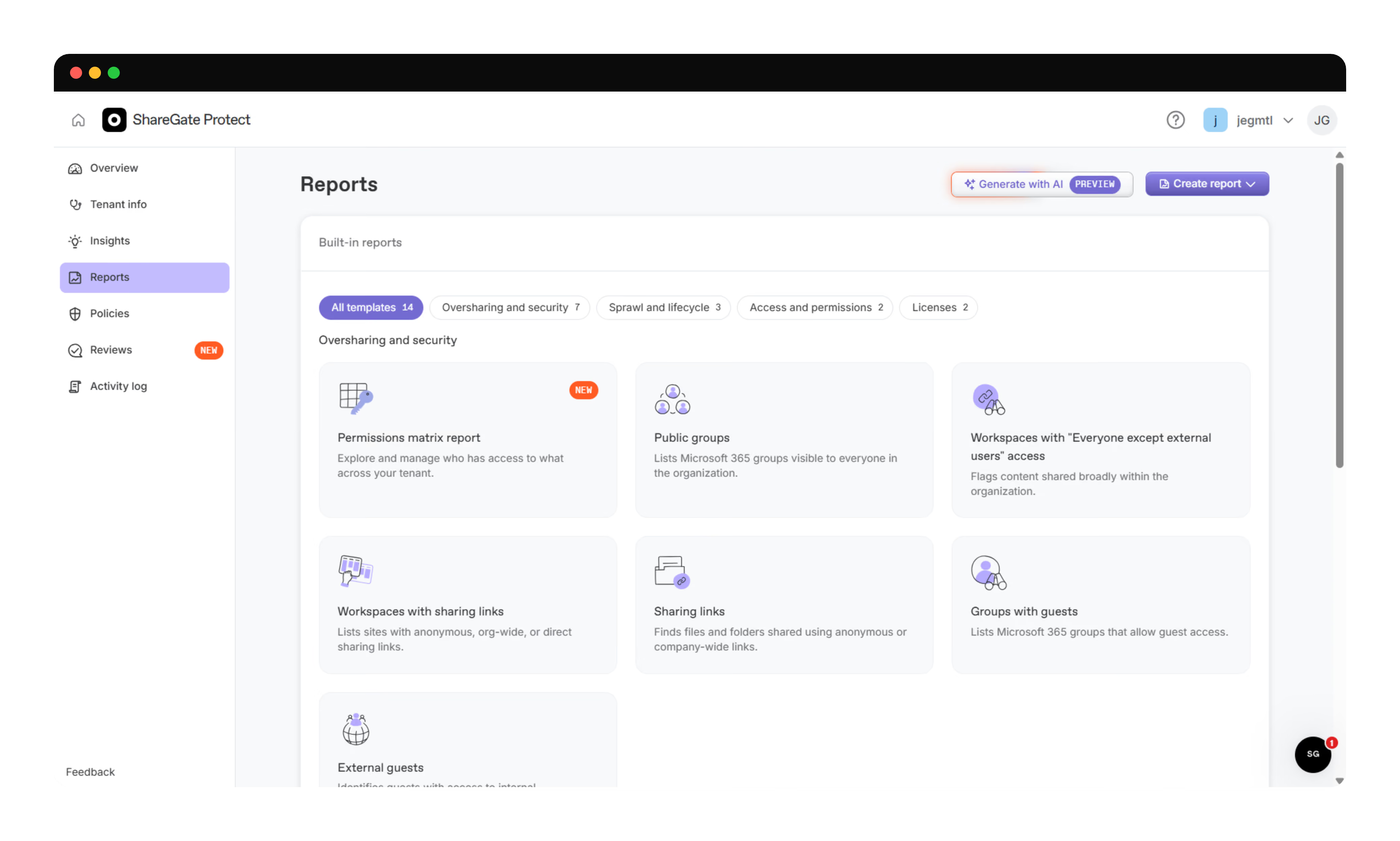
Protect’s PMR shows you who has access to what across SharePoint and OneDrive, kept current as collaboration drifts, so you see the blast radius before Copilot does.
It runs entirely on the web. Choose SharePoint, OneDrive, or both, and read access down the content hierarchy: sites, subsites, and libraries throughout, plus folders and documents wherever inheritance is broken, which is exactly where oversharing tends to hide.
Sites render as they're crawled, so you start digging in right away instead of waiting on a full tenant scan. And the data refreshes roughly every 24 hours, so what you see reflects the tenant as it actually is. This is V1, focused on getting you that answer fast, with more depth and remediation on the way.
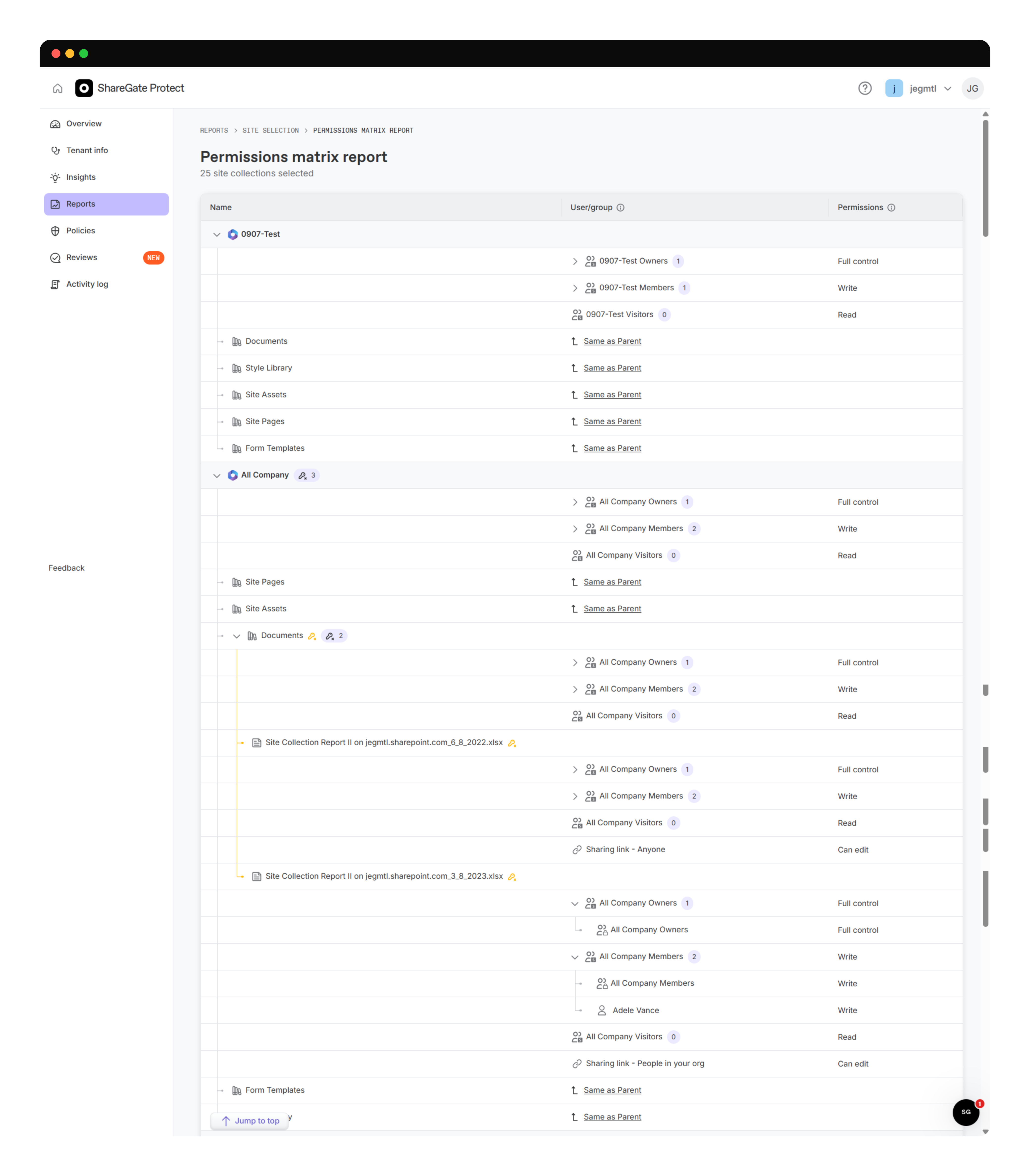
If the name rings a bell, that's because the PMR is the most-used report in Migrate. Permissions management is crucial for migrations. Before you move a site, you need to know exactly who can access it, and after, you need to prove the right permissions migrated alongside it. This is that same trusted report, rebuilt for the web and pointed at a different job. Migrate's PMR is a point-in-time check tied to a migration event. Protect's answers the same question for ongoing governance, day after day.
Delegated reviews: Governance that scales past IT
One admin can't be the decision-maker across hundreds or thousands of workspaces. The person who knows whether a guest still needs access is usually the person working with them. Owners are the ones who know whether an inactive workspace is still needed. These aren't questions IT teams can answer for end users.
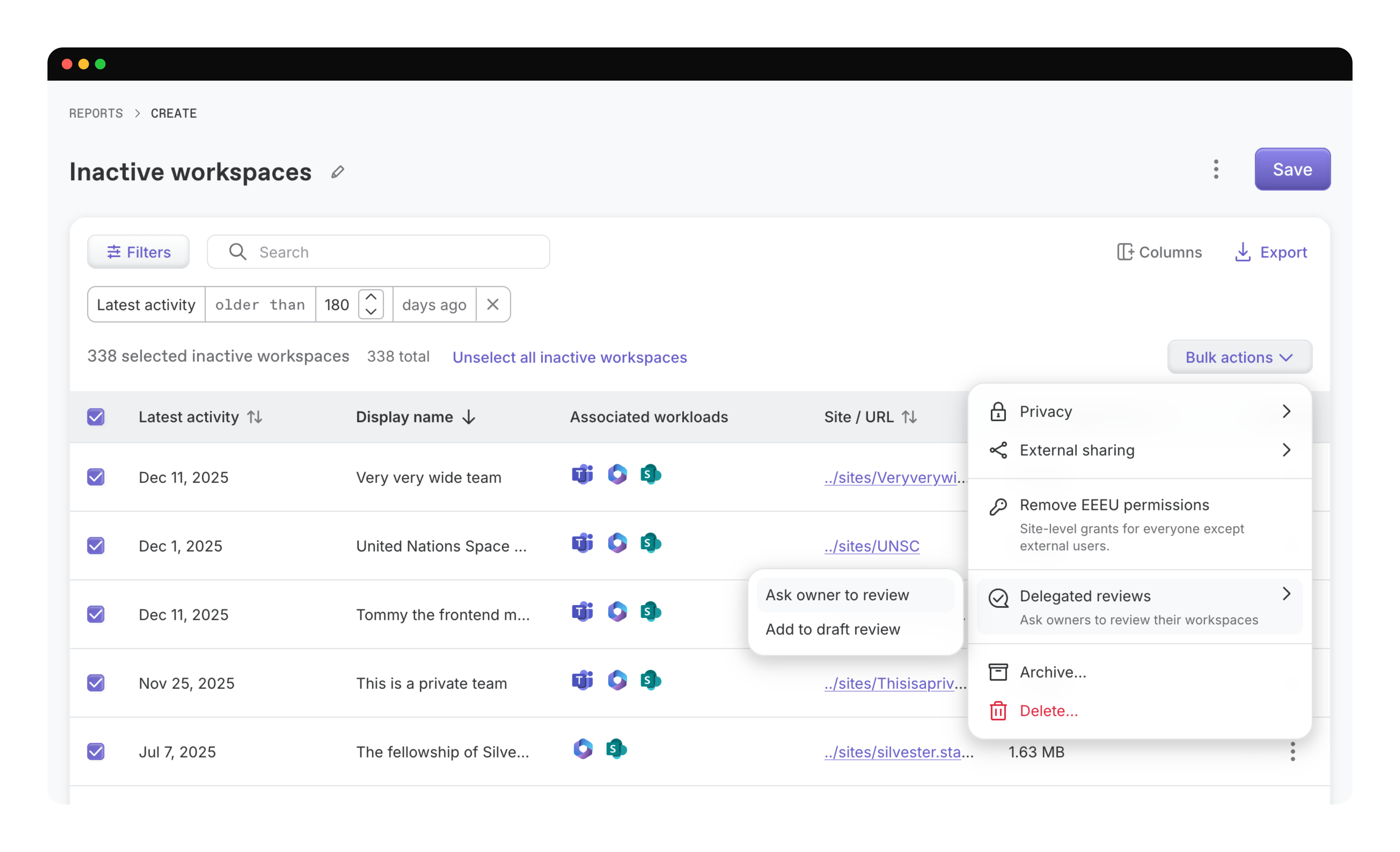
So Delegated reviews puts the decision where the context lives. Select workspaces from any Protect report covering SharePoint, Teams, or Groups, bundle them into a review, and send it to the owners. They get a link, sign in with Microsoft 365—no ShareGate account needed—and decide whether to keep, archive, or delete a workspace, pull a guest, or kill a stale link. Actions run the moment they submit.
This is what it looks like for the end user:

You stay in control of what gets reviewed and by when. You watch progress from the new Reviews page, and nudge anyone dragging their feet. And every decision lands in the Activity Log with who made it and why, so you're not just distributing the work, you're building a governance trail the whole organization can stand behind.
If this release sounds familiar, it’s because it is. We used to have a feature called Ask the owner, which let IT pros send emails or Teams chatbot messages to end users to review inactive and orphaned team, guest access, and sharing links. But it was only for Teams, SharePoint was left out.
The old reviews ran on fixed inactivity or oversharing policies that applied across the entire tenant, so trying to review a specific set of resources outside of that timeline was tricky. Also, there was no dashboard, just a last-reviewed timestamp, and no way to know why someone chose to keep, delete, or archive a team, because nobody asked.
There was also a dedicated end user Teams app. The reality, though, was that nobody came back to it unprompted. This time around, we focused on making the governance decision easy in the flow of end users' regular day rather than asking them to add another app into their stack.
This release of Delegated reviews is the first step, not the whole story. More review types, more guardrails on what users can do, and tighter ties into the automation Protect already runs—like policies and MCP—are next.
Remove EEEU and change external sharing: From flagging risk to fixing it
Protect has always shown you EEEU ("Everyone Except External Users") exposure and overly permissive external sharing. Now it acts on both.
Remove EEEU takes on the grant that quietly opens a SharePoint site to every internal user, one of the top Copilot and Search exposure risks in a tenant, since anything EEEU exposes, AI can surface to the whole org.
Protect removes the EEEU assignment at the site level: the direct grant on the site plus the top-level SharePoint groups. Run it on one site, in bulk, or as a policy that keeps clearing new EEEU exposure as it appears.
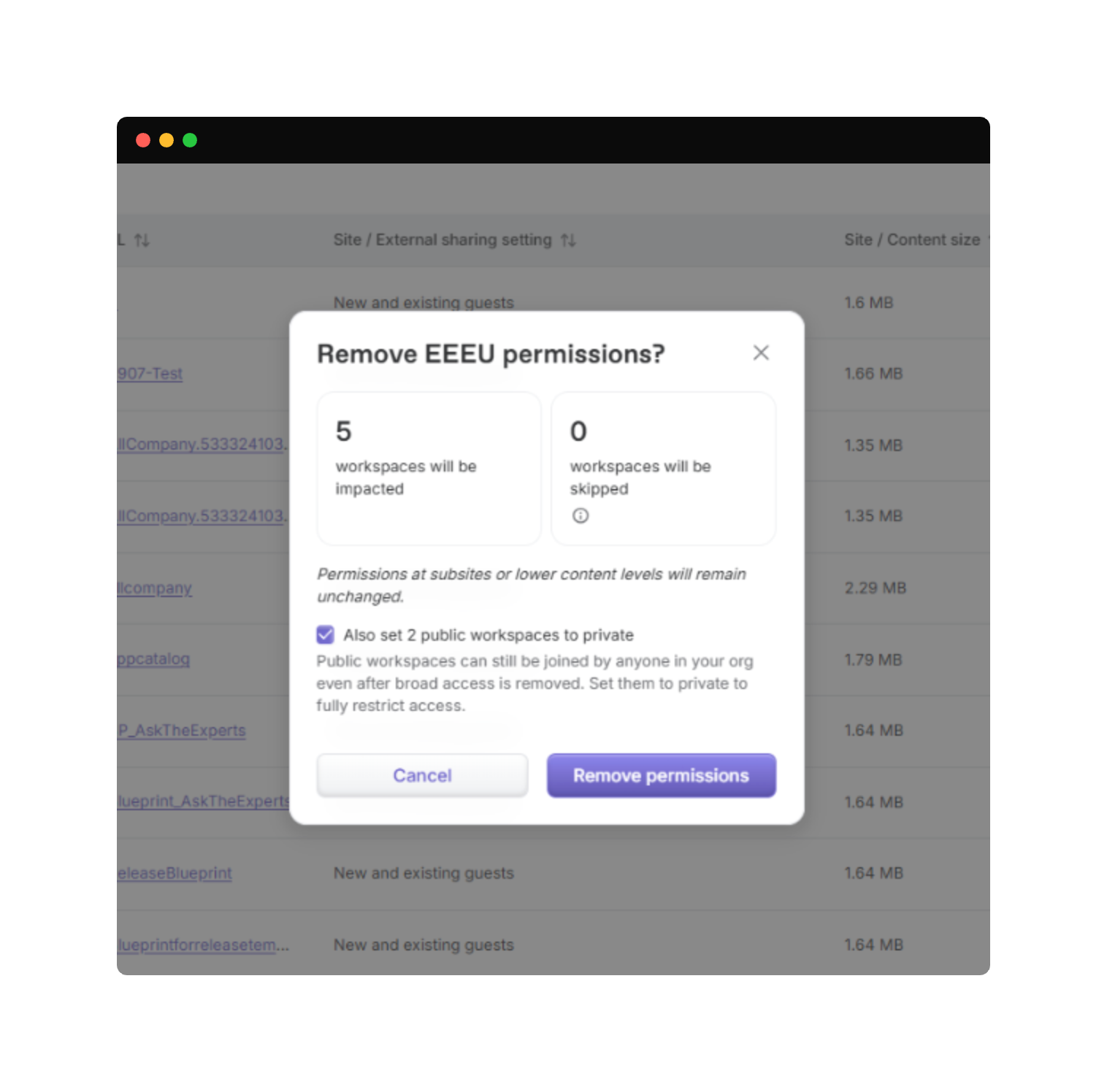
A quick note on scope: removing EEEU closes that org-wide exposure, but a Public site stays joinable on its own, so for full remediation you can set Public workspaces to Private in the same step.
Alongside it, you can now change a site's external sharing setting straight from the report, single site or bulk, to tighten how far content travels outside the org. Both of these updates are guided actions that write to the Activity Log.
Worth knowing going in: these are real permission changes, not flags. If EEEU was someone's only route into a site, they lose access the moment you run it, and tightening external sharing can cut off guests and links that are still in use. Site-level sharing options are also capped by your tenant setting in the SharePoint admin center, so you can match it or go tighter, never looser. That's exactly why the confirmation screen shows you the impact first, sites affected, sites skipped, and the access being removed, before you commit.
Sharing links report: The three signals that decide if a link is risky
A sharing link isn't risky just because it exists. It's risky if it grants edit, never expires, or has no password. Protect already crawled this data, but the reports never showed it.
Now it does. Permission level, expiration date, and password protection show up as columns you can sort and filter, everywhere sharing links appear, from Tenant info to Insights to Reporting. Want every "Anyone" link that can edit and never expires? Filter to it in seconds. "No expiration" is its own filter state, because a link that outlives its purpose is a risk all on its own.
Workspace details: The full picture of a workspace, in one place
Protect's reports have always been able to tell you who owns a workspace, who's in it, and how it's being shared. Workspace Details brings all of that together for a single workspace, on one page, and adds somewhere to act on it. You can see owners, members, sharing settings, the full context in one view, with the option to trigger a review or change a setting right there.

ShareGate Migrate
Migrate's updates this month are all about the setup work that surrounds a migration, the connecting, the mapping, the validating you do before content moves. Each one takes a step that used to be repetitive or easy to get wrong and makes it smoother, so you spend less time wrestling with the wizard and more time migrating. Here's what's new.
Connection manager: Every connection from one place
This one's been on the wishlist for a while, and a lot of current customers told us they’re excited to see it.
Here's what used to happen. Every time you connected to a source tenant and then a destination, you re-entered the URL, the credentials, the MFA prompt. Again the next session. Again for the next migration. Again for every scheduled task. It was exactly the kind of repetitive friction that wastes an admin's afternoon.
Connection manager fixes that. All your SharePoint, OneDrive, and Microsoft 365 tenant connections now live in one tab in Settings. Reauthenticate once and it refreshes everywhere, across every linked session, migration, and scheduled job, automatically. No more re-entering the same credentials to get back to work you already set up. It's a small screen, but it saves time on nearly every project.
Mailbox mapping: Surface conflicts earlier
Mailbox mapping used to sit downstream. You'd pick mailboxes from a raw list, then hit conflicts and unresolved accounts later in the wizard, after you'd already locked in your selection.
Now mapping opens the flow. This also means the migration process becomes even simpler. Conflicts surface at the mapping step instead of mid-flow, and mappings carry across every batch automatically.

It works whether you're moving Exchange Online to Exchange Online or Gmail to Exchange Online, and mappings carry across every batch automatically.
If you’re running a larger tenant-to-tenant migration and already migrated Entra ID with ShareGate, your mappings will actually pre-fill at this stage. Same engine, same jobs, no data or API impact. The screens moved, not the migration.
PowerShell for sensitivity label mapping: Automate the whole thing
Manually mapping a handful of sensitivity labels isn’t a problem. But at enterprise scale, it can feel like a wall. It often forced a manual trip to the GUI right in the middle of an otherwise scripted migration.
New cmdlets let you map source-to-destination labels directly in your scripts, then save those configs and reuse them across waves. New switches carry the labels through when you copy content, structure, or teams. Partners and enterprise admins can finally script a migration end to end, labels included.
That's a wrap on July 2026
Some of this month's work was about seeing more in one place: the PMR, the richer sharing links report, the consolidated Workspace details page. Some was about acting faster: removing EEEU and tightening external sharing. And some was about not carrying the whole load yourself: handing decisions to workspace end users with Delegated reviews or scripting a migration end to end so it runs without you.
Different jobs, same direction, less manual work, fewer tools, and more of your Microsoft 365 environment under control.
We’ll keep making M365 governance and migrations easier, you go enjoy the sunshine.

















Don’t just migrate it, ShareGate it.
Your source is never touched — ShareGate only copies.
Re-running is safe, included, and free.