


.svg)

%20(1).avif)
Master Hacks: Migrate like a pro
Check out our video series to help you turn migration projects into masterpieces!
Table of contents
In Microsoft 365, OneDrive for Business lets people store files, manage file sharing, and work with collaborators inside the organization. Users can also work externally—when allowed—without waiting on IT to grant access every time. Microsoft’s model keeps collaboration flexible for tenants and applies the right guardrails around sharing and permissions to protect sensitive data.
The flexibility comes in handy, but it also creates an admin problem. OneDrive sharing is governed across multiple layers, like external sharing settings, individual-level OneDrive settings, and the file or folder links people create every day. You have to manage these controls across the M365 and SharePoint admin centers, and Microsoft doesn’t provide a native, tenant-wide dashboard that shows how sharing is configured across every user’s OneDrive.
In this guide, you’ll understand how OneDrive external sharing settings work at an organization and individual level, the risks associated with it, and best practices to keep information safe.
Understanding OneDrive for Business external sharing settings
OneDrive for Business external sharing works in layers. At the top, Microsoft gives admins organization-level settings that define the broadest level of sharing a tenant will allow. Below that, each user’s OneDrive can be more restrictive. At the item level, people create file and folder links, but those links only work within the boundaries already set by admins.
Organization-level settings
At the tenant level, admins manage OneDrive external sharing in the SharePoint Admin Center. These settings establish the overall sharing boundary for the workspace. They also determine how people inside the organization can collaborate externally with partners.
Individual OneDrive settings
After setting the tenant-wide policy, admins can further restrict sharing for a specific user’s OneDrive in the Microsoft 365 admin center under Users > Active users > [user name] > OneDrive > Manage external sharing. Once the organization-wide settings are in place, you can limit an individual’s OneDrive, but you can’t make it more permissive than the tenant-level setting. It makes the per-user layer useful for exceptions, sensitive roles, or tighter control around specific accounts.
Item-level sharing links and permissions
At the item level, users share files and folders by creating links or assigning access to specific people. Each link carries its own permissions, but the available link types still depend on the higher-level settings.
It’s important to note that there’s no dedicated OneDrive Admin Center for these controls. Each OneDrive is a site in SharePoint, so organization-level OneDrive sharing settings are managed in the SharePoint Admin Center, while admins handle individual-level controls in the M365 admin center.
Admins should also check these settings alongside Microsoft Entra external collaboration settings. When SharePoint and OneDrive use Microsoft Entra B2B integration, Entra collaboration restrictions and guest invite settings automatically apply. These controls further restrict sharing even if SharePoint settings appear to allow it.
How to configure OneDrive organizational-level external sharing settings
At the organizational level, admins manage OneDrive external sharing on the Sharing page in the SharePoint Admin Center. These settings apply across all OneDrive sites in your tenant and cast the net users can work within. Admins can configure OneDrive more restrictively than SharePoint, but they can’t make it more permissive.
Here are the steps for how to share files on OneDrive with external users responsibly.
Choose the external sharing level for OneDrive
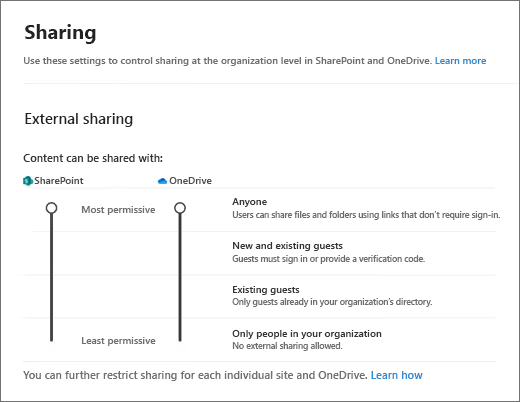
Microsoft has four organization-level options:
- Anyone: Allows sharing with links that let anyone access files or folders without authenticating
- New and existing guests: External guests sign in or verify their identity before accessing shared content
- Existing guests: Limits sharing to guests already in your directory
- Only people in your organization: Turns off external sharing
Use additional organization-level controls to reduce unwanted exposure
After choosing the overall sharing level, admins can apply extra controls that help reduce unauthorized access. These controls:
- Limit external sharing by domain: Allow or block sharing with specific external domains
- Restrict who can share: Allow only users in specific security groups to share outside the organization
- Control whether guests can share: Guests can share items they don’t own only if admins allow it
- Set guest access expiration: Automatically expire guest access to a OneDrive after a fixed number of days
- Require periodic authentication: Make people sign in again after a set number of days using a verification code
Set safer default sharing links
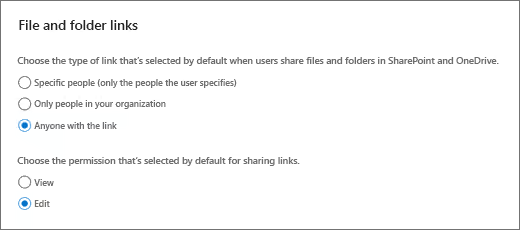
Default link behavior influences how people share content each day. You can configure your default settings so users see safer options first:
Default link types
- Specific people: Only the people the user names
- Only people in your organization: Internal-only sharing
- Anyone with the link: Available only if your external sharing level is set to Anyone
Default permissions
- View
- Edit
Add guardrails for “Anyone” links
If your tenant allows Anyone links, Microsoft gives you extra controls for short-term sharing without leaving open links active long after projects finish:
- Link expiration: Require Anyone links to expire after a set period
- Link permissions: Restrict Anyone links to view-only access for files or folders
Decide how much visibility file owners get
An organization-level setting called Show owners the names of people who viewed their files in OneDrive is turned on by default. It allows file owners to see who viewed a shared file, even if they didn’t edit it. This gives owners more visibility into how people use shared content, but it works best when each workspace has a defined, active owner who’s accountable for reviewing access over time.
How to configure individual OneDrive external sharing settings
For a specific individual’s OneDrive, admins can manage sharing in the Microsoft 365 admin center through Users > Active users > [user name] > OneDrive tab > under Sharing, select Manage external sharing. Once opened, the next step is choosing the sharing level for that user.
Use the same sharing levels as the organization setting
At the individual OneDrive level, Microsoft uses the same sharing options available at the org-level:
- Anyone
- New and existing guests
- Existing guests
- Only people in your organization
You can also configure the same supporting controls here, including default file and folder behavior and the advanced options for Anyone links.
Best practices for OneDrive sharing link permissions and ongoing governance
Admin center settings are effective guardrails, but they don’t impact long-term governance. In a self-service M365 environment, new issues often appear after enabling sharing. Here are a few risks to be aware of and best practices to consider.
Risks
- Anyone links can remain active indefinitely: Anonymous links don’t require verification and admins can’t track who accesses files through them. If you don’t set expiration timers, short-term links can stay accessible long after they should have been retired.
- Guest drift: When collaboration ends, guest accounts in Microsoft Entra often remain in the directory without active oversight.
- Folder sharing: Sharing a packaged folder instead of a single file exposes all contents by default, which can expose more than intended.
- One item can have multiple access paths: Microsoft separates sharing links, direct access, and site-level access in its permission model. Removing one link doesn’t necessarily remove every other route to the same file or folder.
What to do
- Make “Specific people” the default link type: This is the most restrictive default setting and reduces broad sharing and unwanted exposure.
- Set default link permissions to “View” instead of “Edit”: This setting lowers the chance of unnecessary editing rights being granted during routine sharing.
- Use “Block download” for view-only sharing: When enabled on supported file types (Office docs, PDFs, images), Microsoft will block download, print, and copy actions for view-only files in OneDrive and SharePoint.
- Enforce link expiration: A 30-, 60-, or 90-day expiration period for Anyone links prevents temporary access from becoming permanent.
- Use domain allow/block lists: Restrict external sharing by domain to limit collaboration to approved partner domains or block risky ones.
- Keep sensitive content in locations where external sharing is off: Store high-risk information in sites or OneDrives with external sharing disabled. This removes the chance of accidental exposure and avoids relying on users to make the right sharing choice every time they share a file or folder.
- Run regular sharing reviews: Microsoft provides sharing reports and site access reviews for SharePoint sites through the Data Access Governance reports in the SharePoint admin center. Note: site access reviews are not currently supported for OneDrive accounts, and require a qualifying base license (Office 365 E3/E5/A5 or Microsoft 365 E1/E3/E5/A5) plus either a SharePoint Advanced Management or Microsoft 365 Copilot license.
- Review guest accounts separately in Entra ID: In addition to link cleaning, review inactive accounts and revoke or remove access when a project lifecycle ends.
From admin center controls to continuous OneDrive and Microsoft 365 governance
Admin center settings define the maximum boundary for external sharing, but they don’t govern access on their own. Microsoft’s native limitations mean admins still have to piece together sharing oversight across the SharePoint and M365 admin centers, Entra ID, and OneDrive.
With a gap between configuration and governance, oversharing can build up over time. This is especially true when old links stay active, guests outlive the projects they joined, and a workspace no longer has an active owner keeping access in check. Over time, these issues build up and increase the chance of unauthorized exposure.
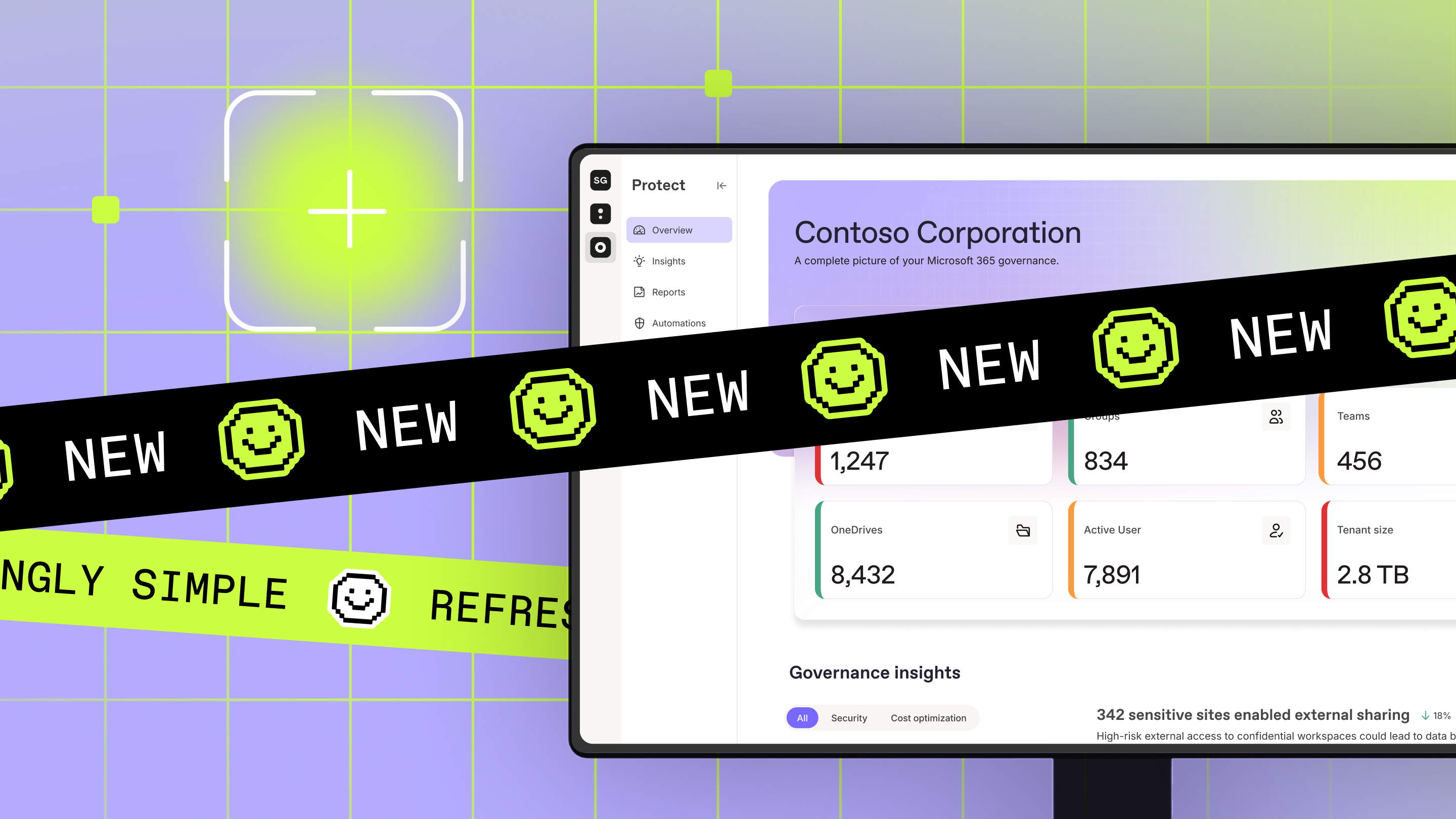
ShareGate Protect closes the gap by adding centralized visibility and guided remediation across Microsoft 365 environments. It reveals permissions and workspace-related exposure and helps you fix those issues with guided actions and bulk cleanup from one place.
Explore ShareGate Protect and keep oversharing and access under your control.







.jpeg)


Don’t just migrate it, ShareGate it.
Your source is never touched — ShareGate only copies.
Re-running is safe, included, and free.

