


.svg)

%20(1).avif)
Master Hacks: Migrate like a pro
Check out our video series to help you turn migration projects into masterpieces!
Table of contents
It’s natural to assume that once you create a “Managers Only” view in SharePoint, you’re safe and can call it a day. But views are only a presentation layer—they filter and format data, but they don’t enforce security.
When a user accesses a list, SharePoint evaluates their permissions at the site, list, folder, or item level, but not the view itself. So while a filtered view might hide certain items, it doesn’t secure them. If users have permission, they may still be able to access that content through other means, like direct links, search, or another view.
This catches lots of admins off guard, and the workarounds they often reach for, like breaking inheritance or creating a one-off exception, can solve the immediate problem. But without a clear governance approach, they tend to pile up and make permissions harder to manage over time.
In this article, you’ll gain a better understanding of SharePoint list view permissions and learn how to govern them more effectively.
What happens when admins try to secure list views?
Imagine you need to restrict a view in a SharePoint list so that only the HR team can see employee performance ratings. You quickly realize you can’t just slap a permission group on the “HR Ratings” view. So, you look for workarounds.
A common reaction is for the IT admin to break inheritance at the list level. But what if other departments still need to see the non-sensitive columns in that list? You might try creating separate lists for each audience, but this can lead to duplicate data and version control issues.
Before going further, you might turn to SharePoint’s built-in item-level settings, like limiting users to only see items they created. But these only cover simple scenarios and fall short when you need to restrict specific records across teams.
So instead, you start applying item-level permissions manually, breaking inheritance on individual list items to control access. Yet every time you break inheritance, SharePoint creates unique permissions, so that item or list stops listening to the rules of the parent site. While unique permissions have valid use cases, they scale poorly, and when you rely on them as a view-security workaround, exceptions accumulate fast.
When employees change roles or people leave the company, their item-level permissions only update automatically if they were originally assigned via groups. But any permissions that were given directly to users don’t automatically update. This makes your permission mapping incredibly difficult to trace.
This leads to a tangled web of inconsistent user experiences and forgotten access grants, with hidden oversharing becoming the norm. This sprawl also guarantees a painful cleanup process, especially without the right visibility tools.
Why can’t SharePoint list views have unique permissions?
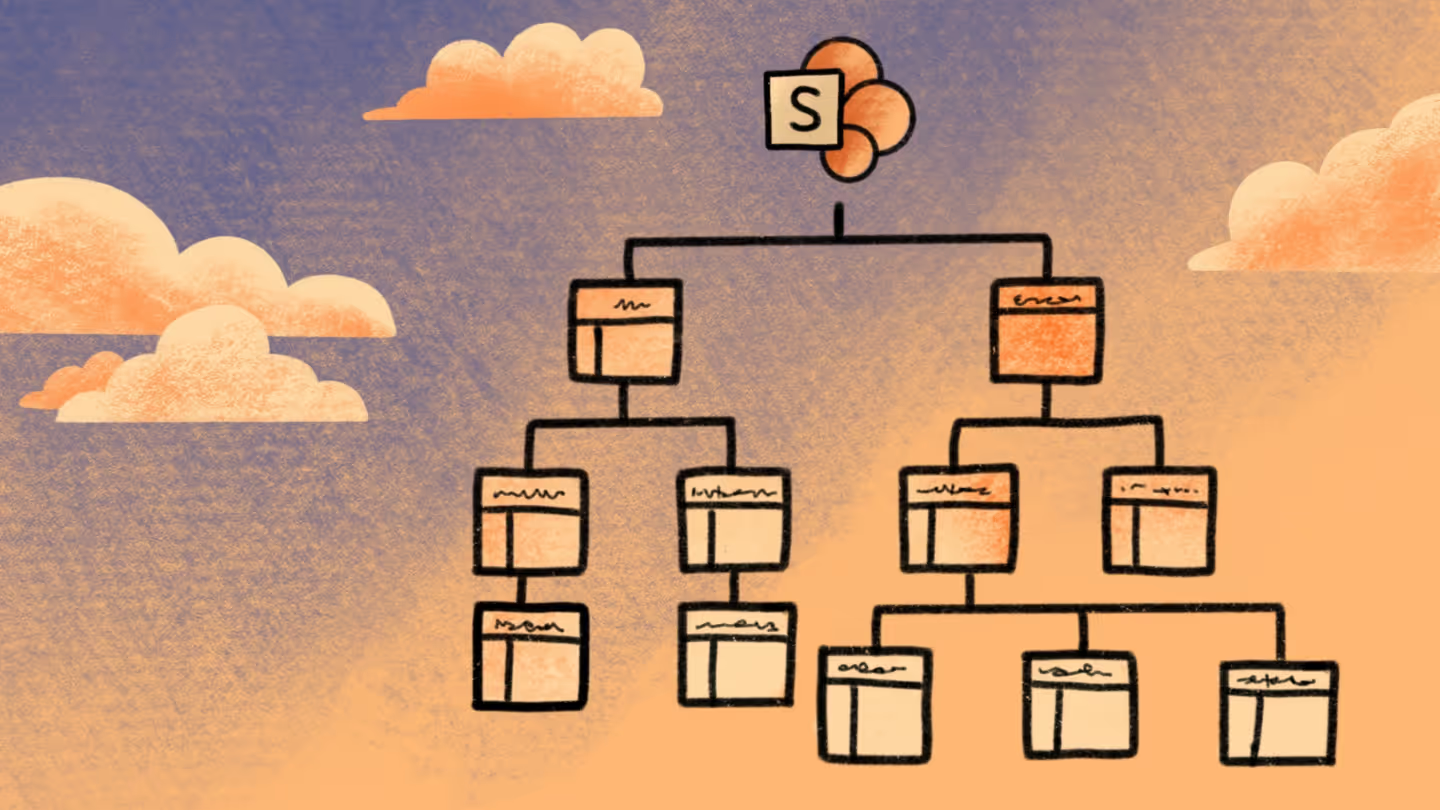
SharePoint operates on the following permission hierarchy:
- Site permissions: the top-level boundary
- List or library permissions: inherit from the site, but can be broken
- Folder permissions: inherit from the list, but can be broken
- Item-level permissions: inherit from the folder or list, but can be broken
When a user loads a page, SharePoint checks their credentials against this hierarchy, but as you can see, views are missing from it. If a user has read access to the item, the data is delivered to their browser. The view only controls how it’s displayed.
This is where things often get misunderstood. Views can feel like a way to control access, but they’re really just a way to organize what users already have permission to see. Permissions can also be broken at multiple levels, and overuse leads to complexity.
This architecture explains why several common security tactics fail. Here’s a breakdown of what admins often think view settings do versus what they actually do:
Audience targeting is another feature admins often mistake for a security control. It allows you to manage the visibility of navigation links or specific web parts based on a user’s group membership.
While audience targeting is an effective way to declutter a busy intranet homepage, it doesn’t restrict access to the underlying list items. If a user isn’t in the targeted audience, the link won’t appear on their page, but if they search for the list or someone sends them a direct link, they can still open it. Remember, audience targeting is strictly for personalization and not protection.
Best practices for managing SharePoint list access safely
Since SharePoint permissions for views can’t enforce security, here’s how to align with Microsoft’s actual permission model.
Use SharePoint groups instead of direct user assignments
Assigning permissions to individual users doesn’t scale—when roles change, it quickly becomes difficult to manage. Instead, set list permissions through established SharePoint groups or Microsoft 365 groups. When someone leaves the team, you only need to update the group membership once to revoke their access everywhere.
Avoid unnecessary item-level permissions
Item-level permissions don’t scale well. As the number of uniquely secured items grows, performance can degrade and access becomes harder to manage.If you find yourself applying unique permissions to hundreds of items, it’s time to rethink your architecture—you might need to create separate lists or entirely separate sites for your sensitive data.
Break inheritance intentionally and document it
While it might sound counterintuitive, there are actually valid reasons to break inheritance on a list or folder, like securing confidential information or for compliance purposes. But it should be a conscious architectural decision, not a quick fix.
When you do break inheritance, document why you did it and who owns the content, so future admins understand the context.
Educate site owners about view limitations
A lack of understanding of the underlying architecture can leave owners assuming a site is secure when it isn’t. Educate site owners on the difference between presentation (views) and protection (permissions) so that your sensitive information stays private.
Use audience targeting only for navigation personalization
Remember that you should strictly use audience targeting for decluttering: it isn’t a protection layer. Make sure your site owners understand this distinction before they use audience targeting to “hide” sensitive links.
Pro tip: For more detailed guidance on configuring these levels, download our free IT governance toolbox guide.
How list view workarounds lead to permission sprawl and governance risk
You likely won’t know there’s a problem with your SharePoint list permissions until an audit or incident surfaces it. It often starts small—an admin might break inheritance on a list to restrict access to sensitive items, or a user might create a custom view and assume it limits visibility—but these actions quickly accumulate.
As ownership changes, the original intent behind those permissions gets lost, and Microsoft 365’s visibility tools are scattered. IT admins need to check Microsoft Purview for audit, insider risk, and data access insights. Then, they’ll review SharePoint Admin center for site-level permissions insights. To round it out, admins need Entra ID to access reviews and audit logs. Bottom line: Reports are fragmented across the ecosystem.
You can’t easily see your unique permission counts across all sites, you can’t quickly spot item-level access anomalies, and you can’t detect oversharing patterns across your entire environment. Instead, you’re left scrambling during audits, manually investigating different admin centers, desperately running PowerShell scripts, and urgently trying to piece together reports to figure out who has access to what. It’s a massive drain on IT resources and a significant security risk.
How ShareGate Protect restores visibility into access and sharing
ShareGate Protect provides the ongoing visibility that native tools lack, without changing Microsoft’s model or needing custom scripts. It gives you tenant-wide visibility into permission risk signals (like broad access, “Everyone except external users,” and containers with broken inheritance).
Rather than a painstaking manual investigation, you get clarity in seconds. ShareGate Protect also detects oversharing indicators and provides prebuilt reports and shareable evidence snapshots, and surfaces the most pressing risks across your Teams and SharePoint sites, including OneDrive accounts. With actionable remediation insights, you can see the problem and fix it right from the dashboard—no scripts, no guesswork.
ShareGate Protect helps governance teams identify permission sprawl and detect high-risk sharing, making it far easier to restore inheritance consistency before it becomes an audit nightmare. And as organizations prepare for Copilot, ensuring your permissions are clean and accurate is the only way to prevent AI from surfacing sensitive data you don’t want it to access.
To see how ShareGate Protect can enhance your view list permissions management, sign up for a demo today.

















Don’t just migrate it, ShareGate it.
Your source is never touched — ShareGate only copies.
Re-running is safe, included, and free.

