


.svg)

.png)
Master Microsoft 365 migrations
Watch our webinar to learn accelerated migration strategies and best practices!
Watch now%20(1).avif)
Master Hacks: Migrate like a pro
Check out our video series to help you turn migration projects into masterpieces!
Table of contents
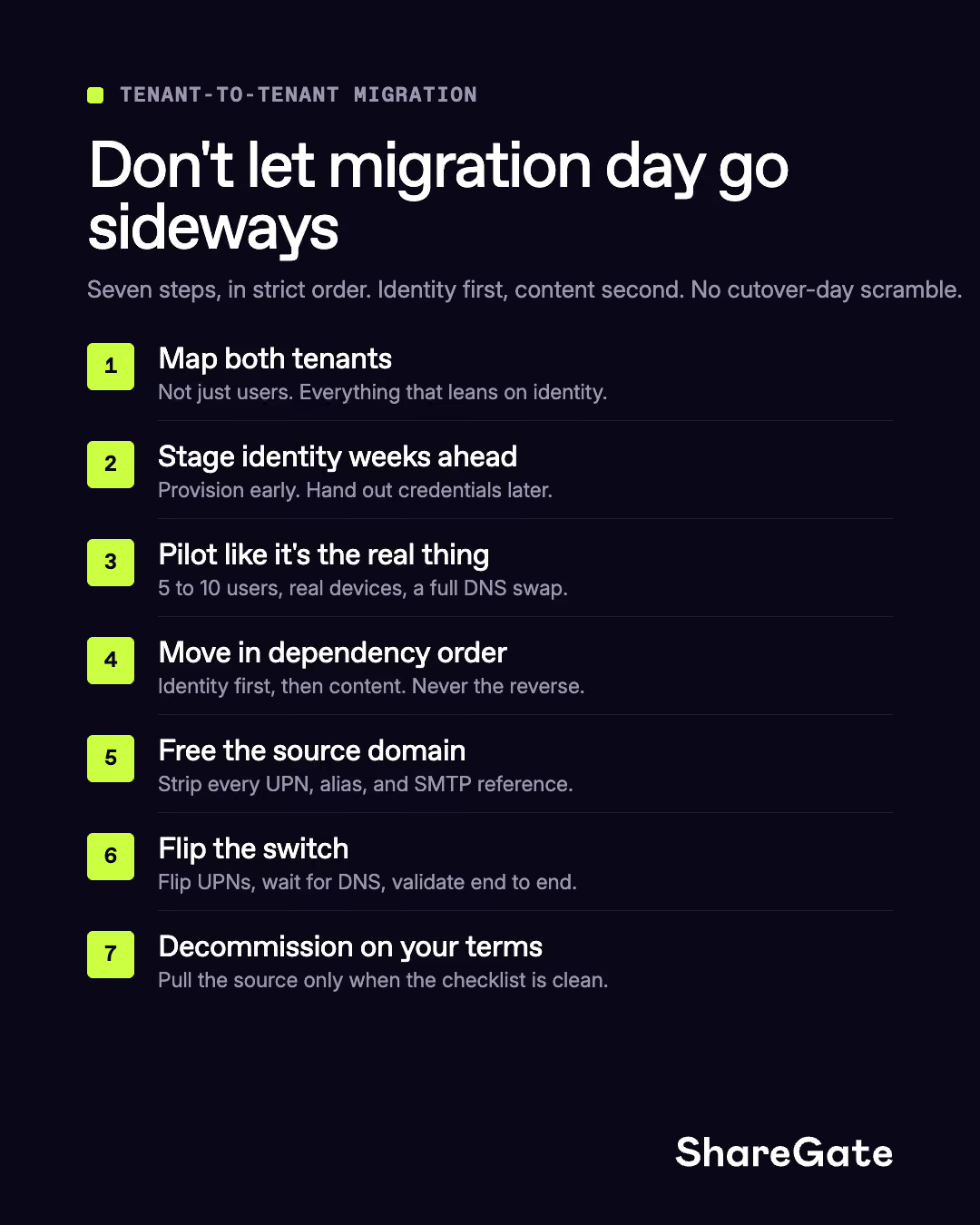
TL;DR: Identity needs to be staged in the target tenant weeks before cutover, and workloads need to migrate in strict dependency order—identity first, then content. Rush or reverse that sequence and you'll spend cutover day creating accounts and doing damage control instead of validating a clean migration.
In a tenant-to-tenant migration or when two tenants become one, the first question is always: what moves first?
Identity. Before a single mailbox or SharePoint site moves, users and groups need to exist in the target tenant. Getting the order wrong could mean spending the week after cutover doing damage control instead of helping people get back to work.
Here's the sequence that keeps it from going sideways.
1. Discover both tenants, not just the source
Before anything moves, inventory both tenants.
Inventorying users, groups, and mailboxes covers maybe a third of what actually needs to be assessed. The rest includes licenses, shared mailboxes, Teams, SharePoint and OneDrive sites, site collections, Purview labels, DLP policies, public folders, MFA registrations, and more.
In other words, if it lives in the tenant and depends on identity, it's in scope. Know what's already there before you stage anything.
2. Stage identity in the target weeks before cutover
All content migration depends on identity being in place first. When you migrate a mailbox, the user needs to exist in the target tenant as a MailUser with specific attributes. When you migrate SharePoint or Teams content, permissions map to user and group objects that have to exist in the target. There's no parallel path here, which means identity has to come before content every time.
Provisioning and handing out credentials are two separate events. Keep them weeks apart. On cutover day, you're flipping a switch, not scrambling to create accounts. ShareGate's Copy Identities lets you stage users and groups in the target tenant directly, with licenses and passwords set before anything else moves.
One thing that affects the migration itself, not just identity setup: mailboxes on any type of hold aren't migrated—the move is blocked. If your organization has litigation holds in place, plan for that before migration day.
3. Run a real pilot before you commit to the full move
A real pilot means a throwaway test domain, five to ten users on real devices, a full DNS swap, and validation on iPhone, Android, and a laptop. That's how you find what breaks before the weekend cutover—when you can fix it for ten people instead of everyone.
4. Move workloads in dependency order, not convenience order
Microsoft's Migration Orchestrator moves Exchange Online mailboxes, OneDrive, Teams meetings, and Teams chats. It doesn't move SharePoint team sites, Teams channels, or shared group content. And it doesn't move identities (that's already done by this point).
For the full picture—SharePoint sites, Teams channels, group mailboxes, and identity—you need a tool that covers the whole sequence. ShareGate Migrate handles it all: Entra ID users and groups through Copy Identities, plus SharePoint, Teams, OneDrive, and Exchange in one workflow.
5. Release the domain from the source tenant
According to Microsoft MVP Denis Molodtsov in our webinar, this is the step that catches teams off guard. Microsoft 365 won't release a domain while any object still references it—not just user UPNs, but security groups, distribution lists, shared mailboxes, resource mailboxes, and M365 groups. One stale alias and the release fails.
The sequence:
- Run a discovery sweep—enumerate every object still referencing the source domain
- Strip UPNs—flip all @sourcedomain.com addresses to @source.onmicrosoft.com
- Strip SMTP—remove primary and secondary aliases, group SMTP, shared mailbox SMTP
- Re-run the sweep—zero references means green light
- Remove the domain from the source tenant (admin center or PowerShell)
- Add the domain to the target tenant and verify with a TXT DNS record
Every step has to complete before the next one starts.
6. Cut over
Once the domain is added to the target tenant, flip UPNs from staging addresses to the real domain. Then wait.
DNS propagation after adding a domain to Microsoft 365 typically takes a few minutes to a few hours, but can take up to 48 hours. Plan your cutover window around the longer end. Don't schedule a hard deadline that depends on propagation completing quickly.
After propagation: enable sign-in, distribute credentials, validate end-to-end. Email delivers. SharePoint sites load. Teams channels are accessible.
Before you flip the switch, brief your helpdesk. Some of the ticket types they'll see: passwords, MFA enrollment, new devices, and users finding their data in a new place. None of these should be a surprise on cutover day.
OneDrive URLs change post-cutover too. Before the domain flip, destination OneDrive URLs are based on the staging UPN. After, they update to the real domain. Any bookmarks or embedded links pointing to old staging URLs break silently, with no warning to the person who shared them. Warn users before cutover and plan for resharing where needed.
7. Decommission deliberately
Don't pull the source tenant until every item on this list is confirmed:
- All recurring Teams meetings validated end-to-end (meetings stay tied to the tenant they were created in—once the source is gone, those links are dead)
- Critical content confirmed accessible in the target
- External sharing links updated where possible
- Helpdesk ticket volume back to baseline
- Leadership sign-off



Frequently asked questions

They change when the domain flips. Any link pointing to a staging-based OneDrive URL breaks silently, with no warning to the user who shared it three months ago. Audit embedded links before cutover and plan for resharing on the other side.










.avif)



Don’t just migrate it, ShareGate it.
Your source is never touched — ShareGate only copies.
Re-running is safe, included, and free.

