


.svg)

%20(1).avif)
Master Hacks: Migrate like a pro
Check out our video series to help you turn migration projects into masterpieces!
Table of contents
TL;DR: Tenant-to-tenant migrations break permissions because SharePoint references Entra ID objects—users, groups—that don't exist yet in the destination. Pre-stage identities before moving content and most failures never happen.
It's Monday morning after a tenant-to-tenant migration. Half your team can't open their SharePoint sites. Sharing links are dead. Group memberships don't match. Someone in finance has access to the HR team site. Someone in HR has access to nothing.
The root cause is almost always the same: Entra ID (formerly Azure AD) identities weren't ready in the destination tenant before content moved.
Permissions in Microsoft 365 don't live in the content. Instead, they reference identity objects in Entra ID: users, security groups, M365 groups. And when those objects don't exist in the destination, or exist but aren't mapped correctly, every permission assignment breaks silently.
Fortunately, most permission failures are preventable. They most often happen because identities weren't yet in the destination tenant. Move those first, and the majority of breakage disappears. After that, you still need to go through sharing links, custom permission levels, external sharing policies, and Conditional Access because those don't fix themselves.
Let's dive deeper into why permissions break, the major causes, and how to prevent them.
How Entra ID permissions work across tenants
Permissions in Microsoft 365 don't store names or email addresses. They store a reference to an Entra ID object (a user, a security group, an M365 group). When someone tries to access a resource, Microsoft checks their identity against that reference. Match found, access granted. No match, no access.
Why permissions don't survive the move
Move content to a new tenant and those references come with it. But they're still pointing at objects in the old tenant. The new tenant has never seen them.
It's the classic 'none of the keys fit the locks' scenario. That's why permissions break. It's basically just content arriving somewhere whose identity references don't exist yet.
Unfortunately, the fail happens silently. No error or warning. Users just can't get in.
Not all permission types break the same way though.
- Direct assignments are the obvious one. No user object in the destination, the permission just disappears. You might see "Unknown user" in the permissions panel, or nothing at all.
- Group-based permissions are sneakier. They can break twice. The group itself might not exist in the destination. But even if it does, even if you created a group called "Finance Team", if the memberships aren't populated, it grants nothing.
- Inherited permissions are a pain too. SharePoint sites inherit from parent containers. Hub sites, parent sites, root site collections. If that parent's permission structure references groups that don't exist in the destination, the whole chain collapses. Every site underneath it. Every library. Every folder.
Bottom line: identity has to exist in the destination before content moves.
What breaks and why
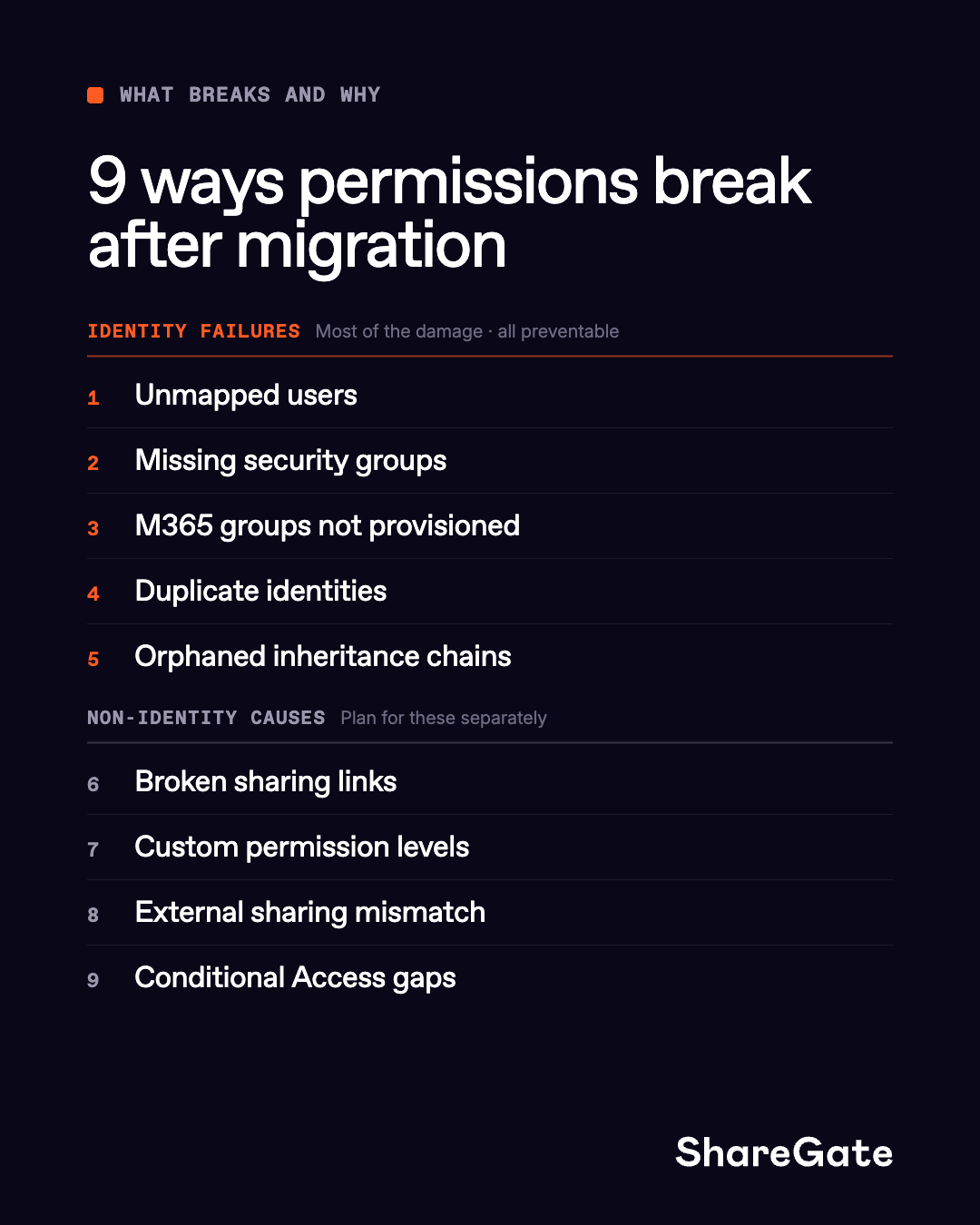
Permission failures after migration fall into two categories: identity problems and everything else. Identity problems cause the majority of the damage. The rest are smaller but still painful if you don't plan for them.
Identity failures
These five causes account for most post-migration permission issues. Every single one is preventable.
1. Unmapped users. No user object in the destination means every permission that person held resolves to nothing. No error or warning. They just can't get in. This is the most common cause of broken permissions in
tenant-to-tenant migration.
2. Missing security groups. You created the user accounts but not the groups they belong to. Or you created the groups but left them empty. SharePoint, Teams private channels, and Conditional Access policies all
depend on group membership.
3. M365 groups not provisioned. M365 groups are the backbone of Teams, SharePoint team sites, shared mailboxes, and Planner. Miss the group and all of it disappears.
4. Duplicate identities. Provisioning failed halfway through. You ran it again. Now there are two Jane Smiths in the destination and permissions are split between them. This happens when re-runs aren't managed carefully and existing objects aren't recognized.
5. Orphaned inheritance chains. A site inherits permissions from a parent group that doesn't exist in the destination. The whole chain collapses—every site, library, and folder underneath it loses effective permissions.
Non-identity causes
Pre-staging identities won't fix these. They need separate attention.
6. Sharing links. Every link tied to a specific person or group references identifiers that only exist in the source tenant. In the
destination they point to nothing. Users find out when they click something they shared three months ago and get a "not found" error. There's no automated fix. Audit them before cutover and plan for resharing on the other side.
7. Custom permission levels. If your source tenant uses custom SharePoint permission levels — "Read + Download" or "Edit
without Delete" —those definitions don't transfer. Content arrives in the destination with permission level references that point to nothing. You need to manually recreate them before cutover.
8. External sharing policy mismatch. Your source tenant allowed external sharing. Your destination is stricter. Content that was shared externally silently loses those shares. External collaborators are locked out with no notification.
9. Conditional Access gaps. Policies in the source tenant don't carry over to the destination. They reference source tenant groups that won't exist there. If your access controls depend on Conditional Access (enforcing MFA, restricting access by device or location) you need to rebuild those policies referencing destination groups before cutover. Otherwise, you have gaps in your security posture.
TIP: Most of the causes 1 through 5 show up before cutover. ShareGate Migrate gives you visibility into your source environment before anything moves. Helping you make decisions based on evidence, rather than finding out what broke on Monday morning.
The fix: pre-staging identities
Pre-staging is about creating your users, security groups, and M365 groups in the destination tenant with the right attributes and memberships before any content moves.
It works because SharePoint actually authorizes access. You might assume permissions are just a reference to an Entra ID object. That's part of it, but not the whole picture.
SharePoint maintains its own hidden list per site collection called the User Information List (UIL), which caches user identity data independently. If the IDs don't match up correctly after migration, access breaks, even if the account looks fine in Entra ID. That's why getting identities right before content moves matters so much.
Microsoft's own guidance on this is: use migration tools that map old IDs to new ones, or plan to run cleanup post-migration if users end up with new IDs.
Pre-staging solves this at the source. Here's what it looks like for each identity type.
Users
No user object in the destination means orphaned access on every resource that person touched. But even if the account exists, the wrong attributes can cause a UIL mismatch. You need the right account with the right UPN and the right properties, not just any account with the same name.
Security groups
Security groups control access across SharePoint site permissions, Teams private channels, and Conditional Access policies. An empty group is worse than no group at all. It passes a spot check: the group exists, the name matches but grants nothing. You won't catch it until users start reporting issues Monday morning.
M365 groups
Miss an M365 group and you don't just lose a permission assignment. You lose the entire collaboration workspace—the team site, the shared mailbox, the Planner boards. M365 groups need to be created with the correct owners, members, and configuration before any associated content migrates.
Getting the right objects into the destination is half the job. The other half is making sure you can re-run provisioning without creating a mess.
One thing that catches people out: migrations fail partway through. You re-run them. If your provisioning isn't anchored to something stable like UPN for users, mail nickname for groups, then the second run creates new objects instead of recognizing existing ones. Now you have duplicate accounts, permissions split across multiple objects, and a cleanup job that outlasts the
migration itself. Run it once or run it ten times, you should get the same result.
How to pre-stage identities and audit permissions before cutover
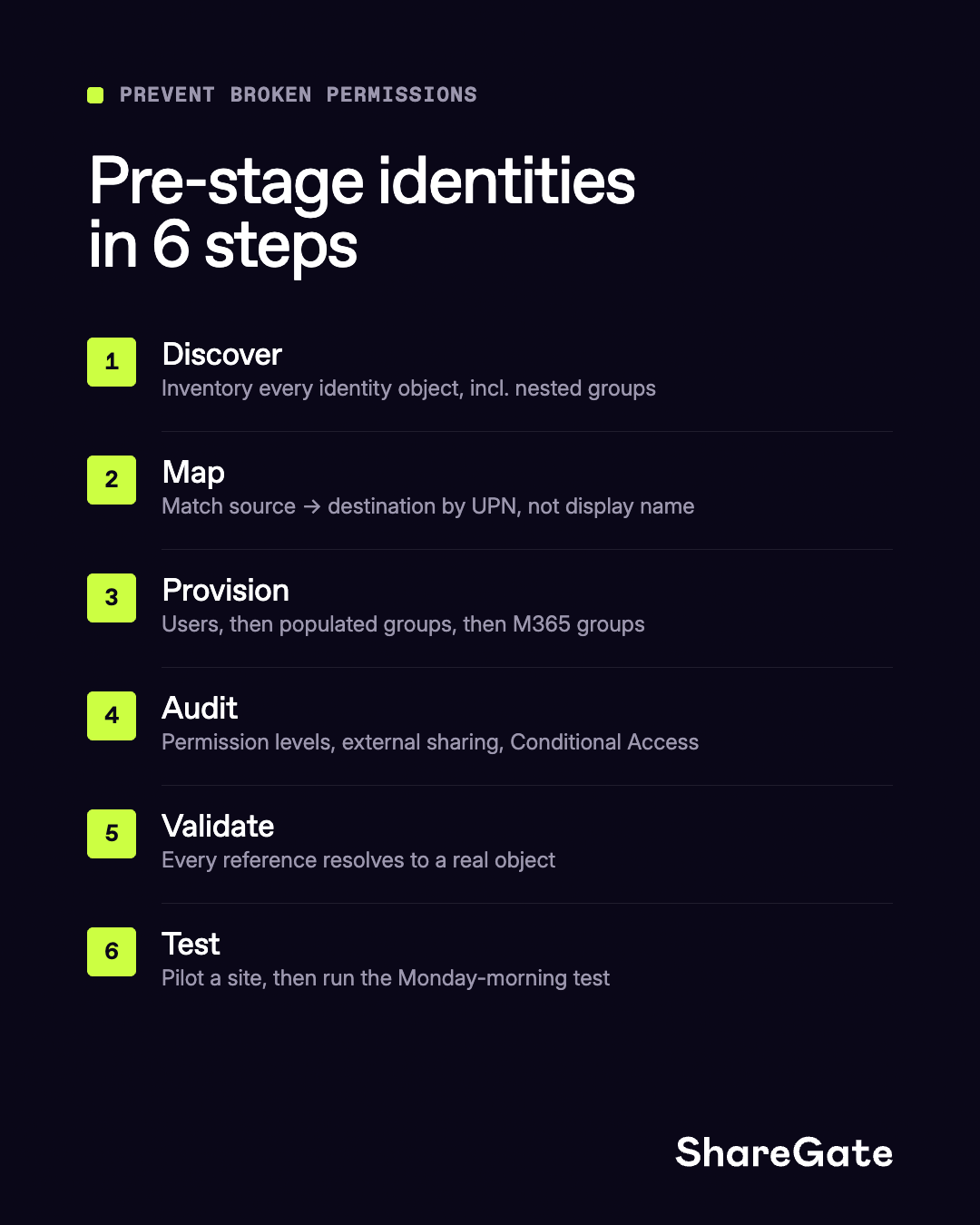
Most permission failures are preventable. They just have to be prevented before content moves, not after. Here's the sequence:
Step 1: Discover what you're dealing with
Start by inventorying every identity object in the source tenant—users, security groups, M365 groups, and their memberships. Pay attention to nested groups. A security group whose members are themselves security groups resolves membership through multiple layers. Miss any of those groups in the destination and access breaks for everyone who depends on them.
Step 2: Map source identities to destination identities
Match every source identity to its destination counterpart using something stable and unique—UPN, email address, or employee ID. Display names aren't reliable; two people can share a name and the system won't know which is which.
Before you provision anything, work through the conflicts. Some source accounts will map to the same destination account. Some groups won't have a destination equivalent at all. Others will have stale accounts, service accounts, external guests—these shouldn't migrate in the first place. Deal with all of that now. Every conflict you leave unresolved here becomes a broken permission or a duplicate account on the other side.
ShareGate's Copy Identities (currently in preview) copies users and groups from Entra ID as part of your migration projects.
Step 3: Provision identities
Create users first, then security groups with populated memberships, then M365 groups. Users need to be added to their groups before migration starts.
Don't treat a provisioned user as done until you've verified the attributes. A user account with the wrong UPN won't resolve permissions—the outcome is the same as having no account at all.
Step 4: Audit what pre-staging won't fix
Once identities are provisioned, go through the things that won't resolve themselves.
Start with custom permission levels. If your source tenant uses any "Read without Download," "Edit without Delete," or anything beyond SharePoint's defaults—they don't migrate automatically with most tooling. Run a permissions audit across your source environment to find them, then recreate them manually in the destination before content arrives. Finding this after cutover means users have content they can't access correctly.
Then compare external sharing settings between tenants. Each tenant has its own sharing configuration: what's allowed organizationally and what's set per site. If the destination is more restrictive than the source, external collaborators who had access before will silently lose it after migration. Open the SharePoint admin center in both tenants, compare the settings side by side, and align them deliberately before you move anything.
Finally, review your Conditional Access policies. They're tenant-specific and don't carry over. Any policy that references groups or named locations from the source tenant needs to be rebuilt in the destination referencing destination objects.
Step 5: Validate
Go through the mapping. Every source identity should have a confirmed destination counterpart. Every group should have correct memberships. Every permission reference should resolve to a real object.
Step 6: Test
Before full cutover, run a pilot. Pick a representative team site and a few OneDrive accounts. For Exchange, run mailbox validation separately with its own provisioning and verification requirements distinct from SharePoint and OneDrive.
Then do the whole Monday morning test. A real user logs in with their destination account. Files open. SharePoint sites load. Team channels are accessible. The permissions panel doesn't show "Unknown user." Nobody submits an access request.
If the pilot passes, you're ready. If it doesn't, you just caught the problem on a handful of users instead of the whole company.
Don't let Monday morning be your first test
Every permission failure in this article comes back to the same mistake: content moved before identities were ready. The fix just has to happen in the right order.
If you wait until content is already in the destination to sort out identity, you'll spend your first week on damage control instead of helping people get back to work.
The Monday morning test should be boring. User logs in. Mail is there. Files open. Teams load. Nobody calls IT. That's the whole goal.
Want to see how ShareGate Migrate handles Entra ID migration end to end? Book a demo.



Frequently asked questions

Microsoft's Migration Orchestrator handles content but leaves identity work to you. PowerShell scripting works for a small, clean tenant. ShareGate's Copy Identities, currently in preview, handles identity pre-staging with safe re-runs built-in.
SharePoint permissions reference Entra ID identity objects in the local tenant. If the destination doesn't have matching users or groups with the right memberships, permission assignments break, either silently or surfacing as access errors. Running permission previews before cutover catches this before users do.









.avif)


Don’t just migrate it, ShareGate it.
Your source is never touched — ShareGate only copies.
Re-running is safe, included, and free.

