


.svg)

%20(1).avif)
Master Hacks: Migrate like a pro
Check out our video series to help you turn migration projects into masterpieces!
Table of contents
Microsoft 365’s self-serve model makes speedy collaboration a piece of cake, but giving users the power to create and share content freely comes with a hitch.
When users don’t have to run content-sharing decisions through IT, poor visibility makes it difficult to determine who has access to what and why. This means SharePoint permissions management can get pretty complicated.
In this guide, we lay out how to check SharePoint permissions at the site, library, and item levels. We also cover how to confirm specific users’ access using Microsoft’s built-in tooling, helping refine your permissions management strategy.
How permissions in SharePoint Online work
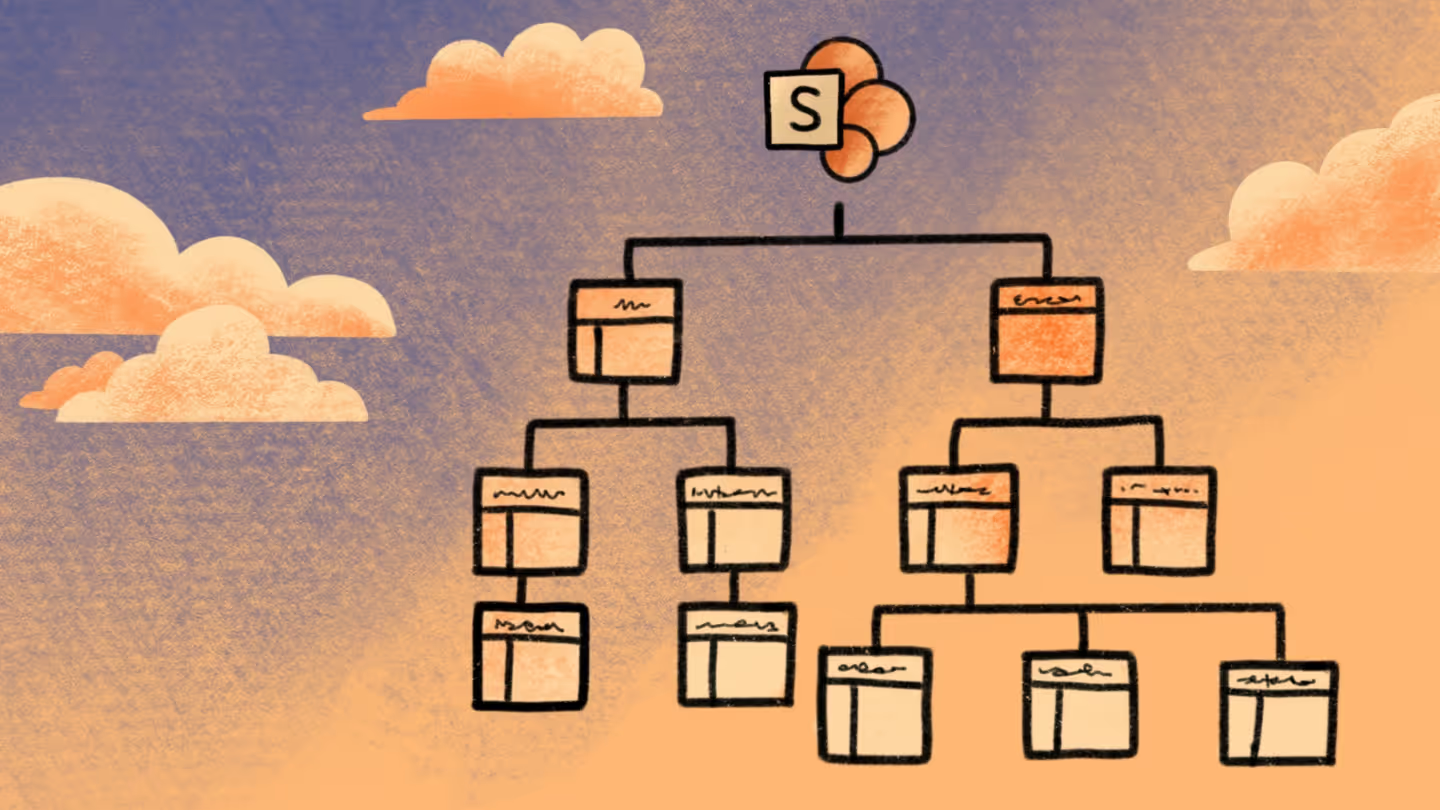
By default, each object type in SharePoint Online inherits permissions from its parent. For example, documents and items inherit permissions from folders, which inherit from libraries and lists, which inherit from the top-level site.
Inheritance is a straightforward way of managing permissions without having to set up specific rules for each object. But while this strategy might be simple, it’s not a complete solution. If an object’s inheritance breaks, it gets its own unique permission scope. Objects below it will then inherit from that object unless they also have unique permissions.
Inheritance can be broken in a few ways.Site owners or IT admins might manually adjust permissions, or a user might share a folder, document, or item with a user who didn’t previously have access. The latter scenario is only possible if SharePoint’s settings allow sharing, which they do by default. Disabling this feature can go a long way toward reining in oversharing.
Using permissions groups to help with access management
Permissions groups are collections of users with access privileges to specific categories of objects. Establishing one of these groups avoids you having to set up permissions for each individual user.
While it’s possible to create custom permissions groups, in most cases, it’s best to start with standard SharePoint groups and keep permissions as simple as possible. The default group categories available to you will depend on your site template, but the most important ones to set up are Owners, Members, and Visitors: Owners have full control over content, Members have edit access, and Visitors have read-only access.
Configuring site-level permissions
Your site-level permissions management approach will vary according to the type of site you use.
Team sites
Team sites connect to a M365 group. Microsoft recommends using a group-based management approach for these sites. You can manage access through Microsoft Teams if it’s connected, and Microsoft recommends using a group-based approach for simplicity. While you can still manage permissions through SharePoint groups, changes are best handled at the Microsoft 365 group or Team level to keep access consistent.
In Team sites, group or Team owners automatically become site owners, and will therefore show up in the default Owners SharePoint permissions group. Similarly, group or Team members automatically become site members, showing up in the Members category.
Channel sites
Private or shared Microsoft Teams channels automatically create Channel sites. Each channel has its own dedicated site, manageable in MS Teams with read-only access in SharePoint.
Communication sites
Communication sites are designed to facilitate the transmission of information to a wide audience. Use SharePoint permissions groups (i.e., Owners, Members, Visitors) to manage access.
Hub sites
Hub sites connect related sites through shared navigation, branding, and search—making it easier to organize content across your environment. Users can search across all associated sites and view aggregated news from those sites, without needing to navigate each one individually. Hub sites also apply consistent branding, like themes and logos, but they don’t control page layouts or structure within each site. Permissions are still managed at the individual site level, although hub permissions can be used to grant shared access across associated sites when needed.
How permissions differ by SharePoint site type
In SharePoint, each site type manages permissions differently. Here’s a quick overview of each:
- Team sites: When you create a team site, it joins an existing M365 group. Members added to the M365 group get access to the site by default. Group membership is the easiest way to manage permissions, but you can also use Teams if it’s connected. In that case, users will only be able to read the site, not edit it. You’re also able to add view-only users directly to the site using the Visitors group.
- Channel sites: Each private and shared Teams channel has an associated SharePoint site. To manage these permissions, make adjustments in the Teams settings. In SharePoint, users only have viewer access.
- Communication sites: Companies use these sites to share news and status updates with employees. Permissions for communication sites are a bit more granular: You can manage access using the SharePoint Owners, Members, and Visitors groups.
- Hub sites: Hub sites showcase news updates, articles, and search results from multiple other sites into a single dashboard. To manage permissions for hub sites, use the Owners, Members, and Visitors group. Or, if the hub site is associated with an M365 group, you can manage access from there.
Navigating primary access paths
SharePoint comes with two main access tiers: site-level access and item-level access.
Site-level access
Site-level permissions grant access to the SharePoint site and its content. In group-connected sites, Microsoft 365 group membership also controls access to connected services like the group mailbox, calendar, and Planner.
This is the highest level of access, and is therefore a major responsibility—follow security governance best practice by reserving site-level access for users who genuinely need it.
Sharing a SharePoint site directly avoids having to grant users access to all resources, but you’ll still need to manage their permissions on a site-by-site basis. This also creates security governance risks, since without centralized visibility, it’s easy to lose track of who has access to what.
Item-level access
When you share a link to a specific file or folder, the receiver gains item-level access. These links come in three types:
- Anyone: Provides access to anyone with the link, even those outside your organization
- People in your organization: Grants access to people tagged in M365 as working for your company, but no one outside of it
- Specific people: Only works for individuals that you specify
How to check site-level permissions in SharePoint
In SharePoint, viewing permissions at the site level is straightforward. First, navigate to a SharePoint site you have Owner-level (full control) permissions for. Select Settings (the gear icon), then Site Permissions. From here, you can review Owner, Member, and Visitor SharePoint groups for the site.
Note that updates to M365 group membership flow into SharePoint, but not the other way around. This means you won’t be able to update a Team site connected to an M365 group directly through SharePoint groups. Instead, you’ll need to make any changes through the M365 group or Team itself.
How to view site-level permissions for individual users and groups
Checking permissions for individual users and groups is another simple process. Start by clicking Advanced Permission Settings for more options, then click Check Permissions. From here, enter the name or email address of the user or group you’re looking up. You’ll see a breakdown of that user or group’s permissions, alongside how they gained access.
Be aware that the Check Permissions tool only displays user permissions for the specific website you’re investigating.
How to check SharePoint permissions at the object level
Permissions problems tend to arise when creating custom rules below the site level. For example, when an object stops inheriting permissions from its parent, it gets its own unique permission scope. Child objects will then inherit from that object unless they’re also given unique permissions. This situation is a direct path to permissions sprawl, making it much more difficult to control access.
Here’s how to check permissions for different objects in SharePoint to make sure your structure hasn’t gotten out of hand.
How to check list and library permissions
For the list or document library in question, navigate to Library, then Settings, then Permissions. From here, you can verify whether the list or library inherits from a parent site or has its own unique permissions. If the inheritance chain is broken, you’ll see which users and groups have access, along with their permission levels.
How to check file and folder permissions
Start by opening the library or list that contains the file or folder. Click the three dots next to the file or folder and choose Manage Access. You’ll see permissions data organized into three tabs:
- Groups: Standard SharePoint security groups
- People: Users who received access through the Share feature
- Links: Users who received access through the Copy Link feature
How to check permissions inheritance and access for a specific user
Head to the SharePoint Manage Access screen and click the three dots in the top right. Select Advanced Settings.
To view or update permissions inheritance, open the Permissions page. This will also show you whether the document is still part of the parent inheritance chain. If you only want to review access for a specific user, click Check Permissions and type in their name or email address. You’ll see their current granted permissions and how they received them.
While it’s possible to modify permissions at the item level, it’s not always a smart move. Since there’s no centralized dashboard, these fine-grained changes are hard to spot when there are a lot of them—you’ll have to review each one manually, creating an unreasonable operational burden.
How ShareGate Protect simplifies SharePoint permissions checks at scale
Microsoft’s native governance tools are powerful in the right circumstances, but also limited. They force you to navigate a sea of settings at the site, library, and list levels, as well as for individual items. When you’re tasked with monitoring hundreds of sites and thousands of libraries, this becomes an insurmountable operational challenge. Unmonitored external sharing links and runaway accountability can complicate things even further.
Microsoft Purview, SharePoint Advanced Management, and PowerShell scripting can ease the burden with built-in audit log visibility and report generation, but they don’t go far enough. Instead, you need a proactive, scalable solution that eliminates tedious, time-consuming, and reactive workflows.
ShareGate Protect is that solution. As well as offering tenant-wide visibility that reveals the governance issues that matter most—with severity and priority context to back it up. ShareGate Protect helps you catch and address oversharing risks, inactive workspaces, and potential Copilot exposures before they spiral into operational disasters. Once you’ve identified a problem, fix it immediately with built-in remediation actions—no PowerShell scripting or hopping between admin dashboards required.
To see how ShareGate Protect can simplify your SharePoint permissions management strategy, book a demo today.



















Don’t just migrate it, ShareGate it.
Your source is never touched — ShareGate only copies.
Re-running is safe, included, and free.

