


.svg)

%20(1).avif)
Master Hacks: Migrate like a pro
Check out our video series to help you turn migration projects into masterpieces!
Table of contents
Microsoft built Teams as the ultimate self-service platform. Depending on your organization’s settings, users can create teams, join channels, start chats, and bring tools into their workspace. Without needing IT to step in every time.
That often includes adding apps. From project tracking to file management, apps help connect Teams with tools like SharePoint, Planner, and other services so work can happen in one place.
But that flexibility creates a real challenge for the Teams administrator. Without the right controls, apps can introduce unnecessary risk—whether it’s too much access to data, unclear ownership, or tools being used without proper oversight. That’s why IT needs clear guardrails.
Teams app permissions are part of that picture. They help you control what level of access an app requests and whether that access is approved.
In this guide, we’ll explain how to govern app access in Microsoft Teams so you can reduce risk, stay in control, and support secure self-service across your organization.
Teams apps and how they integrate
Teams apps make Microsoft Teams more flexible, but they also give IT more to govern. Apps can appear in channels, chats, meetings, and even the Teams app bar—each with its own publisher, access requirements, and permissions.
That’s why understanding how Teams apps integrate is key to building the right governance model.
How apps integrate into Microsoft Teams
Apps can integrate into Microsoft Teams in a few ways:
- Tabs embedded in channels or chats: Team members or owners can add tabs like Planner tasks, SharePoint lists, or Power BI dashboards to a channel or chat when the app is available to them. Admins manage app availability and pin them through setup policies, but tabs in a specific workspace are usually added by users in context.
- Bots that interact through messages: These bots connect with users in chats or channels to automate tasks and give helpful information.
- Messaging extensions for quick actions: Extensions let users start external tasks right from the command box.
- Personal apps in the Teams app bar: Users can pin apps themselves when an app is available to them and their setup policy allows user pinning. Admins can use those policies to pin apps or control how they appear for selected users or groups.
- Meeting apps for enhanced collaboration: These apps use structured note-taking and scheduling tools during live Teams meetings or calls, helping everyone work together with less friction.
- Workflows for external service updates: Connectors link your channels to outside services like RSS feeds or email alerts. This keeps your team consistently in the loop. Teams previously used Office 365 Connectors to bring updates from external services into channels. However, Microsoft is retiring Connectors in Teams and recommends moving to Power Automate workflows before rollout in mid-May 2026.
Understanding app permissions and data access
Teams apps can access Microsoft 365 in different ways, depending on how they’re built. Some apps request permissions through Microsoft Entra ID, while others use resource-specific content (RCS) to limit access to a defined scope. When an app needs access to organizational or user data, it typically falls into two models:
- Delegated access: The app accesses resources on behalf of the signed-in user and can only access data the user is already authorized to access, based on the permissions granted to the app.
- Application access: The app works on its own without a signed-in user. This requires an IT admin to give specific permissions for the tool to run.
Some app permissions require admin consent before the app can access M365 data. Use the least-privileged admin role that can complete the task, and reserve Global Administrator for scenarios where no lower-privilege role is appropriate.
Microsoft first-party apps follow a different path than custom or third-party apps, but admins still need to configure settings, review access, or approve specific scenarios before users can work with them.
Controlling app access with resource-specific consent
A custom or third-party app can use resource-specific consent (RSC) permissions if it doesn’t need data from the entire organization. These permissions limit access to a specific resource such as a team, chat, meeting, or user instead of the entire tenant. Apps that support RSC can use it with delegated or application access, depending on how they’re built.
Consent is granted at the resource level by users who are allowed to install apps in that context, such as team owners or members, chat members, or meeting organizers or presenters. Once consent is granted, the app is limited to accessing or modifying data within that specific resource.This limits the app’s access to the specific resource it was granted permissions for, rather than broader access across the tenant.
Managing end-user access to Teams apps
For years, admins relied on legacy app permission policies to control access. Starting in April 2025, Microsoft began automatically migrating tenants to app-centric management. Depending on your environment, you may still see legacy controls until migration is complete.
Below, we’ll explain the difference between models and how to set up app access.
How the management models differ
The biggest change is how you assign app access.
In the legacy model, admins created a list of blocked and allowed Teams apps before assigning the list to users or groups. This broad approach became difficult to manage as organizations grew.
App-centric management inverts this logic. Instead of managing app access through policies assigned to users, you can assign availability directly at the app level.
3 ways to set app availability
When IT teams manage apps using the new model, here are the options:
1. Everyone: Make the app available to all users in the tenant.
2. Specific users or groups: Limit the app to selected users, security groups, distribution lists, or Microsoft 365 groups. This is ideal for tools only certain teams need to access.
3. No one: Make the app unavailable to all users in the tenant.
Step-by-step: IT admin controls for Teams apps and agents
Before you start controlling user access, you’ll need the appropriate admin role, such as Teams Administrator or Global Administrator, to manage these settings. The Teams admin center is the primary hub for these managing apps, although some permission and consent settings are handled in Microsoft 365 and Microsoft Entra.
Here’s how to get there:
- Go to the Teams admin center.
- Navigate to Teams apps > Manage apps.
This will take you to the central dashboard, letting you see the apps available in your organization, including Microsoft, third-party, and custom apps. From this page, you can handle a few different tasks:
- Review apps before allowing them: Check app details such as permissions, publisher information, and privacy terms. Allowing an app makes it available, while consent to data access permissions is handled separately when needed.
- Access support information for each app: If a tool starts to glitch or cause issues, check this dashboard for the developer’s support lists and privacy terms.
- Control app availability: Decide whether an app is available to everyone, specific users or groups, or no one.
Manage org-wide app settings
Org-wide app settings control which categories of apps are available in your tenant. Default behavior can vary by environment, so it’s important to review these settings instead of assuming apps are open for self-service. View or change this by taking the following steps:
- From the Manage apps page in the Teams admin center, select Org-wide app settings.
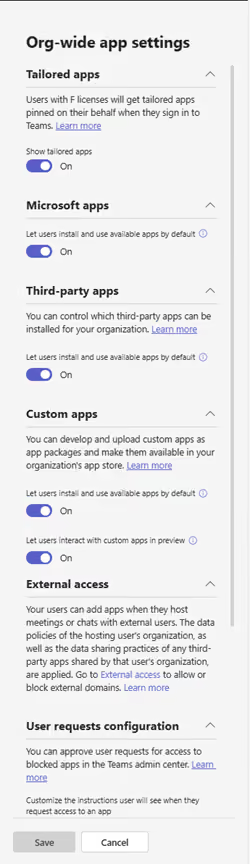
Org-wide app settings help admins set the baseline for Microsoft, third-party, and custom apps. From there, you still need to manage per-app allow/block decisions and, under app-centric management, assign each app.
Blocking or allowing apps at the tenant level
Once you’ve configured these settings, allow or block specific apps across the entire system. How you do this comes down to the management model used:
- Legacy permission policies: The Global (org-wide default) policy applies to all users unless you assign a different policy. Changes to this default policy affect users who don’t have a custom policy assigned.
- App-centric management: Allow or block tools directly from the Manage apps page, or on the specific details page, for a custom app or agent.
To make any app available, you need to review org-wide app settings, confirm the app is allowed, and make sure it’s assigned to the right users or groups. Allowing an app makes it available in your tenant. Consent to permissions is a separate step that may be required depending on how the app accesses data.
Control app availability for users and groups with governance guardrails
After enabling apps, it’s time to set specific guardrails for who can use them. This is where you move from org-wide settings to more granular control over who can use each app.This lets you assign app availability to specific users or groups that need it.
Depending on your environment, you may still see legacy app permission policies, but Microsoft is moving all tenants to app-centric management. We’ll explain each below.
App-permission policies (Legacy model)
In this management model, you control which apps users can use by creating a custom policy. Then, assign it to users using the following steps in the Teams admin center:
- Go to Teams apps and then Permissions policies.
- Click Add to create a new custom policy.
- Choose which categories of Microsoft, third-party, or custom app tools to allow or block.
- Save the policy.
- To apply or change the policy for an individual user, go to Users > Manage users, select the user, choose Edit settings, and apply the app permission policy. For larger updates, you can select multiple users from the Users page and update settings in bulk, or use PowerShell batch assignment where supported.
App-centric management (new)
IT admins will need to assign whether an app is available to everyone, specific users or groups, or no one. Do so directly from the Manage apps page:
- Log into the Teams admincenter.
- Go to the Teams apps and then to Manage apps.
- Search for the app you want to manage, and click its name to open the details page.
- Choose whether the app is available to everyone, specific users or groups, or no one.
- Click Apply to save your changes.
Self-service delegation within IT boundaries for shared governance
Microsoft supports a self-service model where users can add apps and tools within the limits defined by IT. You can set those limits through category-level org-wide app settings. Within those boundaries, users can work within approved apps, while some resource owners may grant resource-specific consent in supported scenarios. And admins control org-wide app settings (by category), per-app allowances, and app-centric assignments.
These controls help balance centralized governance with day-to-day flexibility for users. Meanwhile, users can work with approved tools in their day-to-day tasks.
Here’s how these guardrails affect users at different levels:
- End users: Users can install and use apps that are allowed by IT and made available to them. Depending on the app and its permissions, some scenarios may still need admin approval or consent.
- Team owners: In supported scenarios, users like team owners, members, or meeting organizers can grant resource-specific consent (RSC) for apps within a limited scope, such as a team, chat, or meeting. This allows apps to access data in a specific scope without needing tenant-wide permissions.
- IT admin control: Admins define the overall boundaries for app usage, including which apps are allowed and how they can be used. Use these controls to block custom apps or tools as needed.
Teams governance beyond app permissions
App management does control who uses a tool, but it doesn’t stop all the safety risks coming from a busy Microsoft Teams environment.
Where standard app controls fall short
A few common security gaps include:
- Ownerless teams: Some teams may no longer have an active owner to manage membership, settings, or app usage. Without someone in charge, it’s hard to stay accountable for what happens in that workspace. Without an owner, it becomes harder to review access, manage settings, and maintain accountability over time.
- Guest sprawl: Guest users who don’t need access may still have a way into your system. For example, a guest user may include a client who needed temporary access to test a beta product, or a penetration tester who needed temporary admin access. This guest sprawl makes it harder to track who has access to company information.
- Broad sharing links: External sharing links can give too much access to the wrong people. Following a least-privilege access model helps address this and maintain governance compliance.
The operational risk of AI exposure
With AI tools like Copilot, users can generate content based on data they already have access to across Microsoft 365. The design and marketing teams use it for creating mockups, and the developers use it to write code.
But Copilot can show content to users based on their permissions.
If access is too broad, the AI can surface sensitive info to users who already have permission to see it—but shouldn’t. This makes existing oversharing more visible and increases the risk of exposing sensitive data.
Strengthen your strategy with ShareGate Protect
ShareGate Protect is the operational governance layer for Microsoft 365. It gives IT teams a unified view of what's happening across their environment and fast, safe ways to fix the issues that matter most.
- Detect oversharing: Surfaces where access has drifted too far — unsafe sharing links, broad internal access, and external exposure across Sites, Teams, Groups, and OneDrive
- Manage guest access drift: Identifies external and guest users who have lingered past their project or purpose, so you can clean up access before it becomes a liability
- Workspace lifecycle visibility: Identifies inactive, abandoned, and ownerless workspaces so you can assign accountability and clean up what's no longer needed
- Actionable insights reports: Surfaces severity indicators and trend signals so your team knows what to prioritize and can act on it directly, without switching admin centers or running scripts
Keep in mind that ShareGate doesn’t replace your Microsoft app controls, and you’ll still need an experienced admin to manage app permissions and settings. What Protect does is eliminate the fragmented visibility that makes governance reactive. Instead of piecing together reports across admin centers, your team gets one clear picture and a faster path to cleanup, remediation, and optimization.
Find out how ShareGate Protect can keep your organization secure—request a demo to get started.

















Don’t just migrate it, ShareGate it.
Your source is never touched — ShareGate only copies.
Re-running is safe, included, and free.

