.svg)

%20(1).avif)
Master Hacks: Migrate like a pro
Check out our video series to help you turn migration projects into masterpieces!
Table of contents
Whether people are coauthoring documents in SharePoint or sending confidential emails to external partners, access is what keeps work moving. But sensitive data doesn’t just live in one place. And risk often comes from files that are shared too broadly, mislabeled, or left unprotected inside the tools your teams use every day.
Microsoft Purview sensitivity labels are a key part of your data protection strategy. They help you classify and protect your data across Microsoft 365. When configured right, they help you secure data without unnecessarily slowing down collaboration—but getting that balance right takes planning.
In this guide, we’ll walk through how labels function in the Purview ecosystem and how they support your broader governance and compliance governance strategy.
What are Microsoft Purview sensitivity labels?
Sensitivity labels are custom tags that classify and protect your company’s data. They can be applied to both content (files and emails) and containers (Teams, Microsoft 365 Groups, and SharePoint sites)—but they behave differently depending on where they’re used.
At the container level:
Labels help enforce governance settings like privacy, external sharing, and guest access. This keeps collaboration aligned with your policies and helps reduce the risk of oversharing.
At the content level:
Labels apply protection settings like encryption, access restrictions, and visual markings. When encryption is enabled, content stays protected, even if it’s shared outside your organization, based on the permissions defined in the label.
Keep in mind that the labels themselves don’t protect your data on their own. Instead, they apply the protection rules you configure.
Behind the scenes, Microsoft Purview brings this together with:
- M365 data classification identifies sensitive information using tools like Sensitive Information Types (SITs) and classifiers.
- Sensitivity labels define how data should be protected.
- Label policies control how labels are published and applied across your organization.
With standard Microsoft 365 licensing, sensitivity labels are typically applied manually. Auto-labeling and advanced classification options need premium Microsoft Purview Information Protection licensing (like an E5 license or equivalent add-on).
Real-world sensitivity-labeling scenarios for M365 admins
Let’s look at how M365 sensitivity labels play out in day-to-day admin work.
Protecting files that move beyond your tenant
Think about a cross-org project where files don’t stay put.
When you apply a sensitivity label with encryption, protection stays with the file—even if it’s downloaded or shared externally. But access isn’t universal. It’s still tied to identity.
That means:
- Authorized users keep access
- Everyone else gets blocked, even if the file gets forwarded around
It’s a simple way to reduce accidental oversharing without relying on users to make the right call every time.
Setting guardrails at the workspace level
When spinning up a new Team or SharePoint site, container labels help you define the rules upfront.
You can control things like:
- Guest access
- External sharing
- Privacy settings
What they don’t do is enforce protection on the files inside. Those still need their own sensitivity labels if you want encryption or usage restrictions.
In practice, that means admins often combine:
- Container labels → for workspace governance
- Sensitivity labels → for file-level protection
Getting Copilot access under control
Copilot doesn’t “discover” content—it works within the access users already have.
So if a user can access a file, Copilot can too.
Sensitivity labels come into play when encryption is involved. If a label restricts how content can be used (like limiting copying or extraction), that can impact how Copilot interacts with it.
The takeaway: Good permissions hygiene matters more than anything else. Labels help, but they don’t replace access control.
Pro tip: Don’t lose your labels during migration
Moving to M365 or restructuring your tenant shouldn’t mean losing your classification work. With tools like ShareGate Migrate, you can bring your existing sensitivity labels during the shift. That way, your protection settings stay the same in your new environment.
A high-level checklist for effective sensitivity labeling in M365
Before you create labels in the Purview portal, it’s worth stepping back and thinking through your rollout strategically so it’s done right the first time.
Here’s what to focus on first.
Start with your data—not your labels
Before creating anything in Purview, work with your compliance, legal, and security teams to define how your organization classifies data.
Clarify:
- What types of data you handle
- What needs protection (and why)
- Any regulatory or business requirements
Common options include:
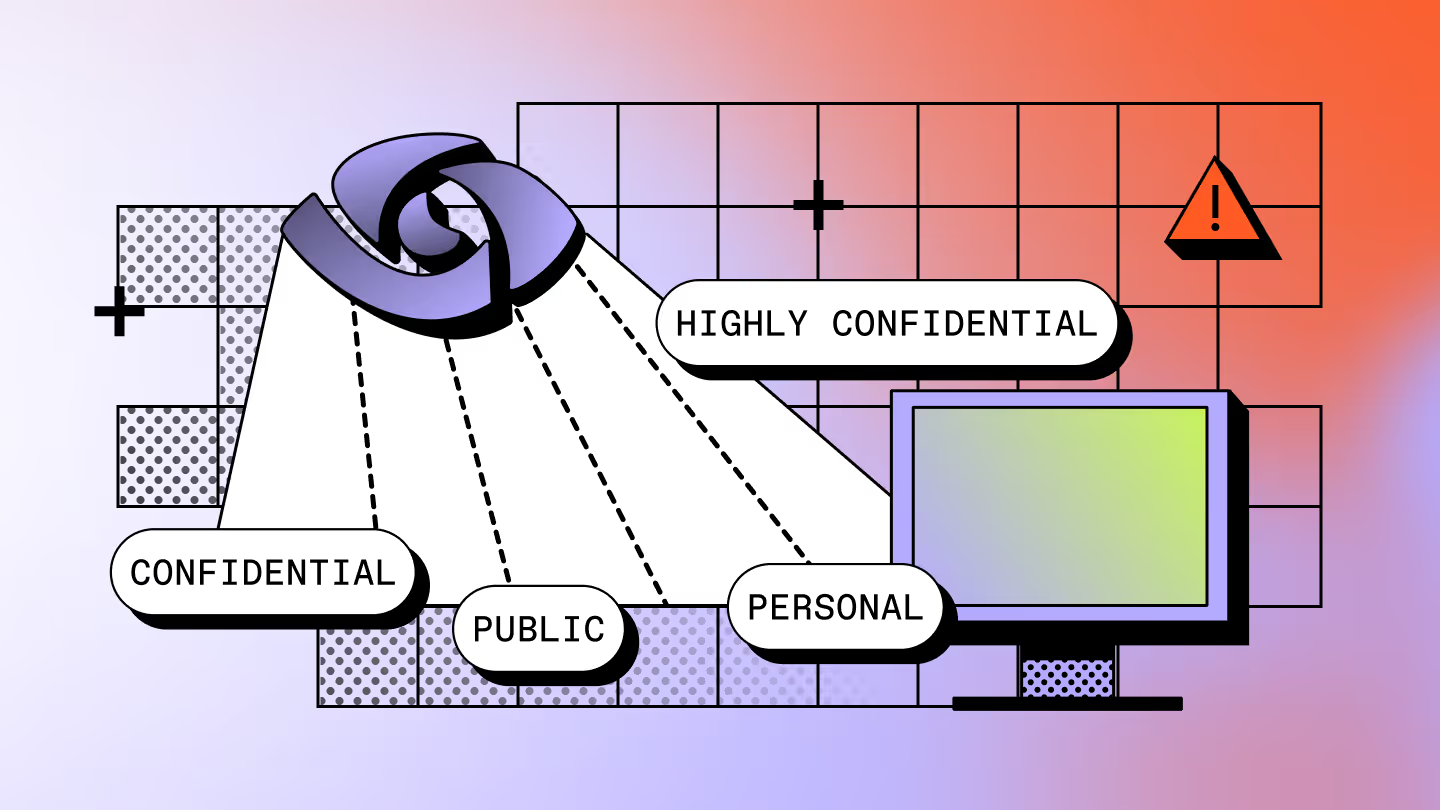
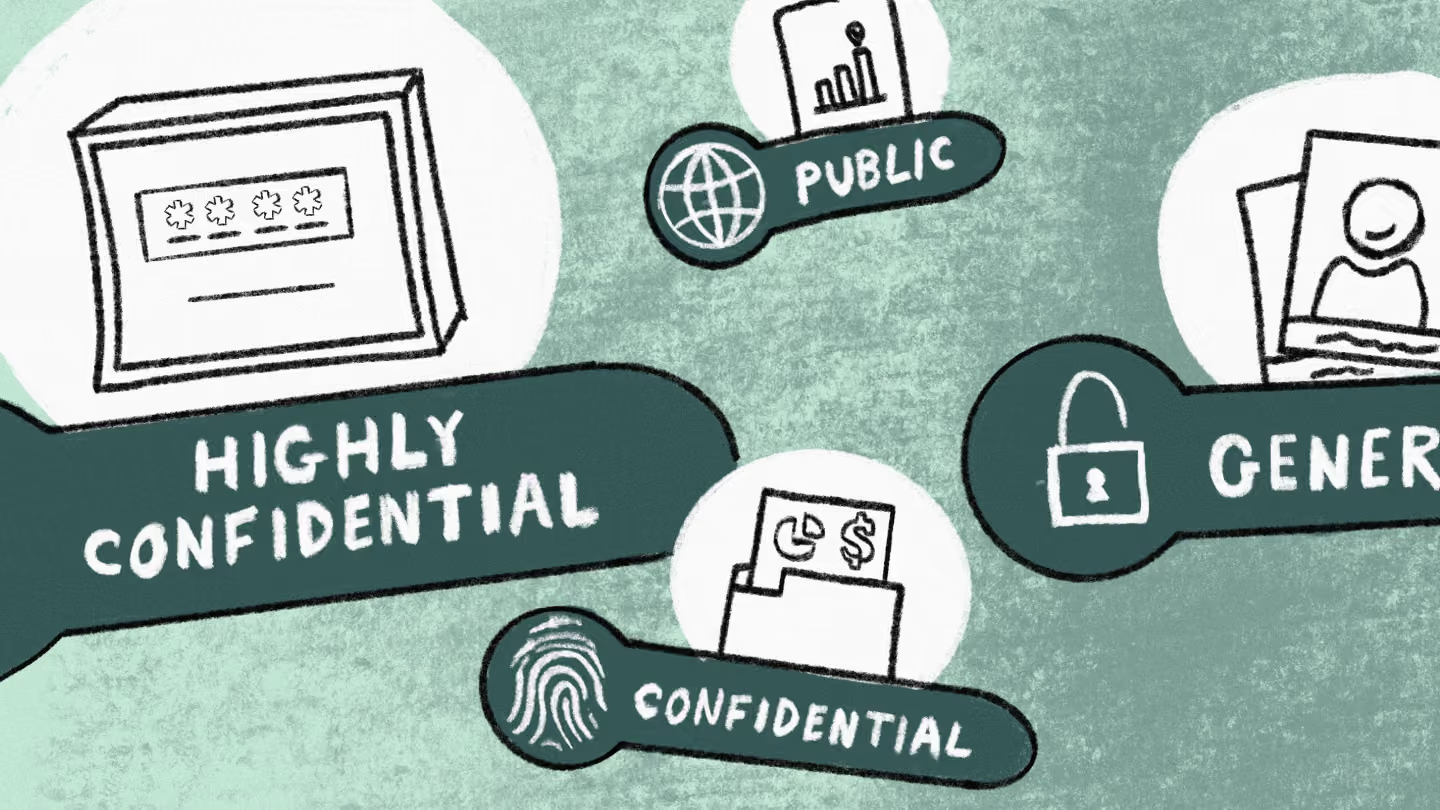
- Public (press releases, public websites)
- General (internal newsletters, project planning documents)
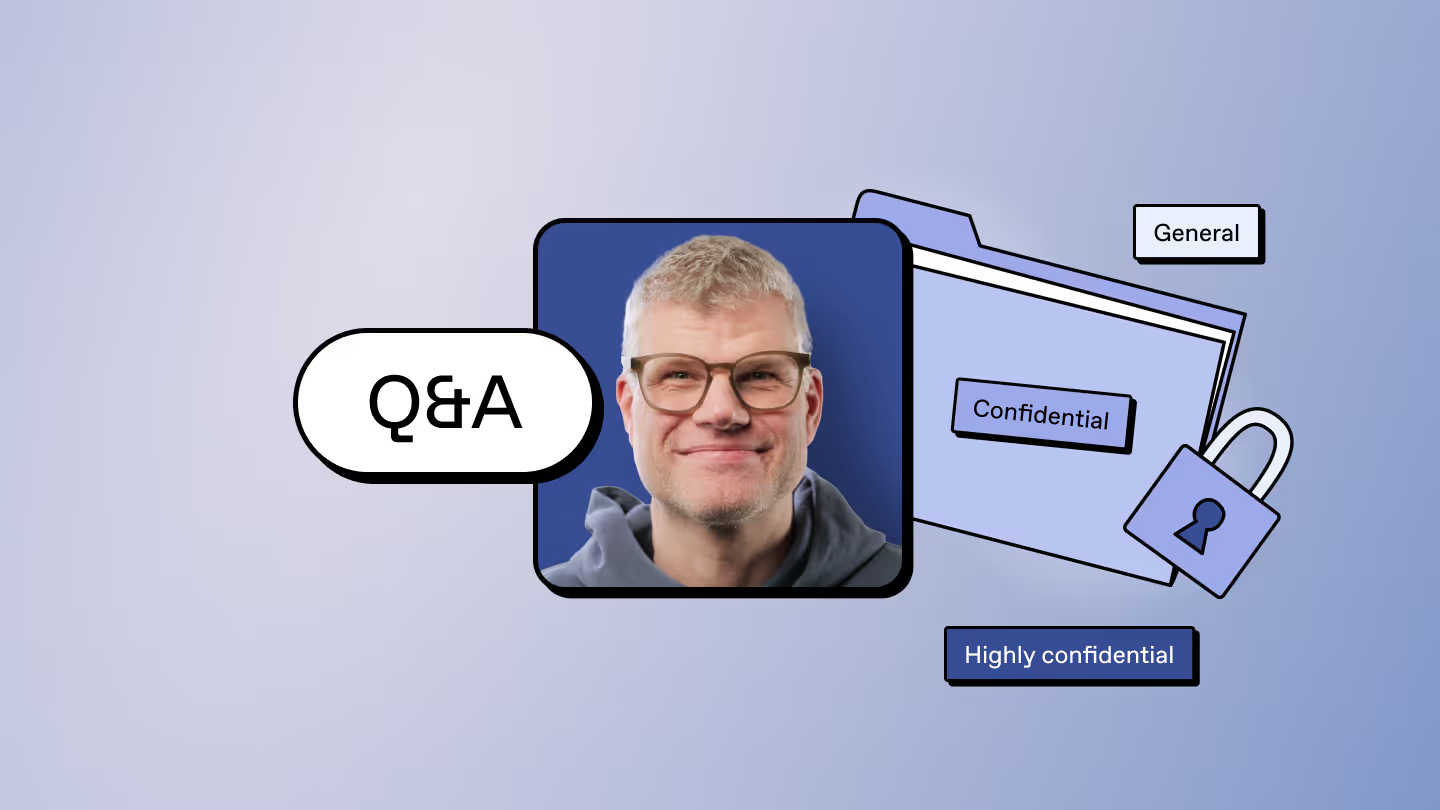
- Confidential (contracts, internal financial reports)
- Highly Confidential (medical records, trade secrets)
Document how each meets the criteria in clear, simple terms, so users can understand without needing a compliance background.
Keep labels simple and usable
It’s tempting to go with a standard four-tier model (Public, General, Confidential, Highly Confidential), but in practice, that often creates confusion.
Aim for:
- Fewer labels with clear, distinct purposes
- Plain-language descriptions users can actually understand
- Real examples of what belongs in each category
If users have to guess, they won’t use them.
Apply protection where it matters (not everywhere)
Not every label needs encryption or restrictions.
Start simple:
- Use labels for classification and awareness
- Add protections like encryption or access controls only where there’s real risk
Overprotecting content can create more problems than it solves, especially when users can’t open what they need.
Strengthen Microsoft 365 governance and reduce risk with ShareGate
Sensitivity labels help you classify and protect your data, but they only draw the boundary lines. Your team still needs visibility into content and collaboration spaces to keep the environment secure as you scale.
ShareGate Protect works alongside your sensitivity labels to support broader access governance. See exactly where oversharing has crept in, track guest access and external sharing patterns across your entire environment, and clean up the inactive workspaces and unsafe links that put your data at risk. Then fix the issues that matter — in minutes, without scripts or admin-center hopping.
Keep your environment secure, your governance continuous, and your Microsoft 365 ready for Copilot.
Start a free trial to see how easy governance can be with ShareGate.

Frequently asked questions

To check the use of sensitivity labels, use the Data classification analytics in Microsoft Purview’s compliance portal. This lets you track label usage across your tenant, identify where sensitive data resides, and monitor policy matches over time.
Auto-labeling automatically applies a sensitivity tag to content based on specific conditions. This includes the detection of SITs or trainable classifiers. With auto-labeling, users keep data protection consistent since they don’t need to clarify the content by hand. This feature requires premium licensing.
Sensitivity labels and DLP policies often work side by side, but they don’t do the same job.
- Sensitivity labels classify and protect content (like applying encryption or access restrictions)
- DLP policies control what users can do with that content (like blocking sharing)
In practice, IT teams usually layer both:
- Labels define the sensitivity
- DLP enforces how that data can move
Getting them to work smoothly together often takes some testing, especially across Exchange, SharePoint, and Teams.


.avif)
.avif)

.avif)






Don’t just migrate it, ShareGate it.
Your source is never touched — ShareGate only copies.
Re-running is safe, included, and free.